There are three ways to make a workflow: describe it and let OneFormAI build it, start from a ready-made recipe, or add the actions yourself. New workflows run next to the form's Default workflow, so the standard steps keep working.
Before you start
- You need to be an owner or admin.
- Turning on workflows of your own depends on your plan. You can build a draft on any plan.
- If the workflow sends to another app, such as Slack or Google Sheets, you can connect it along the way.
Create a workflow with AI
- Go to Workflows.
- Under Create with AI, say what should happen, for example "Add every response to a Google Sheet". You can also click one of the examples under the box.
- Next to For, choose the form.
- Click Set it up.
- If OneFormAI asks A quick question, pick an answer and click Continue, or click Skip.
- Read Here's the plan. It lists what will happen, and anything you need to connect first, each with its own button.
- Click Build it.
OneForm builds the workflows and turns each one on once everything it needs is connected. If an app still needs connecting, click Build now, connect later and finish it in the workflow. Creating with AI uses OneAI Tokens.
Start from a recipe or a blank workflow
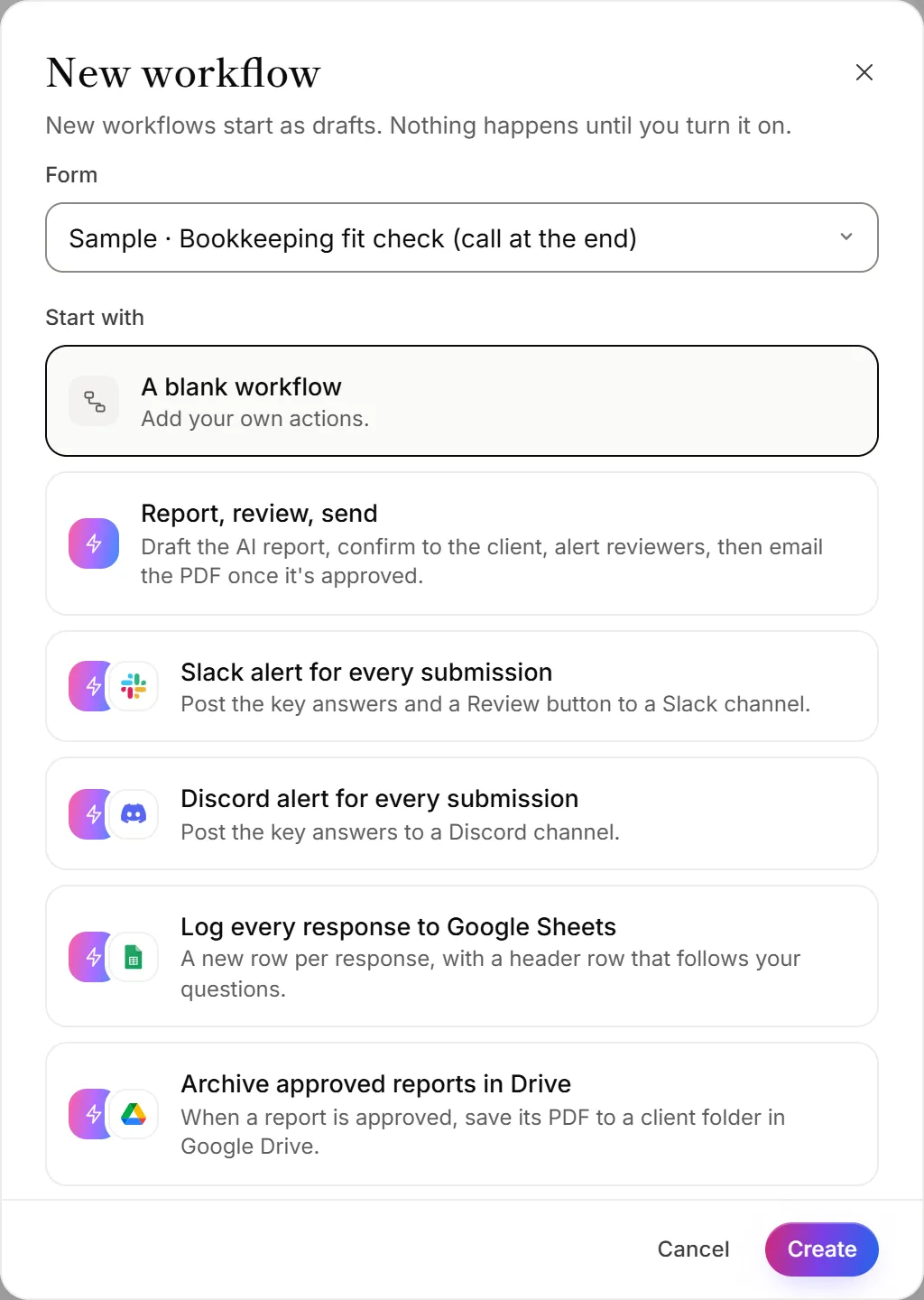
- Go to Workflows and click New workflow. Or click a recipe under Start from a recipe.
- Under Form, choose the form.
- Under Start with, pick A blank workflow or a recipe.
- Give it a Name and click Create.
- In the editor, choose what starts it under Starts when.
- Click + under the trigger, or between two actions, and choose an action from Add an action.
- Click the action to set it up in the panel on the right. Use + Insert answer to put the client's name, answers or report into a message.
- Repeat for each action. Drag an action by its handle to change the order.
New workflows start as drafts. Nothing happens until you turn them on. A draft saves as you go.
Test it and turn it on
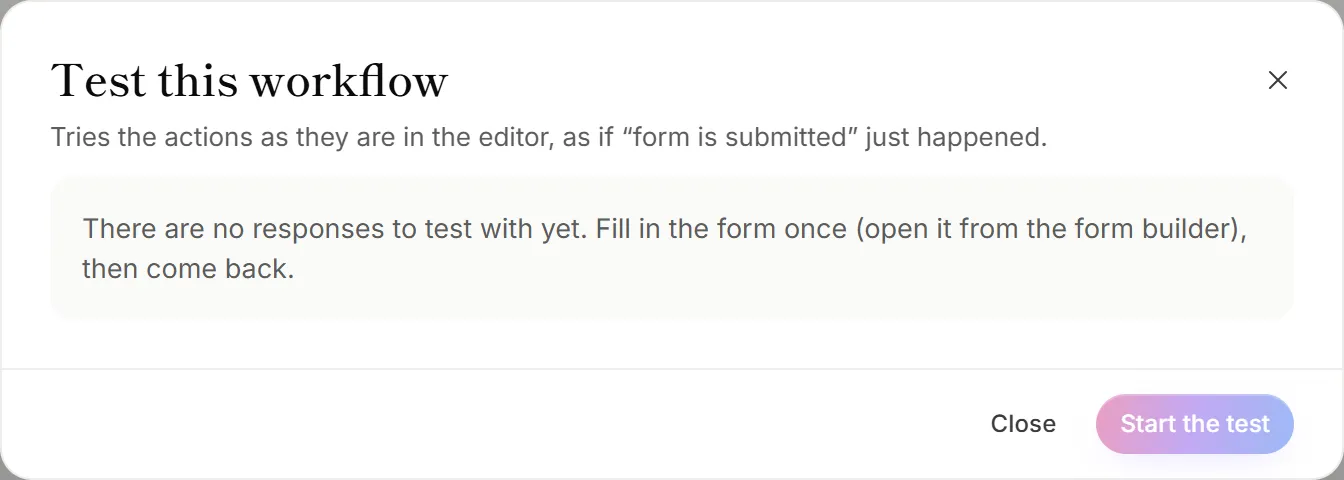
- Click Test it at the top of the editor.
- Under Use the answers of, choose a response.
- Click Start the test. Each action shows whether it worked.
- Click Turn on.
A test sends only the first email, as a preview to your own address, not to the client or reviewers. Waits and approvals are skipped, and no report is drafted or emailed. Connected apps such as Slack, Google Sheets or Drive really get the test, marked as a test.
Change a workflow that's on
Changes to a live workflow don't take effect until you click Save and turn on. Until then, the top of the editor says Changes not turned on yet, and Discard puts it back. To stop a workflow for a while, click Pause.
On the Workflows page, each workflow's ⋯ menu has Open, Pause or Turn on, Duplicate and Delete. A copy starts as a draft. Deleting a workflow deletes its run history too. A form's Default workflow can't be deleted.
Why can't I turn on my workflow?
- An action isn't set up yet. The editor says how many actions need setting up, and each one shows what's missing in amber. Finish them, or turn on Skip this action for the ones you don't need yet.
- Your plan's workflows are all in use. You'll see a message saying how many live workflows your plan includes. Pause another workflow, or upgrade.
- An action or trigger isn't on your plan. Some apps, and the Lead becomes Hot trigger, need a higher plan. The action picker shows the plan you'd need.
Why can't I test my workflow?
- The form has no responses yet. Fill in the form once yourself, then come back to Test it.
- Your email address isn't confirmed. Test runs email a preview only to a confirmed address. Confirm yours, then try again.