An If / Else splits a workflow into two paths. When its conditions match, the workflow carries on down Yes; otherwise it goes down No. Use it to alert a partner about high scores, follow up only with people who asked for help, or skip a step for some clients.
Add an If / Else
- Open the workflow from Workflows.
- Click + where the split should happen.
- Under Logic, choose If / Else.
- In the panel on the right, click Add condition.
- In the first box, pick what to check, such as an answer or a score.
- In the second box, pick how to compare it, such as is, contains or ≥.
- Enter or pick the value.
- Add actions under Yes and No with their own + buttons.
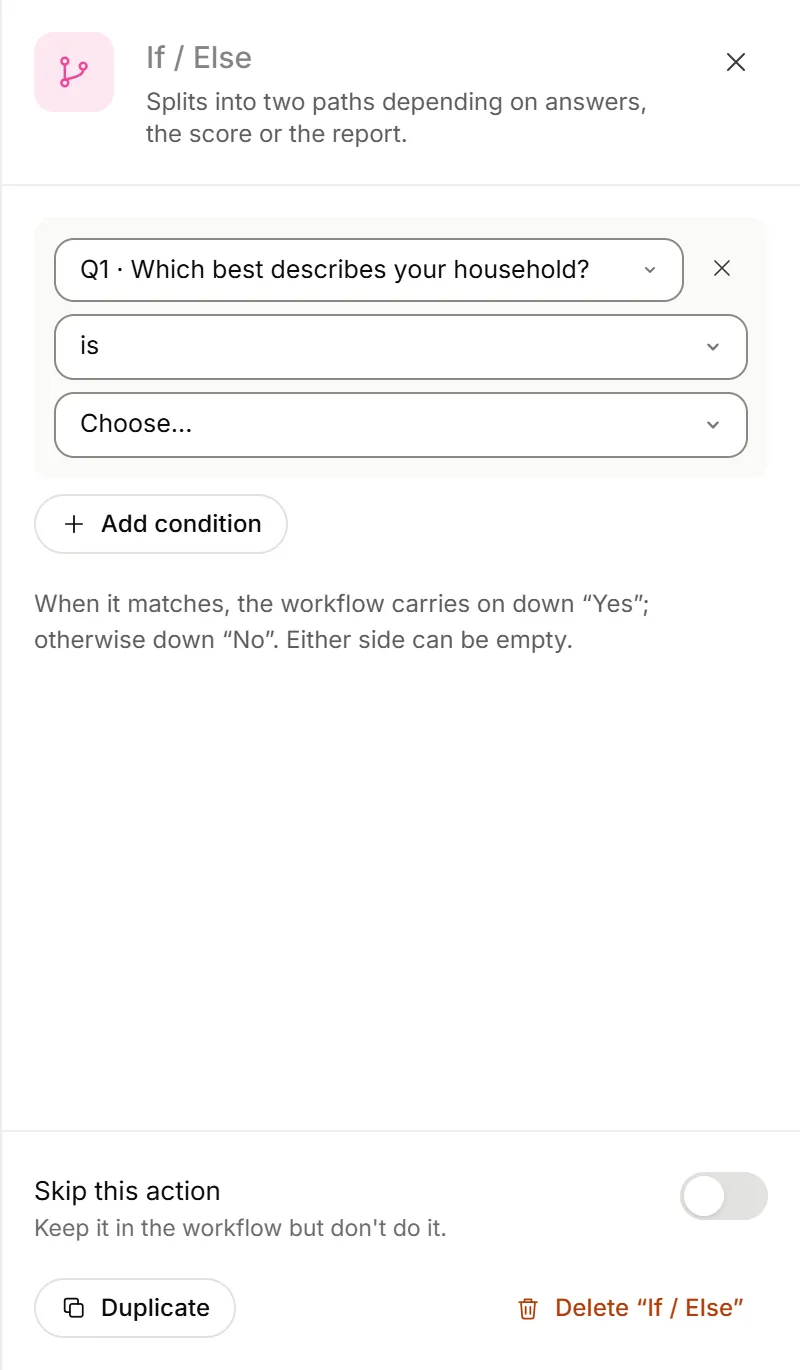
Either path can be empty. Actions you add below the If / Else, outside both paths, run after either path.
What you can check
| Group | What's in it |
|---|---|
| Answers | Any question on the form, listed by number, such as "Q3 · Filing status". |
| Scores | The form's scores and calculations. |
| Hidden fields | Values passed in the form's link, such as a campaign or referral code. |
| Submission | Device, Language, Ending shown, Ad or campaign source (UTM) and Website they came from. |
| Report | Report status (Needs review, Approved or Sent) and Report written by (OneFormAI or an answers summary). |
How you can compare depends on what you check: choices offer is any of and is none of, numbers and scores offer =, > or ≥, and any answer can be is answered or is skipped.
Check more than one thing
Add a second condition with Add condition. Then choose:
- All must match: every condition has to be true to go down Yes.
- Any can match: one true condition is enough.
Good to know
- Branches can hold branches. You can put an If / Else inside another one, up to 4 levels deep.
- The card sums it up. Each If / Else card shows its rule in words, such as "If Score ≥ 50". Click the name at the top of its panel to give it a clearer one.
- Tests show the path. After Test it, the path the test took is marked. In Activity, each run says which path it took.
- Deleting an If / Else deletes what's inside it. OneForm asks first.
- Lead scores live on the Leads page. To branch on Hot, Warm or Cold, use the Lead becomes Hot trigger or the Which leads setting on CRM and lead-list actions. See Workflow actions.
Why can't I turn on a workflow with an If / Else?
An If / Else needs at least one condition. Until it has one, its card says Add a condition. and the workflow can't be turned on. Add a condition, or delete the If / Else.
Why did my workflow go down the wrong path?
- The answer didn't match exactly. is needs the whole answer to match. Use contains for part of a text answer.
- The question was skipped. A skipped question doesn't match a value. Add a condition with is answered or is skipped to handle it.
- All versus any. Check whether the If / Else says All must match or Any can match.