Actions are what a workflow does, one after another, from top to bottom. To add one, click + under the trigger or between two actions in the workflow editor, and pick it from Add an action. Then click the action to set it up in the panel on the right.
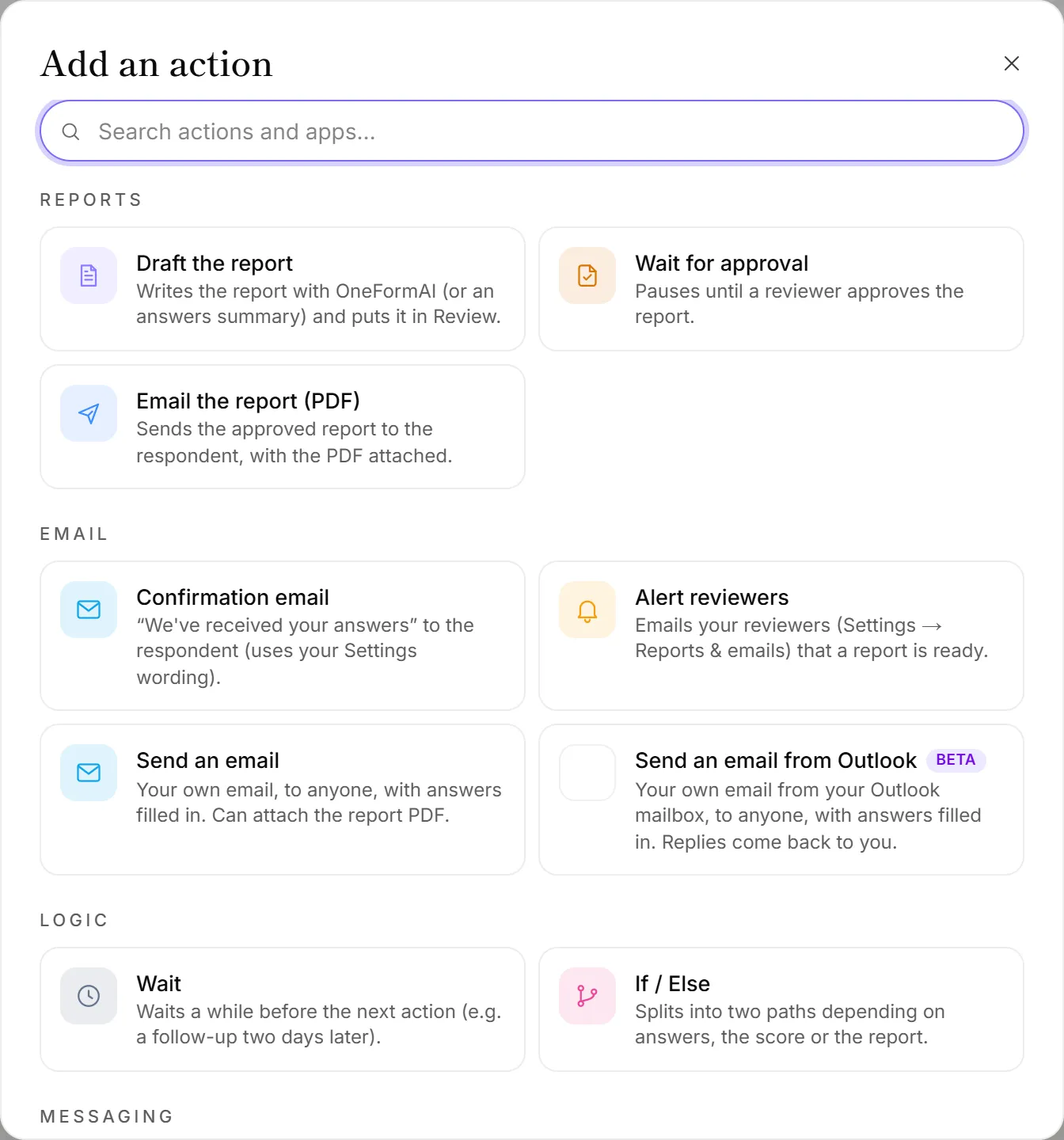
Reports
| Action | What it does |
|---|---|
| Draft the report | OneFormAI writes the report and puts it in Review. It skips forms whose report is off, unless you turn on Draft even if the form's report is off. |
| Wait for approval | Pauses until a reviewer approves the report. Set Give up after (hours, 0 = never) to stop waiting. |
| Email the report (PDF) | Sends the approved report to the client with the PDF attached. Approve and send, no review sends it without anyone reading it first. |
| Action | What it does |
|---|---|
| Confirmation email | Tells the client you've received their answers, with your wording from Settings. |
| Alert reviewers | Emails your review team that a report is ready. |
| Send an email | Your own email to anyone, with answers filled in. Set To, Subject and Message. You can turn on Add your sign-off (Settings) and Attach the report PDF. |
| Send an email from Outlook | The same, sent from your connected Outlook mailbox and saved in its Sent Items. Replies come back to you. |
To takes up to 10 addresses, separated by commas.
Logic
| Action | What it does |
|---|---|
| Wait | Waits a number of minutes, hours or days before the next action, for example a follow-up two days later. |
| If / Else | Splits the workflow into a Yes path and a No path. See Conditions and branches. |
Messaging
Slack message, Teams message, Google Chat message and Discord message post to a channel or space you choose. Write the Message, then choose whether to List the answers and Add a “Review the report” button. Google Chat works with Google Workspace accounts only.
CRM & sales
| Action | What it does |
|---|---|
| Send the lead to HubSpot, Pipedrive, Salesforce or Zoho CRM | Adds the client to your CRM, or updates them if they're already there, with their OneForm lead score. |
| Keep a lead list in Google Sheets or Excel | Keeps one row per lead, with their score: added the first time, updated after that. |
Under Which leads, choose Everyone, Warm & hot or Hot only. People are matched by email, so the same person is updated, never added twice.
Spreadsheets & data
| Action | What it does |
|---|---|
| Add a row in Google Sheets or Excel | Adds one row per response. Choose Every answer, or Choose columns to pick your own. OneForm keeps the header row in step with your questions. |
| Save the PDF to Google Drive or OneDrive | Uploads the report PDF to a folder you name. Turn on A sub-folder per client to file each client's PDFs together. |
Automation
Send to another app (advanced) sends the answers to a web address another app gives you. It's for apps OneForm doesn't connect to yet and is usually set up by a developer. See Send data to another app with webhooks.
Settings every action has
- A name. Click the action's name at the top of its panel to rename it.
- + Insert answer. Puts the client's name, an answer, the report or firm details into a text field. Some actions also share results with later ones, under Insert answer → Earlier actions.
- Keep going if this action fails. Off: the workflow stops at a failed action, and you can try again from Activity. On: the failure is logged and the rest runs.
- Skip this action. Keeps the action in the workflow without doing it.
Good to know
- Connect apps from the action. An app action asks you to choose an account. If none is connected yet, connect it right there. See Integrations overview.
- Some actions need a higher plan. Each app, sending to another app, and Approve and send, no review depend on your plan. The picker shows a badge with the plan you'd need. You can add the action to a draft, but you can't turn the workflow on until your plan includes it.
- A workflow holds up to 60 actions.
Why can't I find an action?
- It doesn't fit the trigger. The picker hides actions that make no sense for what starts the workflow. For example, Draft the report only appears for Form is submitted. See Workflow triggers.
- The app isn't available yet. Apps that aren't ready are listed under Coming soon at the bottom of the picker.
- You searched for a different word. Try the app's name, such as "Slack" or "Drive", in Search actions and apps….