A workflow decides what happens after something happens on a form. Someone submits it, a report is approved, a client pays or books a call, and OneForm runs a list of actions for you: draft the report, email someone, post in Slack, add a row to a sheet, and more.
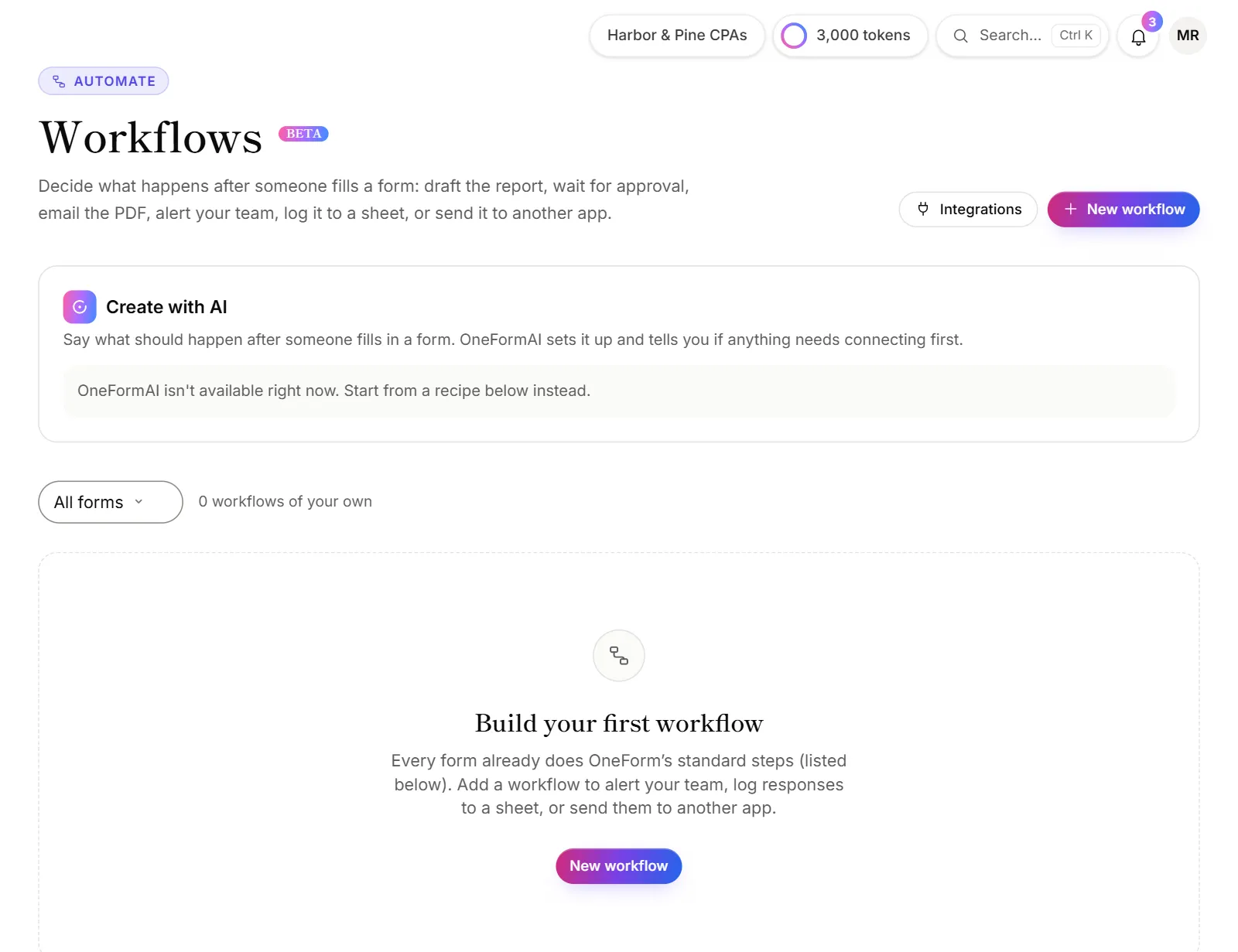
The parts of a workflow
Every workflow belongs to one form and has three parts:
- A trigger. What starts it, shown as Starts when at the top of the editor. For example, Form is submitted or Report is approved. See Workflow triggers.
- Actions. What OneForm does, in order, from top to bottom. See Workflow actions.
- Conditions (optional). An If / Else splits the workflow into two paths, so different people get different follow-ups. See Conditions and branches.
Each workflow is On, Paused or a Draft. Only workflows that are on do anything.
Every form has a Default workflow
When you create a form, OneForm gives it a Default workflow with the standard steps:
- Draft the report: OneFormAI writes the report and puts it in Review.
- Confirmation email: the client hears that you've received their answers.
- Alert reviewers: your review team gets an email that a report is ready.
You'll find them under Standard steps for each form on the Workflows page. Open one to see it, or to change it. You can also click Workflow at the top of the form builder. Once you change a Default workflow, it moves up to the list of that form's workflows, marked Default.
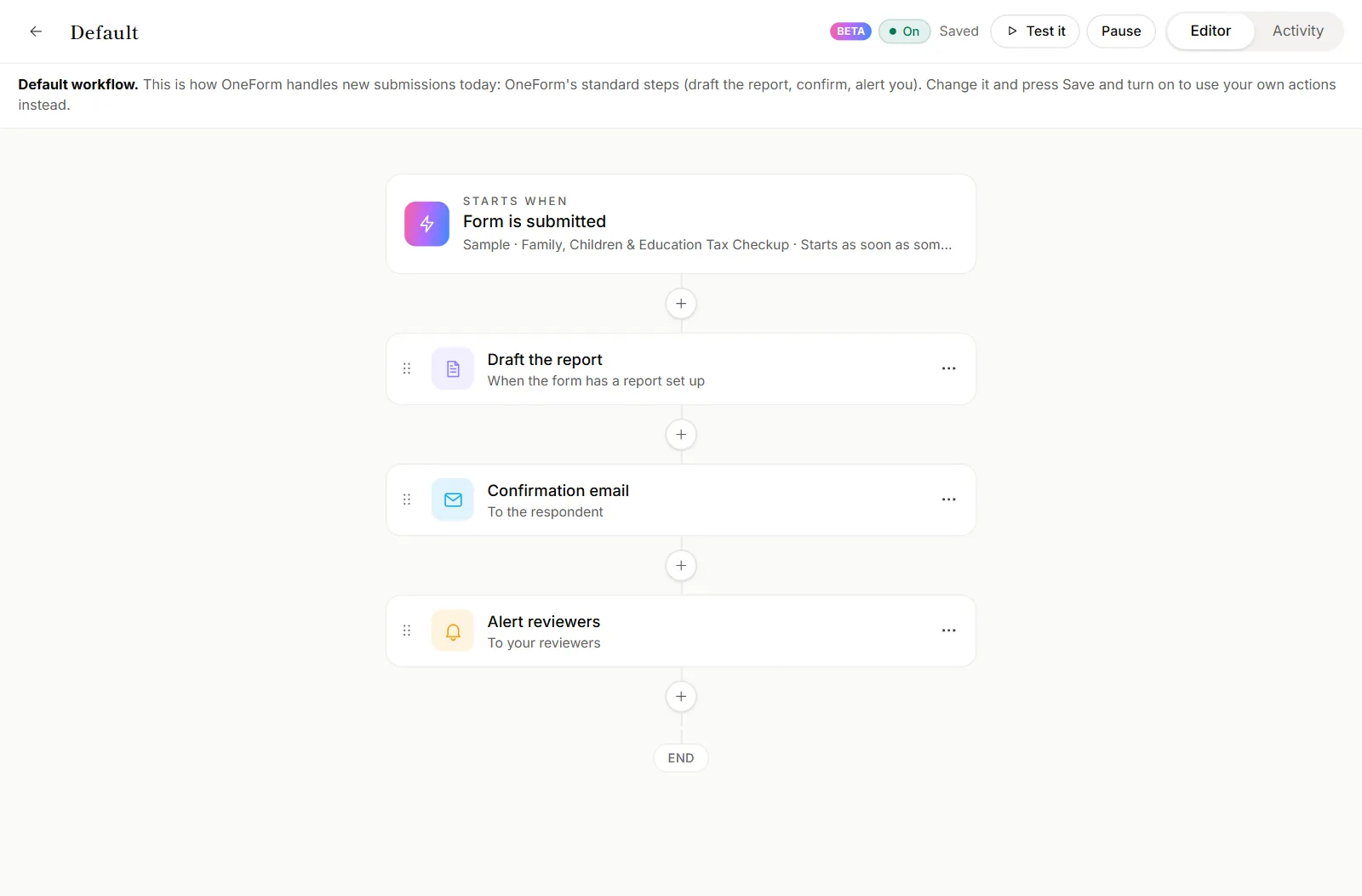
The Default workflow always starts when the form is submitted. You can change its actions, pause it, or go back to the standard steps with Go back to the standard steps. You can't delete it.
If you pause a form's Default workflow, new submissions to that form don't get a report or emails until you turn it back on.
Add your own workflows
Your own workflows run next to the Default one, so you keep the standard steps and add more on top. For example:
- Post every submission in a Slack channel.
- Save approved report PDFs to Google Drive.
- Email a client a week after their report goes out.
- Remind people who stopped halfway through a form.
Create a workflow shows how to build one with AI, from a recipe or step by step.
Good to know
- Your own workflows start on a paid plan. Every plan has the Default workflows. How many workflows of your own can be on at once depends on your plan. Default workflows don't count. See pricing.
- Only owners and admins can change workflows. Everyone else on the team can open them and see their activity.
- Workflows are in beta. They show a Beta tag while they're still being improved.
Why didn't my form send a report?
- The Default workflow is paused or changed. Click Workflow in the form builder to open it, and check that it's on and still starts with Draft the report.
- The form has no report set up. Draft the report skips forms whose report is off, unless you turn on Draft even if the form's report is off in that action.
- The report is waiting for you. The standard steps don't send the report. It waits in Review until someone approves and sends it, or until you set up automatic sending.