OneForm has a free plan and paid plans. Each plan up gives you more room (tokens, responses, team members) and more features. Prices and every plan's numbers are on the pricing page.
What every plan includes
Every plan, the free one too, lets you:
- create and edit forms with OneFormAI;
- get AI-drafted reports, review them and send them as PDFs;
- start from the tax check-up templates;
- charge clients for reports and calls, through your own Stripe account;
- take bookings on your own booking pages, synced with your calendar;
- share forms by link.
What changes between plans
Bigger plans give you more room each month:
- OneAI Tokens a month. See OneAI Tokens.
- The AI model. Smaller plans write with a lighter model, so tokens go further. Bigger plans use the full model.
- Live forms and responses a month.
- Team members. On some plans you can add extra team members.
- Workflows besides each form's Default workflow.
And they add features, such as:
- Integrations with the apps you use: a starter set, or every app;
- Leads, from a view-only list up to scoring, hot-lead alerts and sending to your CRM;
- forms on your website, developer access and AI agents;
- analytics for each form, scheduled sends and reminders and no OneForm badge;
- voice forms and auto-send;
- team roles (Reviewer and Viewer) and emails from your own domain;
- more hands-on support.
For the exact list, go to Upgrade and click Compare every feature.
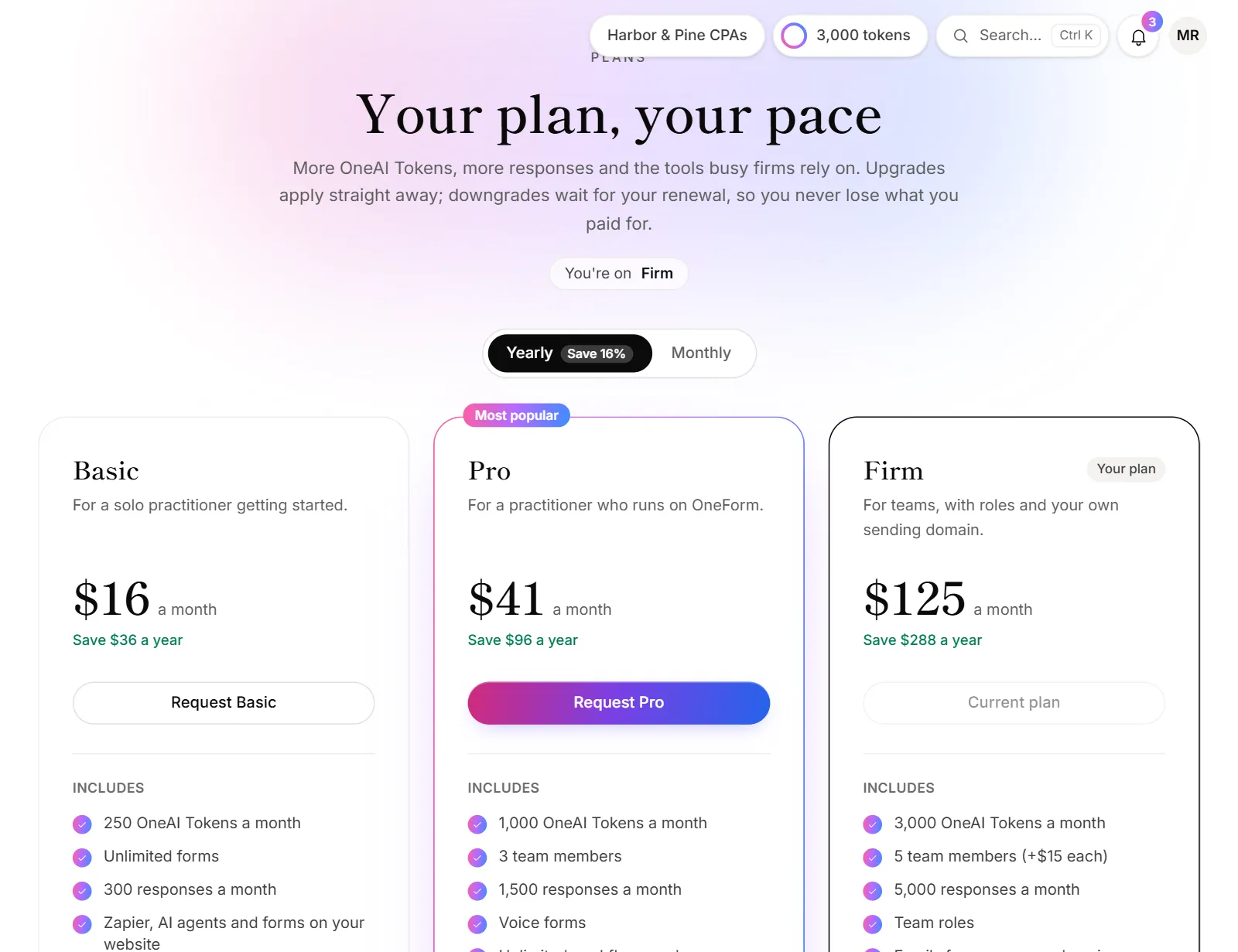
Monthly or yearly
Every paid plan can be paid monthly or yearly. Yearly costs less over the year. Switch between Monthly and Yearly at the top of the Upgrade page to see both prices.
The plan badges you'll see
When something isn't on your plan, OneForm tells you which plan has it:
- A small lock with a plan name next to a menu item or setting. Hover over it to read "On the … plan and up".
- A card at the top of a page saying what upgrading unlocks, with a See the … plan button.
- A line with an Upgrade link, such as "Webhooks: on the … plan and up. Upgrade".
- A badge on help articles, such as "… plan and up", near the title.
The buttons and links open the Upgrade page, where you can compare plans.
Good to know
- Only owners change the plan. Everyone can see the plans and Billing. Admins, reviewers and viewers see "Only owners change the plan" and can ask the owner. See Change or cancel your plan.
- Your current plan is marked Your plan on the Upgrade page, and shown at the top of Billing.
- The pricing page has the numbers. This guide doesn't list prices or limits, since they can change. See oneform.si/pricing.
Why does a feature say it's not on my plan?
Your plan doesn't include it. The lock or card names the cheapest plan that does. If you're the owner, click it to upgrade. If not, ask your firm's owner.