You can change your plan whenever you like. Upgrades apply straight away. A move to a smaller plan, or a cancellation, waits until the end of the period you've paid for, so you keep what you paid for.
Before you start
Only the firm's owner can change the plan, buy tokens or update the card. Everyone else sees the plans and Billing but can't change them. Prices are on the pricing page.
Upgrade
- Go to Upgrade, or click Upgrade at the top right of OneForm.
- Choose Monthly or Yearly at the top.
- On the plan you want, click Upgrade to ….
- If this is your first paid plan, pay by card at checkout. Payments go through Stripe.
- If you already pay for a plan, check what's charged now and click Pay … and upgrade (or Confirm when nothing more is due).
The new plan starts straight away. You pay only the difference for the rest of your current period.
Move to a smaller plan
- Go to Upgrade.
- On the plan you want, click Switch to ….
- Read what happens, then click Confirm.
You keep your current plan until your renewal date, then move to the smaller one. Nothing is charged now. Until then, the plan's card says Starts at renewal, and Billing shows the date.
Switch between monthly and yearly
- Go to Upgrade.
- At the top, pick the other billing period.
- On your current plan, click Switch to yearly or Switch to monthly.
- Check what happens and when, then click the button to confirm.
Cancel your plan
Cancelling moves your firm to the free plan at the end of the period you've paid for.
- Go to Upgrade.
- Under the paid plans, next to the free plan, click Switch to ….
- Click Cancel at renewal.
Nothing more is charged. Your forms, responses and reports stay. Anything over the free plan's limits is handled as described in When you reach a plan limit.
Changed your mind? Until the date comes, Billing shows a Keep … button. Click it to stay on your plan.
To confirm it's you, OneForm may ask for your Current password before a change. If you don't use a password, it works within 15 minutes of signing in; click Sign in again if it's been longer.
Card, invoices and billing details
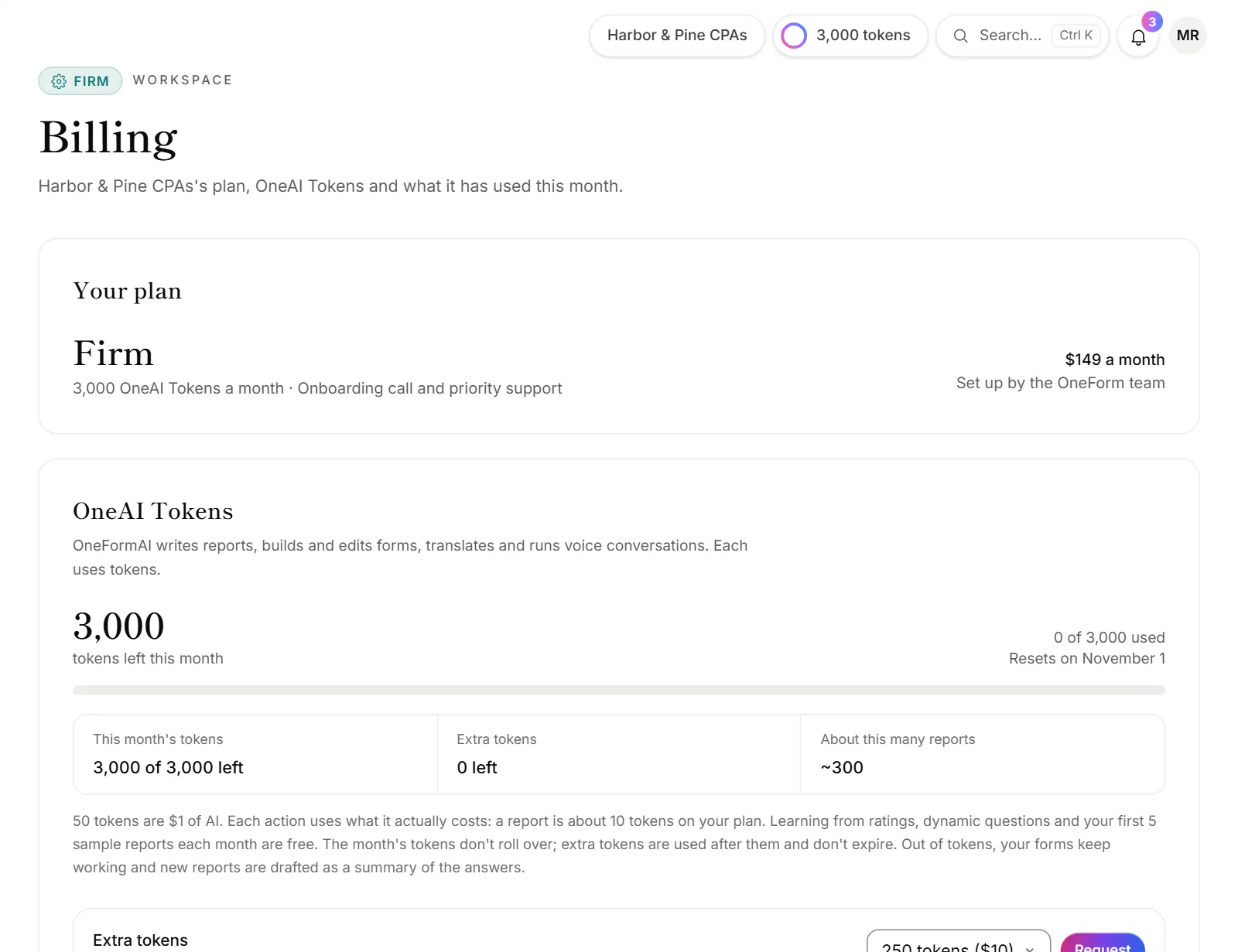
- Go to Billing.
- In the Your plan card, click Invoices and card.
- Stripe's billing page opens. Download invoices, change your card, or update your billing details there.
The Invoices and card button shows once you've paid for a plan online.
Extra team members
On plans that let you add team members beyond those included, Billing has an Extra team members setting.
- Click + or − to choose how many.
- Click Save.
The change is charged, or credited, straight away for the rest of the period. You can't go below the number your team and open invites need. To free a seat, remove someone or click Revoke next to an open invite on Firm → Team.
Why does Billing say my last payment failed?
Stripe couldn't take the payment. Click Update card on Billing and enter a working card. Stripe then tries again. If payment keeps failing, your plan ends and your firm moves to the free plan.
Why can't I change my plan?
- You're not the owner. The plan cards say "Only owners change the plan". Ask your firm's owner.
- The OneForm team set up your plan. Billing says Set up by the OneForm team. Reply to any email from OneForm to change it.