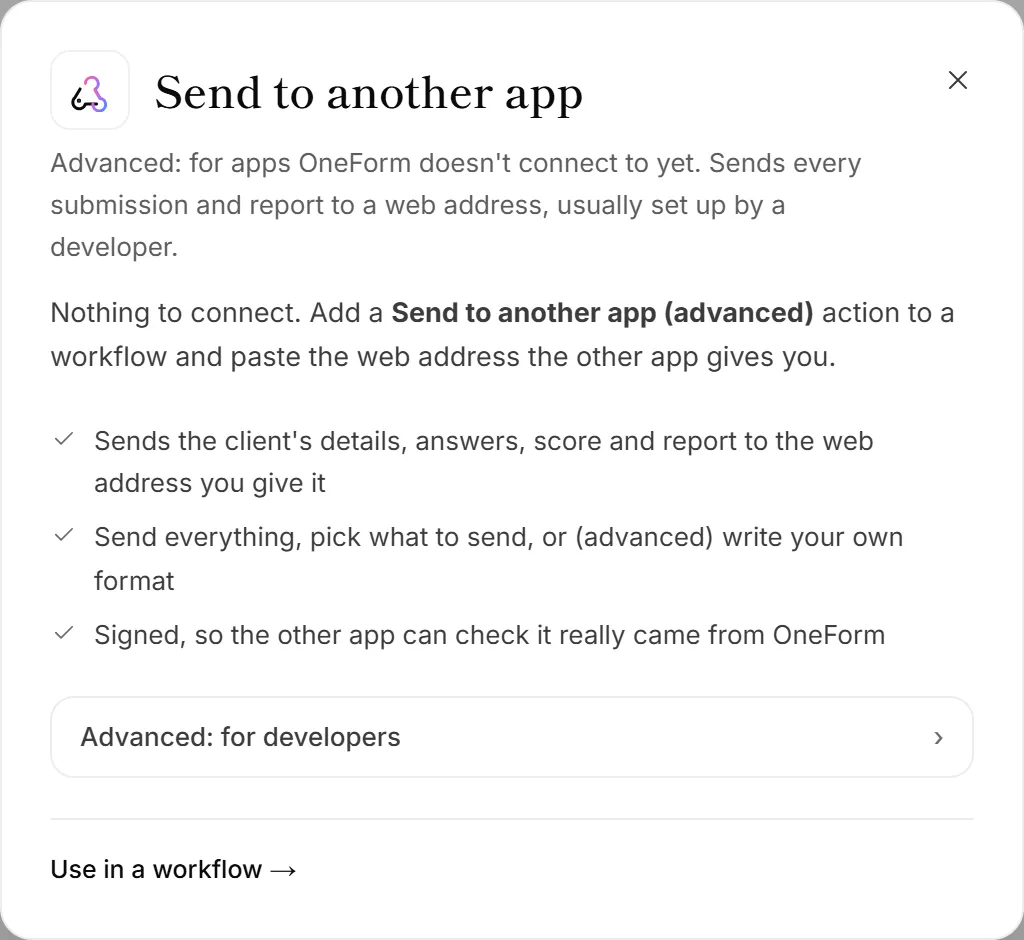
When OneForm doesn't connect to an app yet, a webhook can still get your data there. The Send to another app (advanced) action sends the client's details, answers, score and report to a web address the other app (or your developer) gives you.
Before you start
You need a web address that accepts data, starting with https://. Automation tools like Make, n8n and Power Automate give you one when you add a webhook trigger. There's nothing to connect in OneForm.
Add a webhook to a workflow
- Open Workflows and open the workflow you want, or start one from the Send to another app (advanced) recipe.
- Click + (Add an action) and choose Send to another app (advanced).
- Paste the address into Web address to send to.
- Under What to send, choose:
- Everything: the client's details, every answer, scores and the report.
- Pick fields: only the names and values you set. Use the + menu on each row to insert an answer.
- Custom (advanced): your own JSON, for developers.
- Optional: open Advanced to change the Method or add Headers, such as an authorization key.
- Click Test it, then Turn on (or Save and turn on).
To see exactly what Everything sends, click Show the technical format under it.
Good to know
- It tries again. If the other app is down, OneForm retries over the next few hours. On a failed run, the workflow's Activity tab has Try again from where it stopped. See Workflow activity and retries.
- Later actions can use the reply. The delivery status code and what the app replied are available under Insert answer → Earlier actions.
- Headers stay private. They're stored with the workflow, and saved values show only their last four characters.
- Leads, too. On the Leads page, Export → Send to another app (advanced) sends each lead to a web address, one request per person.
Check that it came from OneForm
Every request is signed with your firm's signing secret, so the other app can check it's real. Owners and admins can see the secret:
- Go to Integrations. The Send to another app panel opens.
- Open Advanced: for developers.
- Confirm it's you, then click Show signing secret.
Click Make a new secret if the old one leaked. Requests signed with the old secret stop verifying within a minute, so update the other app right away. How to check a signature is in the webhooks developer docs.
Why didn't the other app get anything?
- The address isn't https. OneForm only sends to https:// addresses on the public internet.
- Your plan doesn't include webhooks. Workflows that are on skip this action until your plan includes it.
- The other app refused it. Open the workflow's Activity tab to see the status code and reply.