Integrations send what happens in OneForm to the apps your firm already uses: a row in a spreadsheet, a message in team chat, a contact in your CRM, a PDF in a shared folder. You connect an app once, then choose what to send in a workflow or from the Leads and Reports pages.
Before you start
- Owners and admins connect and disconnect apps. Everyone else can see what's connected.
- Your plan decides which apps you can connect. Google Sheets, Microsoft Excel and Slack come first; the other apps need a higher plan. An app your plan doesn't include shows a small plan badge, and its button takes you to upgrade. See Plans explained.
Connect an app
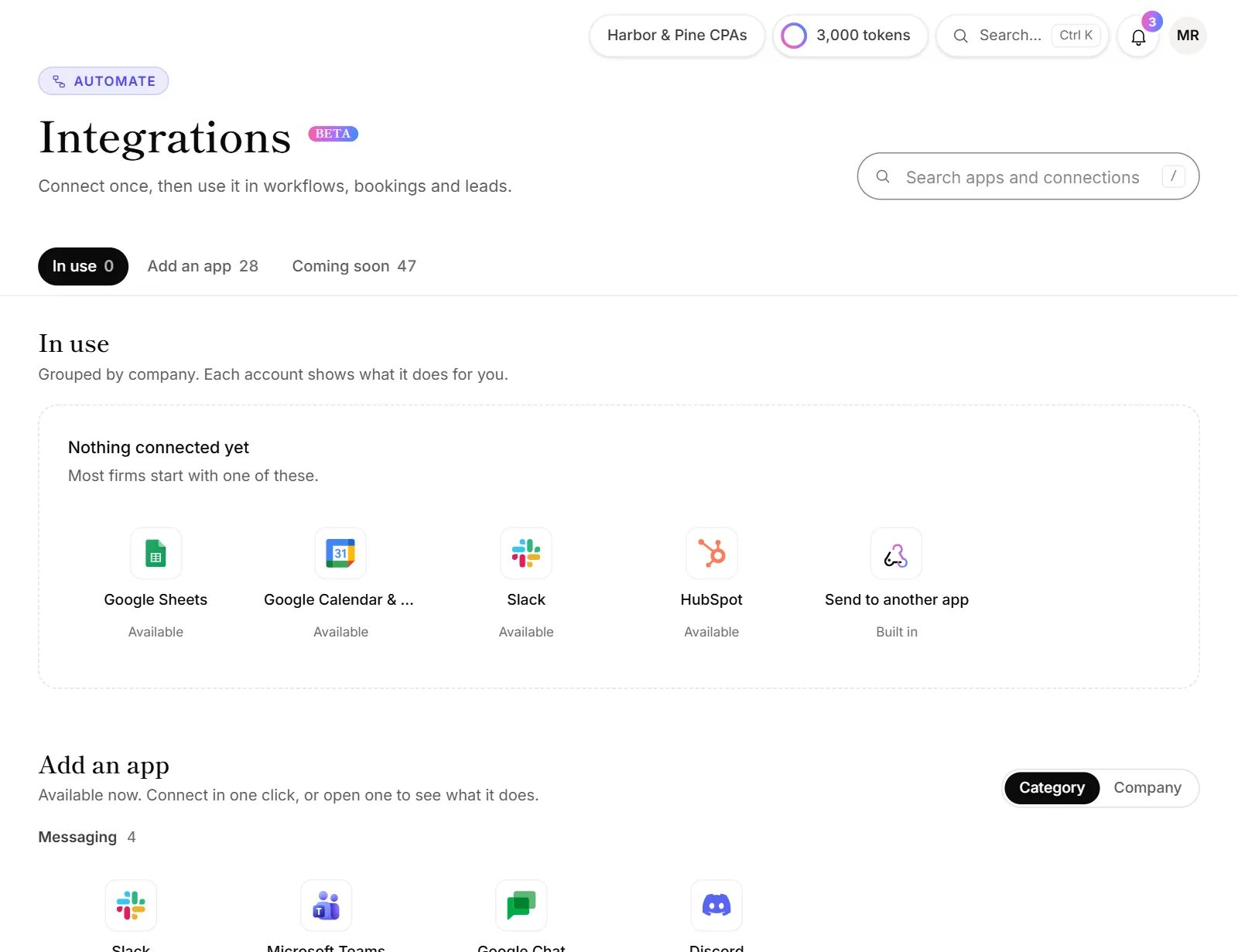
- Go to Automate → Integrations.
- Under Add an app, click the app you want. Its panel says what it does and what it asks for.
- Click Connect (for example Connect Google or Connect Slack).
- Sign in to the app in the window that opens and approve OneForm. There's nothing to copy or paste.
- You come back to OneForm, and the app is listed as connected.
Then put it to work in a workflow, on the Leads page or in Bookings. Each app's guide in this section shows how.
The Integrations page
| Section | What's there |
|---|---|
| Needs attention | Connections that stopped working, with a Reconnect button. Only shows when something is broken. |
| In use | Connected apps and where each one is used: workflows, bookings, leads. |
| Connected, not used yet | Apps you connected but haven't added anywhere yet. |
| Add an app | Every app you can connect today. Switch between Category and Company. |
| Coming soon | Apps that aren't ready yet. Click the bell to be told when one is. |
Press / to search apps and connections. If your app isn't listed, click Request it, name the app and click Send request.
One Google or Microsoft account, several apps
One Google account covers Google Sheets, Google Drive, Google Calendar and Google Chat. One Microsoft account covers Excel, OneDrive, Outlook, Outlook Calendar and Teams. OneForm only asks for what each app needs, when you first use it. So connecting Sheets doesn't give OneForm your calendar.
To use another app on an account you already connected, find the account's card and click Allow next to that app.
Manage or disconnect an app
- On the Integrations page, click Manage on the app's card.
- Check its status, what it's allowed to do, and where it's Used in.
- Click Test to check it still works, or click its name to rename it.
- To remove it, click Disconnect, then Disconnect again to confirm.
Before you confirm, OneForm lists what stops working. Workflow actions that use the app fail until you choose another connection. For Google, HubSpot, Pipedrive, Salesforce, Zoho CRM and Zoom, disconnecting also takes OneForm's access away in that app.
Good to know
- Connections belong to the firm. Anyone who builds workflows can use a connected account, whoever connected it.
- Keys stay secret. OneForm stores each app's access encrypted and never shows it in the browser.
- You hear about problems. When OneForm loses access to an app, your alert list gets a "Reconnect" email, and the app moves to Needs attention.
- Other ways to connect: see Send data to another app with webhooks and Connect Claude, ChatGPT and other AI agents.
Why does an app say "Not available yet"?
The app isn't switched on for OneForm yet. Click Notify me on it, and use Request it if your app isn't listed.
Why can't I click Connect?
- Your role doesn't allow it. Only owners and admins connect apps. Ask one of them.
- Your plan doesn't include the app. The button shows the plan it needs and takes you to upgrade.
What does "Not allowed on this account yet" mean?
The Google or Microsoft account is connected, but not for that app. Click Allow next to the app and approve the extra permission.