Clients pay for reports and calls through your firm's own Stripe account, and Stripe pays the money out to your bank. OneForm takes no cut: you keep the full price, and Stripe charges its standard processing fee.
Before you start
- Only an owner can connect Stripe, because it decides where the money goes. Everyone else on the team can see the account's status on the Payments page.
- Have your business details and bank account ready. Stripe asks for them. It takes a few minutes.
- Know your business's country. Stripe sets it when the account is made, and it can't be changed later.
Connect your Stripe account
- Go to Revenue → Payments.
- In the Stripe account card, choose your country under Where is your business?.
- Enter your OneForm password under Your password, to confirm it's you. (No password? You won't see this box. See below.)
- Click Connect Stripe.
- Fill in Stripe's sign-up pages. When you finish, Stripe sends you back to Payments.
Back on Payments, you see "Stripe onboarding finished." Stripe may take a little while to check your details. The page updates on its own.
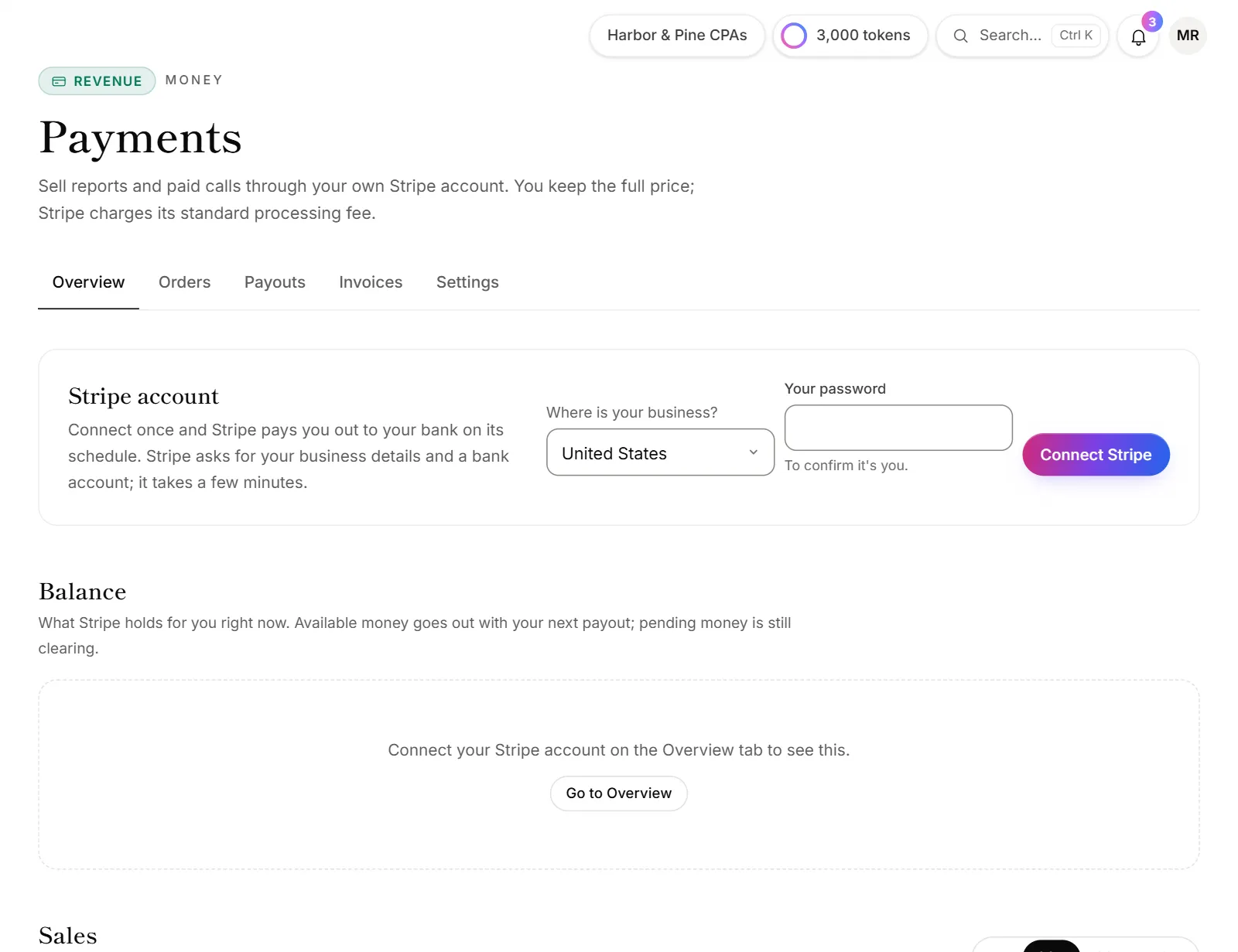
What the Stripe account card tells you
| Status | What it means |
|---|---|
| Taking payments | You're done. Clients can pay. |
| Setup not finished | You left Stripe's sign-up before the end. Click Finish onboarding. |
| Needs attention | Stripe wants more details before it takes payments. Click Update details in Stripe. |
The card also shows whether Payments and Payouts are enabled, the account's email, and its country and currency. If Stripe still needs something, it's listed under Requirements due.
Good to know
- Nothing is charged yet. Connecting only gets you ready. To charge, turn on a price for a report or a call. See Charge for a report and Charge for a call.
- It's your Stripe account. Owners see a Stripe dashboard button at the top of Payments. Use it to change your bank account, see full payment details, or answer a dispute.
- Paid reports and calls are on every plan.
- Your card statement name is set in Payments → Settings. See Orders, refunds and invoices.
- When money arrives in your bank depends on Stripe's payout schedule. See Payouts.
Why don't I see the Connect Stripe button?
- You're not an owner. The card says "Only an owner of the firm can connect it." Ask an owner, or see Roles and permissions.
- The card says "Payments aren't switched on in OneForm yet." Online payments aren't available right now. Try again later, or contact support.
Why does it ask me to sign in again?
Connecting Stripe chooses where your money goes, so OneForm checks it's really you.
- "Your current password isn't right." Enter the password you sign in to OneForm with.
- "For your security, sign out and sign back in with an email link, then connect Stripe within 15 minutes." This shows when you don't use a password. Sign out, sign back in with an email link, and connect right away.
Why did connecting fail?
The Payments page says what went wrong:
- "Stripe can't open an account in that country." Pick the country where your business is registered, or contact support.
- "Stripe didn't answer." Wait a minute and try again.
- "Finish Stripe's onboarding first." The Stripe dashboard opens only after Stripe's sign-up is done. Click Finish onboarding.