Put a price on a form's report. When clients submit the form, the thank-you screen offers the report with a pay button. They pay by card through your Stripe account, and the report goes out once it's paid for.
Before you start
- Connect Stripe first. An owner does this once. See Connect Stripe.
- The form needs a report that goes to the client. A document that only goes to your firm can't be sold.
- You need to be an owner or admin to change a form.
Set a price in the form builder
- Open the form and go to the Report tab.
- Scroll to the Sell this report step.
- Switch on Charge for this report.
- Enter the Price and pick the currency.
- Optional: fill in Headline on the thank-you screen, What they get (one per line, up to 5) and the Button text.
The builder saves as you go. The offer appears on the thank-you screen as soon as the price is set.
Or set it from the Forms list
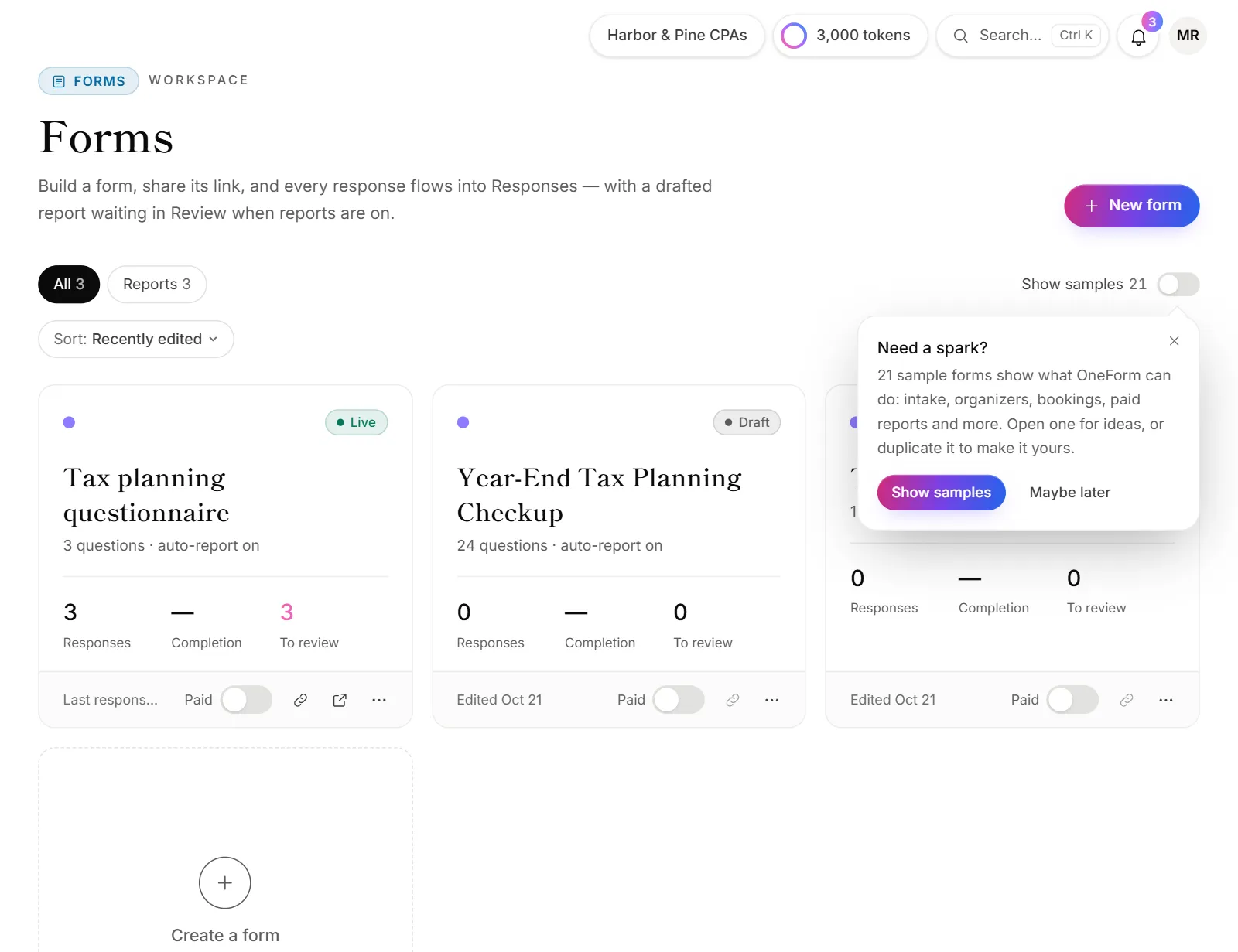
- Go to Forms.
- Switch on the form in the Paid column, or open its ⋯ menu and choose Sell report….
- Enter the Price. To change the headline or button, open Customize the offer.
- Click Start charging.
To make the report free again, switch it off in the Paid column, or open the sheet and click Turn off.
What happens next
- The client submits the form and sees the offer on the thank-you screen. The button says "Pay & get my report" unless you changed it.
- They pay on Stripe's secure page, by card (including Apple Pay and Google Pay) or Link.
- They get a "Payment received" email with the receipt attached and a link to their own report page.
- OneFormAI drafts the report as usual. Once it's paid for, it goes out the way you set in How reports go out: right away, or after someone approves it in Review.
- The sale shows on Payments → Orders, and your team gets an email about it.
Good to know
- You keep the full price, minus Stripe's processing fee. OneForm takes nothing.
- People who don't pay right away get up to three reminder emails, unless you turn them off in Payments → Settings. An order nobody pays for in a month closes as Not paid.
- Sending an unpaid report from Review asks "Send without charging?". Choosing Send free waives the payment.
- More than one ending? Each ending has an Offer the paid report here switch, so you can hide the offer from people it doesn't suit. See Welcome and thank-you screens.
- To give one client the report free, open their order and click Waive. See Orders, refunds and invoices.
Why can't I switch on Charge for this report?
- "Connect Stripe first: it takes a few minutes." Your firm has no Stripe account yet. An owner connects it on Payments.
- "Stripe is connected but can't take payments yet." Stripe still needs details. An owner clicks Finish onboarding or Update details in Stripe on Payments.
- "This document goes to your firm only, never to the person who filled in the form, so it can't be sold." The builder doesn't show the Sell step for these. Change who the document is for on the Report tab. See Set up a report.
- "This form doesn't write a report yet, so there's nothing to sell." Turn on the report first.
Why isn't the offer showing on my form?
- The price is too low. Below the minimum, the builder says "Set a price of at least…" and the offer stays hidden.
- The ending hides it. Check Offer the paid report here on that ending.