Every paid report and paid call is an order. Orders are where you check who paid, send a reminder, give something free or refund it. Each paid order also gets a numbered invoice, which is the receipt your client got by email.
Find an order
- Go to Payments → Orders.
- Search by name, email, item or invoice number, or filter by Status and Kind (Reports or Calls).
- Click an order to open it.
The order shows what was paid and what's left after refunds, who bought it, the form, report or booking it belongs to, and a timeline of everything that happened.
| Status | What it means |
|---|---|
| Awaiting payment | The client hasn't paid yet. |
| Payment failed | Their payment didn't go through. They can try again from their link. |
| Paid | Paid in full. A partial refund shows under it. |
| Given free | Someone on your team waived it. |
| Refunded | All the money went back to the client. |
| Not paid | Nobody paid in time, and it can't be paid any more. |
Refund an order
- Open the order and click Refund….
- Choose Full refund, or Part of it and enter the amount.
- Click the Refund button, then confirm.
The money goes back to the client through Stripe. For a report, a full refund closes the client's report page. After a partial refund, the order stays paid and the report stays theirs.
To cancel a paid call and refund it in one go, cancel it from the booking instead. See Manage your bookings.
Remind or waive an unpaid order
- Send reminder now emails the client the next payment reminder, with a button to pay.
- Waive lets the report or booking go ahead without charging. The order becomes Given free.
- Copy payment link copies the link the client pays from, to send it yourself.
Invoices and receipts
Every paid order gets the next number in your sequence. Go to Payments → Invoices to see them all.
- Click PDF on a row, or Download receipt in an order, for the document.
- Click Spreadsheet for your accountant for a file of every invoice. Use Download (spreadsheet) on Orders for every order.
Payment settings
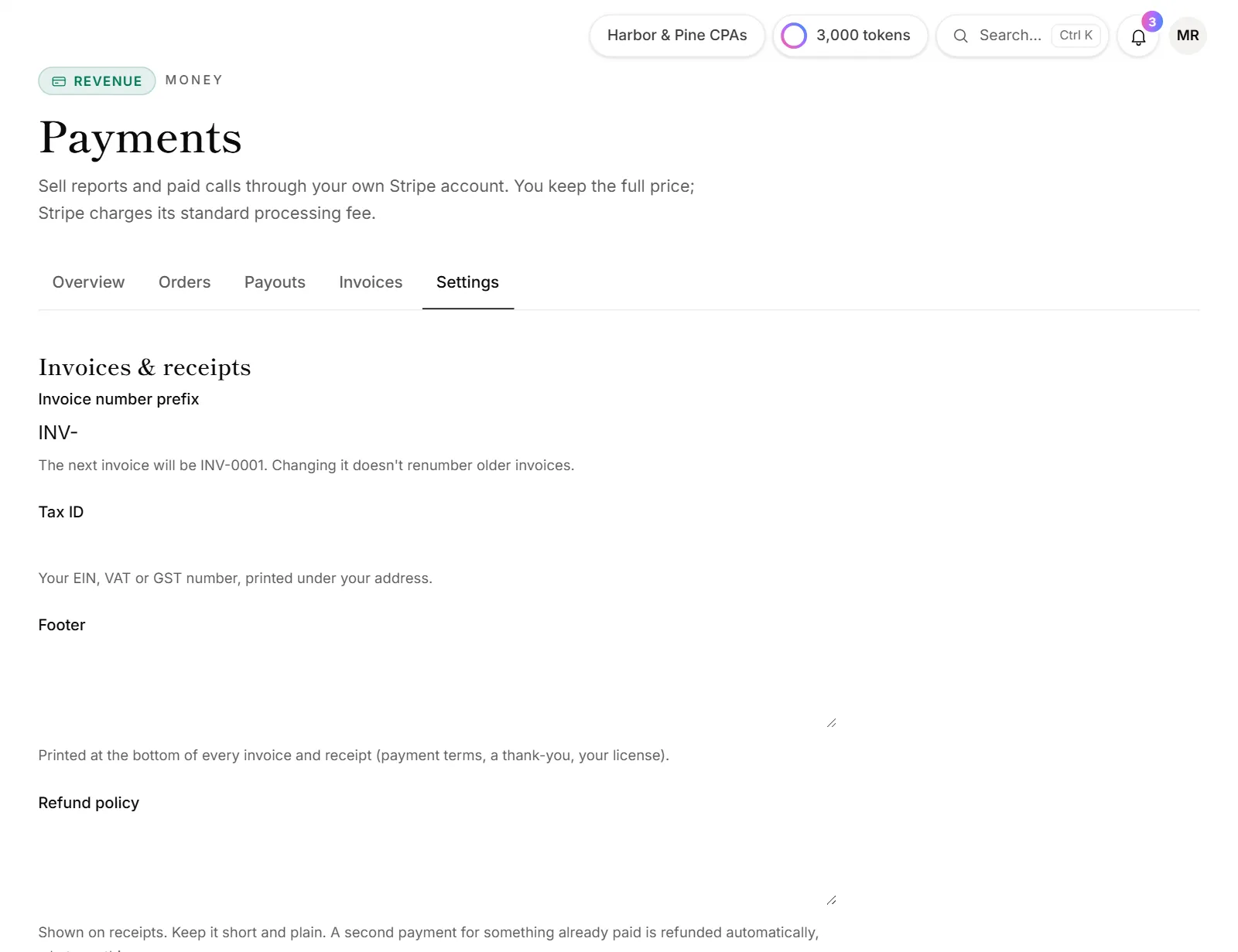
- Go to Payments → Settings.
- Set the Invoice number prefix, your Tax ID, a Footer and your Refund policy. They're printed on invoices and receipts.
- Set Name on clients' card statements. Only an owner can change it, because it's saved on your Stripe account.
- Turn Remind clients who haven't paid on or off. It sends up to three emails, and stops as soon as they pay.
- Click Save settings.
Good to know
- Paid twice? A second payment for something already paid is refunded automatically.
- Disputes: if a client asks their bank to take a payment back, the order shows Disputed. Owners get an email with the date to respond by. Send your evidence from the Stripe dashboard.
- Everyone on the team can see orders and invoices. Downloading spreadsheets is for owners and admins.
Why don't I see the Refund button?
- Your role. Refunds, reminders and waiving are for owners and admins. See Roles and permissions.
- The order isn't paid, or it's already refunded in full.
Why is there no Settings tab in Payments?
Payments → Settings is for owners and admins only.