Client emails come from your firm's name, and clients can reply to them like any other email. You choose the name they see, where their replies land, and which teammates get the review emails.
Change the sender name and reply-to
- Go to Firm → Settings.
- Scroll to Email sending.
- In Sender name, type the name clients should see, like your firm's name or "Jordan at Harbor & Pine". Left blank, your firm name is used.
- In Reply-to, type the address where clients' replies should go. Left blank, replies go to the Contact email under Contact details.
- Click Save changes at the top of the page.
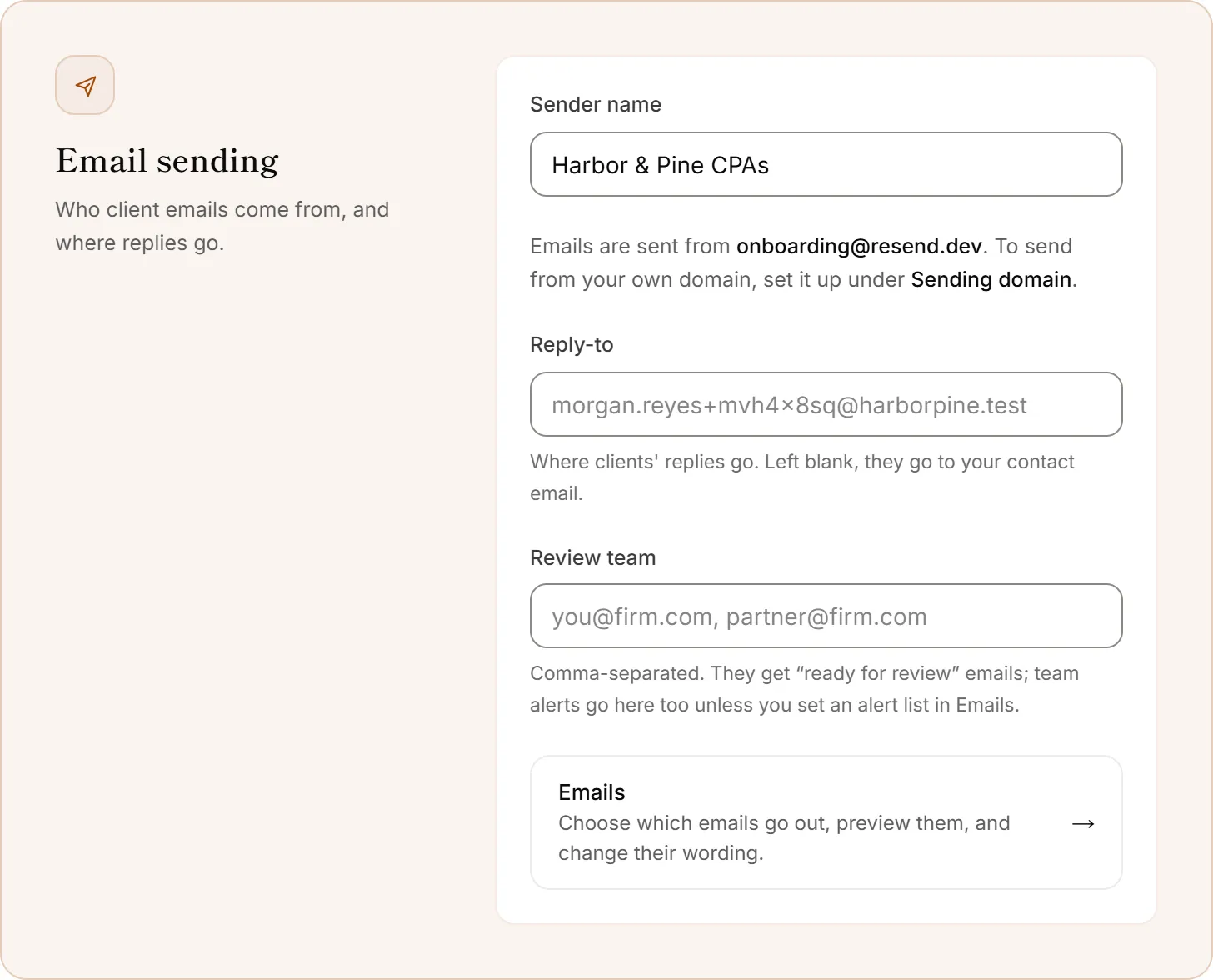
Choose your review team
In Review team, type the email addresses of the people who check drafts, separated by commas. They get Draft ready for review and the other review emails. Team alerts go to them too, unless you set an alert list on the Emails page. Click Save changes.
Good to know
- The From address is shown under Sender name. By default, client emails are sent from a OneForm address with your sender name on them. To send from your own domain, see Send emails from your own domain.
- Team emails come from OneForm, not from your sender name, so your team can tell them apart from client mail.
- Replies don't come into OneForm. They go to your reply-to address, in your own inbox.
- Changes apply to the next email that goes out.
Why do emails still show our old name?
Sender name is separate from Firm name. Changing your firm's name under Firm doesn't change the sender name. Update Sender name under Email sending too, and click Save changes.
Why aren't clients' replies reaching me?
Check the Reply-to address, or the Contact email if Reply-to is blank. A typo there sends replies elsewhere. Then check that address's spam folder.