You can reword the subject and opening line of most emails OneForm sends, so they sound like your firm. Your logo, colors, sign-off and footer come from Settings and apply to every email.
Change an email's wording
- Go to Firm → Settings and click Emails under Email sending.
- Click the email you want to change, for example Answers received (reports).
- Edit the Subject.
- Edit the Opening line.
- Check the preview on the left as you type.
- Click Save wording.
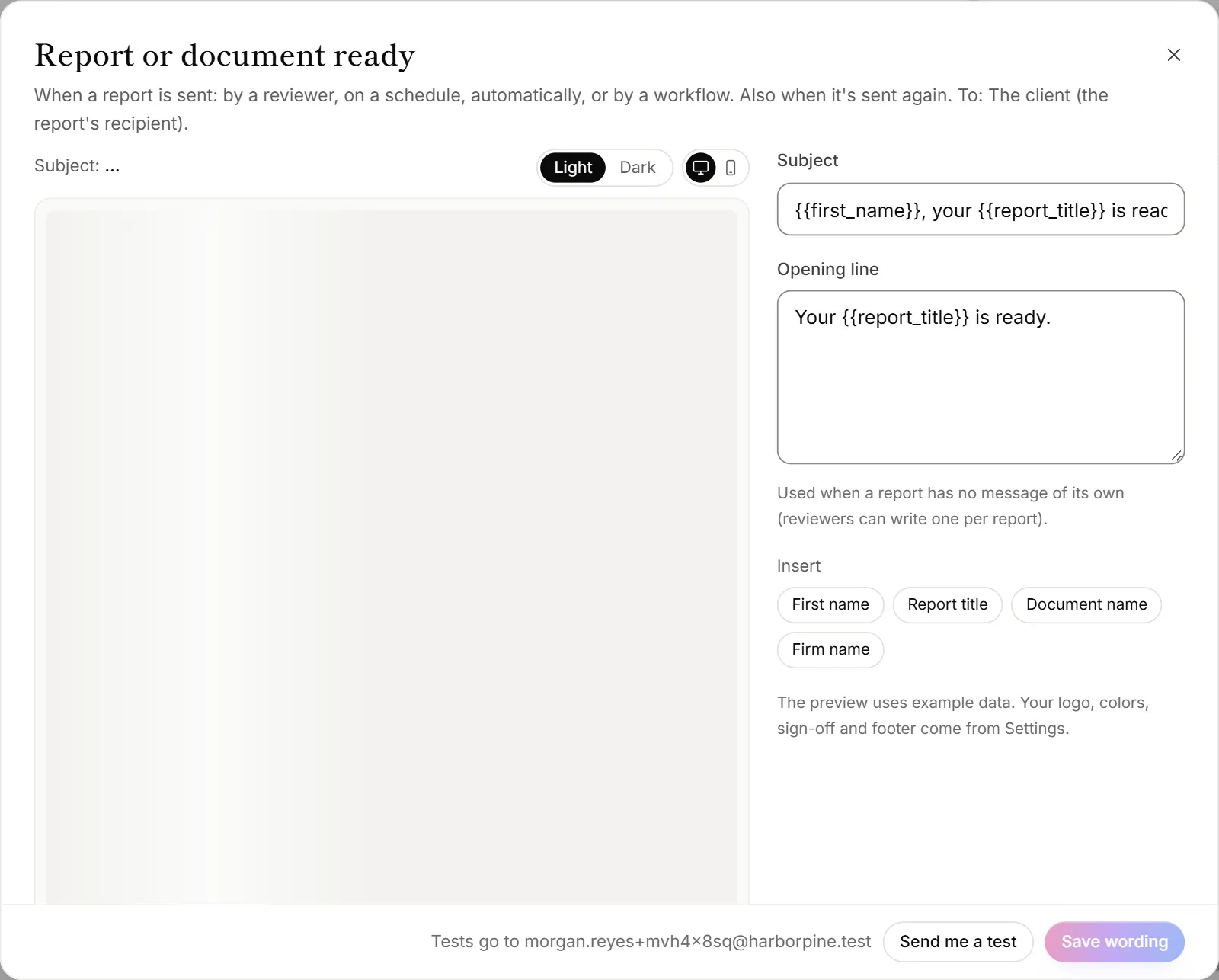
The email shows an Edited label in the list. Changes apply to the next email that goes out.
Insert details
Under Insert, click a detail to add it where you're typing, such as First name, Report title or Firm name. Each email offers the details that make sense for it. They're filled in for each person when the email is sent.
Preview and test
- Switch the preview between light and dark, and between computer and phone sizes, at the top of the preview.
- Click Send me a test to get the email in your own inbox. The footer says where tests go. The preview and tests use example data.
Go back to the default
Click Reset to the default wording, then Save wording. When you keep the default, you also get any improvements OneForm makes to it later.
Good to know
- Only the subject and opening line can change. The rest of each email, like the report's key points or a booking's date and time, is filled in by OneForm.
- Each report's email can be changed on its own. Reviewers can write a subject and message for one report on its Delivery tab in Review. The Opening line of Report or document ready is used when a report has no message of its own.
- Workflow emails are written in the workflow. Each workflow's email action has its own subject and message, so Workflow emails shows only an example.
- Your sign-off and disclaimer are set in Settings → Reports & emails. See Brand your reports, sign-off and disclaimer.
Why can't I save my wording?
- A detail isn't available in this email. The message says which one, like "
{{booking_url}}isn't available in this email." Remove it, or pick one from Insert. - Only owners and admins can change emails. Others can preview them but not edit or test them.