OneForm emails your clients and your team for you: confirmations, reports, booking reminders and alerts when something needs you. The Emails page lists every one, with who gets it and when, and a switch for each.
Open the Emails page
- Go to Firm → Settings.
- Under Email sending, click Emails.
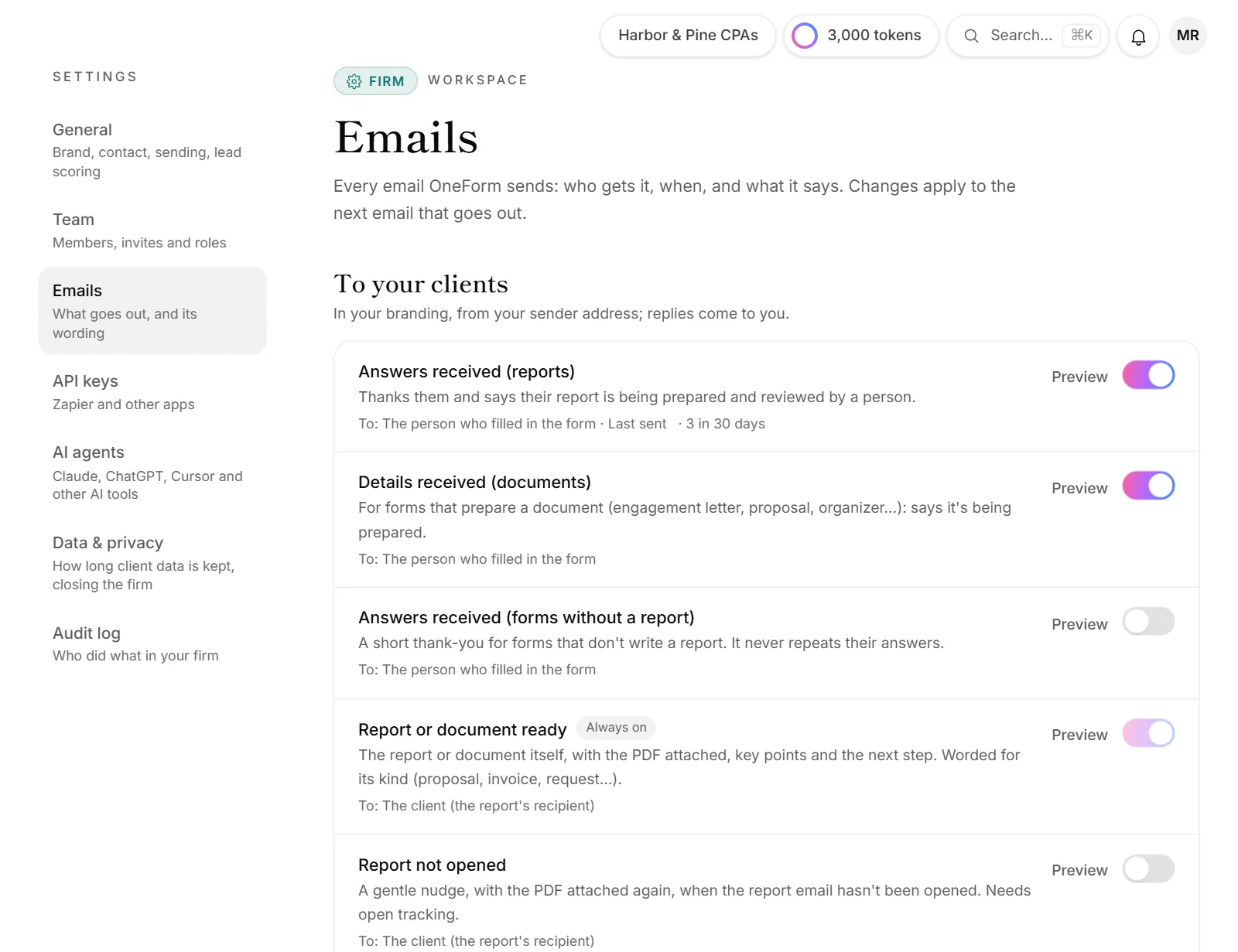
Each email shows who it goes to and when it was last sent. Click one to preview it, send yourself a test, or change its wording. See Edit email wording.
Turn an email on or off
Click the switch next to the email. It applies to the next email that would go out. Emails marked Always on, such as the report itself, can't be turned off.
To your clients
These come from your sender name, in your branding, and replies come to you.
| When it goes out | Starts | |
|---|---|---|
| Answers received (reports) | Right after someone submits a form that writes a report | On |
| Details received (documents) | Right after someone submits a form that prepares a document | On |
| Answers received (forms without a report) | Right after someone submits a form without a report | Off |
| Report or document ready | When a report is sent, by a person, on a schedule or automatically | Always on |
| Report not opened | A few days after a report was sent, if it wasn't opened | Off |
| Workflow emails | When a workflow's email action runs | On |
| Form invite | When an app connected through the OneForm API asks to send someone a form | On |
| Payment received | When a client pays for a report | Always on |
| Payment reminder | When someone ordered a paid report but didn't pay | On |
| Call booked, Call moved, Call cancelled | When a call is booked, moved or cancelled | Always on |
| Call tomorrow | The day before a booked call | On |
| Call in an hour | An hour before a booked call, if switched on in Bookings → Settings | On |
Team alerts
These come from OneForm to your team.
| When it goes out | |
|---|---|
| Draft ready for review | A new draft is waiting (to your review team) |
| Sent automatically | A report went out without review (to your review team) |
| Drafts waiting for review | Once a day, when drafts have waited longer than you set (to your review team) |
| Draft needs attention | A draft couldn't be written at all |
| Report not sent | A scheduled or automatic send failed |
| Email couldn't be delivered | A client email bounced or was marked as spam |
| New response (forms without a report) | Someone submitted a form that doesn't write a report |
| Lead became Hot | A lead's score reaches Hot for the first time |
| Payment received, A client couldn't pay, A payment wasn't needed | Payment events for reports and calls |
| A payment was disputed, A dispute was decided | A client disputed a payment with their bank (to your firm's owners) |
| Call booked, Call cancelled by the client, Call moved by the client | Booking changes |
| Bookings can't use your calendar | Your connected calendar can't be checked or updated |
| Workflow stopped, Connected app needs reconnecting | A workflow or a connected app stopped working |
| OneAI Tokens | This month's tokens are 80% used, and when they run out |
| Monthly responses reached | Your firm passes its plan's responses for the month |
All team alerts start on.
Who gets team emails
At the bottom of the Emails page, under Who gets team emails:
- Alert list: the addresses that get alerts and the summary. Left empty, they go to your review team, or to your contact email if there isn't one.
- Reminder after and Nudge after: the wait before Report not opened and Drafts waiting for review.
- Answers in team emails: turn it off to keep clients' answers out of team emails. The emails link to the answers in OneForm instead.
Click Save after changing these. Your review team is set in Settings → Email sending. See Set your sender name and reply-to address.
The summary email
The Daily or weekly summary rolls up new responses, reports sent and opened, Hot leads and what needs attention. Under it, choose every week, every day or never, and the day and time. It isn't sent when there's nothing to report.
Good to know
- Team alerts are also in the bell. Everyone in your firm sees them in OneForm, even if the email is off. Each person can choose what they get. See Your notifications.
- Only owners and admins can change emails. Others can look around and preview them.
Why didn't my team get the "Draft ready for review" email?
Check that Draft ready for review is on, and that Review team in Settings → Email sending has your team's addresses. Without them, the email isn't sent, though drafts still show in the bell. Also check that the person hasn't turned off Reports emails in their own notification settings.