The bell at the top of OneForm shows what's happened in your firm: new responses, drafts to review, payments, bookings and more. You choose which of these also reach you by email, or by text where that's available.
Use the bell
- Click the bell at the top of the page. A number on it shows how many you haven't read.
- Click a notification to go straight to it, such as the draft that's waiting.
- Switch between All and Unread at the top.
- Click Mark all read to clear the count, or View all to see older ones.
Every team alert OneForm emails to your firm also lands in the bell of everyone on the team, even when the email itself is switched off. For every notification you've had, open notification history.
Choose what you hear about
- Open the menu under your name and click Profile.
- Click Notifications at the top of the page.
- Find the kind of notification, such as Reports or Payments, and use the switches under Email, In app and Text (SMS).
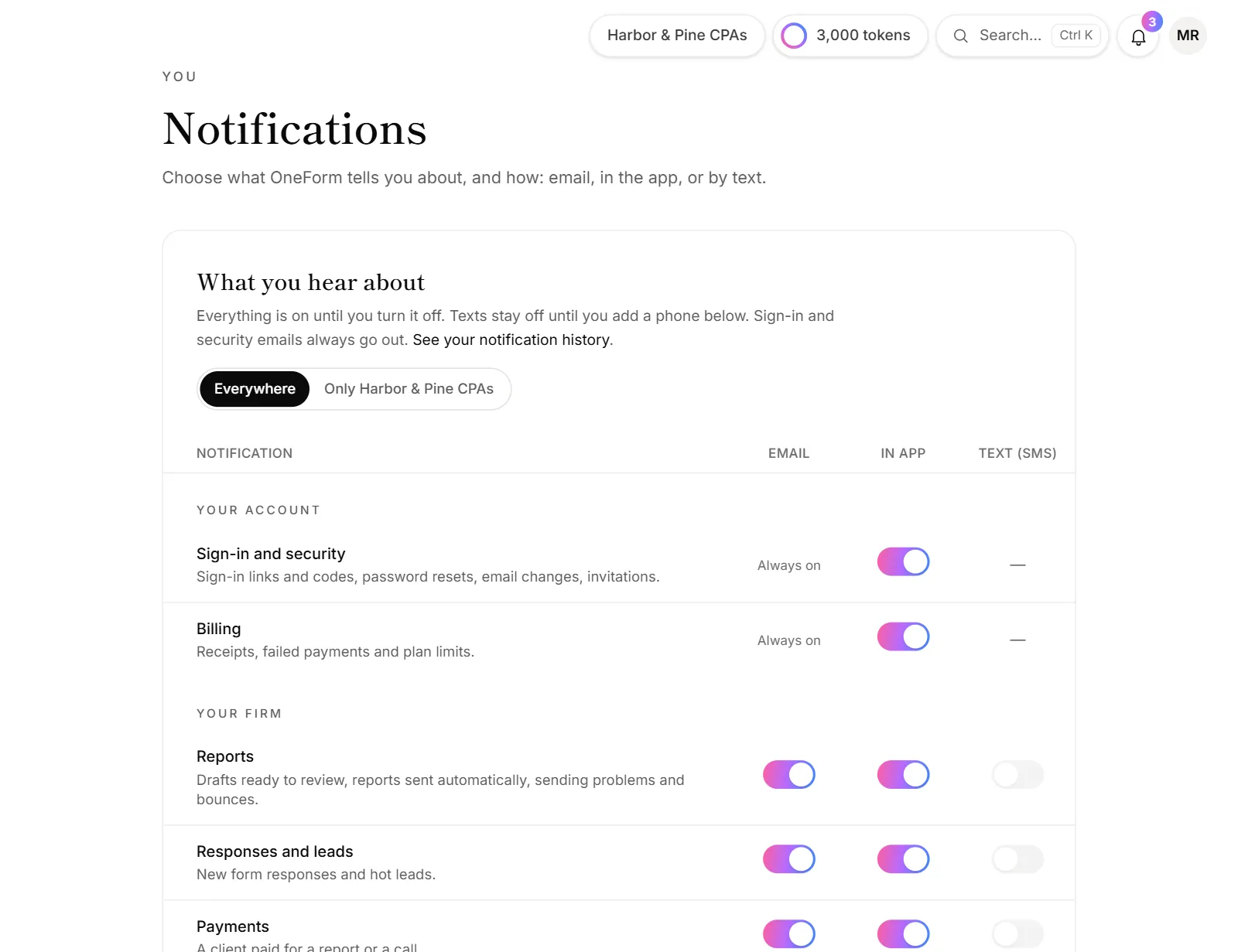
Each switch saves on its own. Everything starts on, except texts.
Under Your firm, you'll find Reports, Responses and leads, Payments, Bookings, Problems that need you, Summary email and Team changes. Other sections cover your account, OneForm news and updates.
Choices for one firm only
If you work in more than one firm, switch Everywhere to Only your current firm at the top. Changes then apply only while you work in that firm. Click Use my everywhere choices here to undo them.
Get alerts by text
If text alerts are available, you can add your mobile number under Text alerts:
- Type your number and click Text me a code.
- Type the code and click Verify.
- Turn on Text (SMS) for the alerts you want.
Turn on Quiet hours to hold texts overnight. Reply STOP to any text to stop them all. If the card says Text alerts aren't available yet, texts can't be turned on.
Good to know
- Your switches only affect you. Whether an email goes out at all is set for the whole firm on the Emails page. See Emails OneForm sends for you.
- Team emails go to the addresses in Settings. You get Draft ready for review by email only if your address is in the review team, and other alerts only if it's on the alert list.
- Sign-in and security emails always arrive, and so do billing emails. Their switches say Always on.
- How often the summary comes is set by your admins on the Emails page. Here you only choose whether you get it.
Why don't I get emails about new drafts?
- Your address isn't in the review team. Ask an admin to add it in Settings → Email sending.
- You turned off Reports emails. Check the Email switch next to Reports.
- The email is off for the firm. An admin can check Draft ready for review on the Emails page.
Why do I still see notifications I turned off by email?
The bell and email are separate. Turn off In app for that kind of notification to keep it out of the bell too.