Your reports and client emails carry your firm's look and words, set once in Settings. Each form then picks one of four PDF styles.
Add your logo and colors
- Go to Firm → Settings.
- Under Firm, click Upload logo and choose an image. A PNG or JPG on a white or transparent background works best in email.
- Check Firm name, and add a Tagline if you want one under your logo.
- Set a Brand color, or click Use gradient for OneForm's.
- Click Save changes at the top of the page.
Add your contact details
Under Contact details, fill in your Address, Phone, Contact email, Website and License / credentials. They appear in the footer of client emails and at the end of each report PDF. Click Save changes.
Add your sign-off and disclaimer
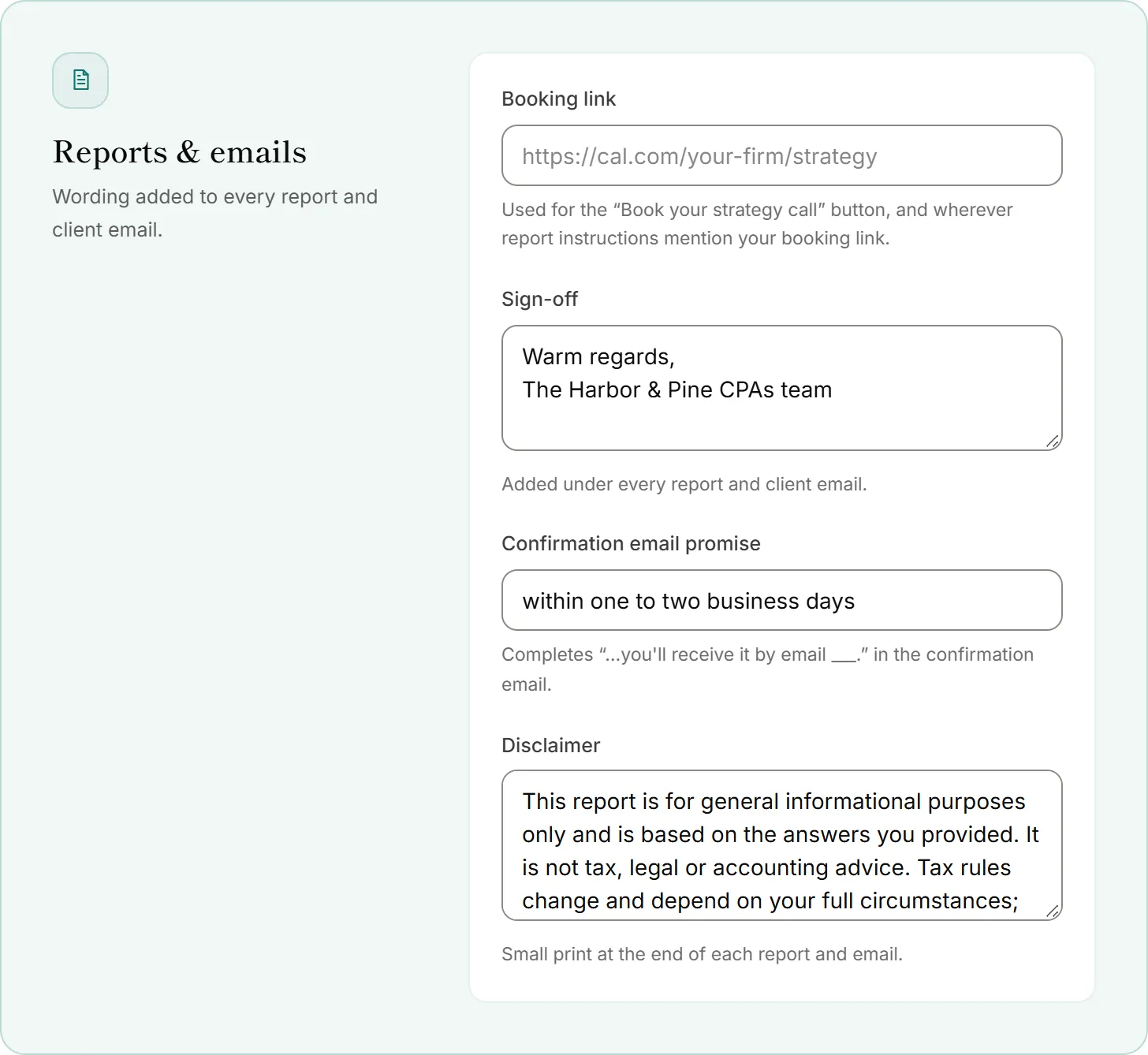
- Under Reports & emails, type your Sign-off, for example your name and title. It's added under every report and client email.
- Type your Disclaimer. It's the small print at the end of each report and client email.
- Click Save changes.
Choose the PDF style for a form
- Open the form and click the Report tab.
- Under How the PDF looks, pick a style:
- Classic: serif headings, fine rules, your logo at the top.
- Modern: clean sans-serif, with your brand color on headings and callouts.
- Executive: a cover page with your logo, numbered sections, running headers and page numbers. Good for longer reports.
- Minimal: centered, lots of white space, almost no ornament.
- Click Open a sample PDF to see it with your own logo and details.
Good to know
- Changes reach new PDFs and emails. A report that was already sent keeps the PDF the client received.
- Administrative documents skip the disclaimer. Invoices, bills, HR records, task lists and checklists don't carry it.
- Your own PDF stays as it is. When a report is a PDF you uploaded, OneForm sends that file unchanged.
- The small OneForm line at the end of report PDFs and client emails depends on your plan. See Plans explained.
- The booking link in Reports & emails is used for the Book your strategy call button in report emails.
Why doesn't my logo show in some emails?
Some email apps, like Gmail, don't show SVG images. Settings warns you when your logo is an SVG. Upload a PNG instead.
Why can't I change these settings?
Only owners and admins can change Settings. Everyone else sees the page read-only. See Roles and permissions.