Put your form right on your website, so visitors can answer without leaving your page. You pick the style, try it in a live preview of a sample site, and copy one short piece of code into your site.
Before you start
- Publish the form. Until it's published, the code on your site shows "This form is not accepting responses."
- Know where your site takes code. Most site builders have an HTML or code block. In WordPress it's the Custom HTML block. In Squarespace it's a Code block. Webflow and Wix have an embed element.
Add a form to your site
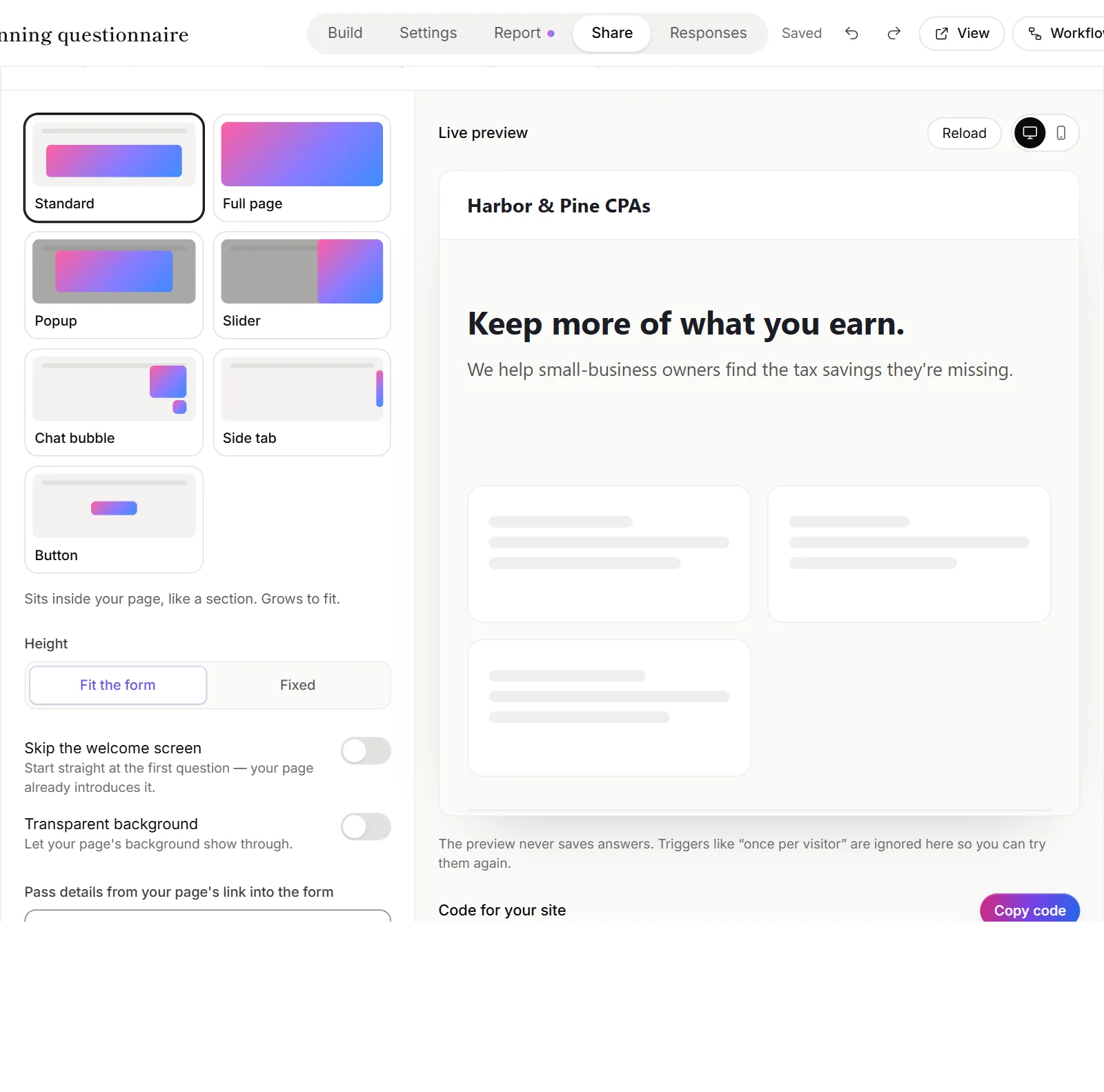
- Go to Forms and open the form.
- Click the Share tab and scroll to Add to your website.
- Pick a style:
- Standard: sits inside your page, like a section, and grows to fit.
- Full page: takes over the whole page, for a page that's only the form.
- Popup: opens in the middle of the screen.
- Slider: slides in from the side.
- Chat bubble: a round button in the corner opens the form in a small window.
- Side tab: a tab on the edge of the screen opens a slider.
- Button: a button on your page opens the form in a popup or a slider.
- Adjust the options for that style: button text and color, which side, and when it opens.
- Check the Live preview. Switch between the desktop and phone views, and click Reload to try it again.
- Click Copy code.
- Paste the code into your site where you want the form, and publish the page.
The preview never saves answers, so try it as often as you like.
Choose when a popup opens
For Popup, Slider, Chat bubble and Side tab, choose under Opens:
- When clicked (for a slider, Only from your own button (advanced): see the developer docs)
- As soon as the page loads
- After a few seconds
- After scrolling part of the page
- When the visitor is about to leave
A Popup always opens by itself. To open one when someone clicks, use the Button style instead. Turn on Only once per visitor so returning visitors aren't interrupted again.
Other options
- Skip the welcome screen: start at the first question when your page already introduces the form.
- Transparent background (Standard and Full page): let your page's background show through.
- Close after submitting (every style except Standard and Full page): close the form a few seconds after it's sent.
- Language: when the form offers more than one language, pick one or follow the visitor's.
- Pass details from your page's link into the form: see Prefill answers and hidden fields.
Voice forms
If the form starts as a voice conversation, the styles are Floating orb, Inline card, Button → popup and Full page. The preview talks for real: allow the microphone to try it. The orb takes the form's colors.
Good to know
- Changes reach your site by themselves. Edit the questions in OneForm and your site shows the new version. You only paste new code to change the style or its options.
- Responses from your site are marked. On the Leads page, their source says "Form on your website".
- Advanced options are in the developer docs. Opening the form from your own button, fixed values for hidden fields and every code option are in the embed guide.
Why does my site show an "Open the form" button instead of the form?
Forms on your website aren't on your current plan. Your site still works: visitors see a card with an Open the form button that opens the form in a new tab. On the Share tab you can try every style, and the upgrade box shows which plan adds them.
Why doesn't the code work on my site?
- The site removed the script. Some site builders strip scripts or put pasted code in a box of its own, which keeps popups inside that box. Open Code not working on your site? Use the simpler version under the code, and copy that instead. It has a fixed height and no popups, but works on any site.
- The form isn't published. Publish it, then reload your page.
More fixes are in Form won't load or the embed is blank.