Every new form starts as a Draft. Only your team can preview it. Publish it, and it becomes Live: its link and your website start taking responses.
Publish from the builder
- Open the form in the builder.
- Click Publish in the top bar.
- If something isn't set up yet, OneForm asks Publish before it's all set up? and lists what's missing. Click Publish anyway to go live now, or Not yet to fix it first.
The button changes to Unpublish, and the form shows as Live on the Forms page.
You can also publish from the Share tab, or from the form's launch screen.
Use the launch screen
When OneFormAI builds a form, it opens on a launch screen. While something is left to set up, you can get back to it from the builder's top bar: click the warning that says how many things are left, such as ⚠ 2 to set up.
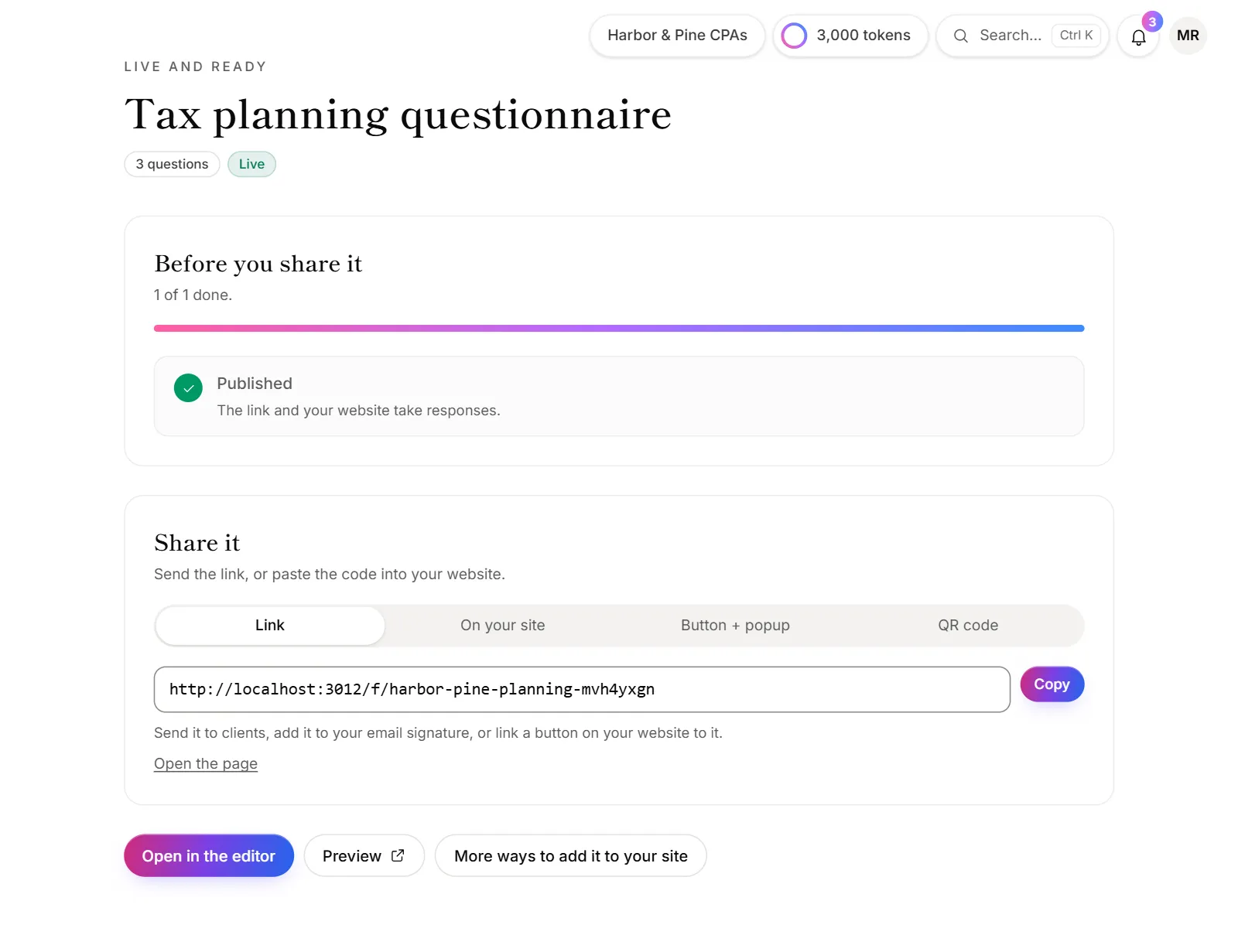
- Before you share it lists each step, such as Payments are ready, Calendar connected and Publish the form. Orange steps stop clients from finishing part of the form.
- What happens next shows the automations OneFormAI planned. Click Turn on once each one is set up.
- Share it has the link and the code for your website. You can copy them before publishing; they start working once the form is live.
Stop taking responses
- Open the form in the builder.
- Click Unpublish.
The form goes back to Draft. Anyone opening its link sees "This form is not accepting responses". Responses you already have stay. Publish it again whenever you like; the link stays the same.
Good to know
- Edits to a live form go live as they save. There's no separate draft copy, so finish big changes quickly or work on a duplicate. See Duplicate or delete a form.
- Your plan sets how many forms can be live at once. Drafts don't count, and neither do OneForm's sample forms until you edit their questions or change their link. See When you reach a plan limit.
- Forms already live stay live if you move to a plan with fewer live forms.
- Publishing with something missing is your call. Clients who reach a step that isn't ready, like paying without Stripe connected, see a message, and you get an alert.
- Only owners and admins can publish and unpublish forms.
Why can't I publish my form?
- "Your … plan includes … live forms." You've reached your plan's live forms. Unpublish a form you no longer use, or click Upgrade.
- "Editing a sample form's questions makes it one of your live forms." Changing a live sample form's questions or link makes it your own, so it counts toward your limit.
Why does my link say "This form is not accepting responses"?
The form is a draft, or the link is wrong. Open the form and check it says Unpublish (it's live) and that the link in the Share tab matches the one you sent. See Share a form link.