Every form has its own link. Send it in an email, a text or a newsletter, or put it on a button on your website. Anyone with the link can fill in the form once it's published.
Before you start
The link only accepts answers once the form is published. Until then it shows "This form is not accepting responses" to everyone but your team. To publish, click Publish at the top of the form builder. See Publish a form.
Copy the link
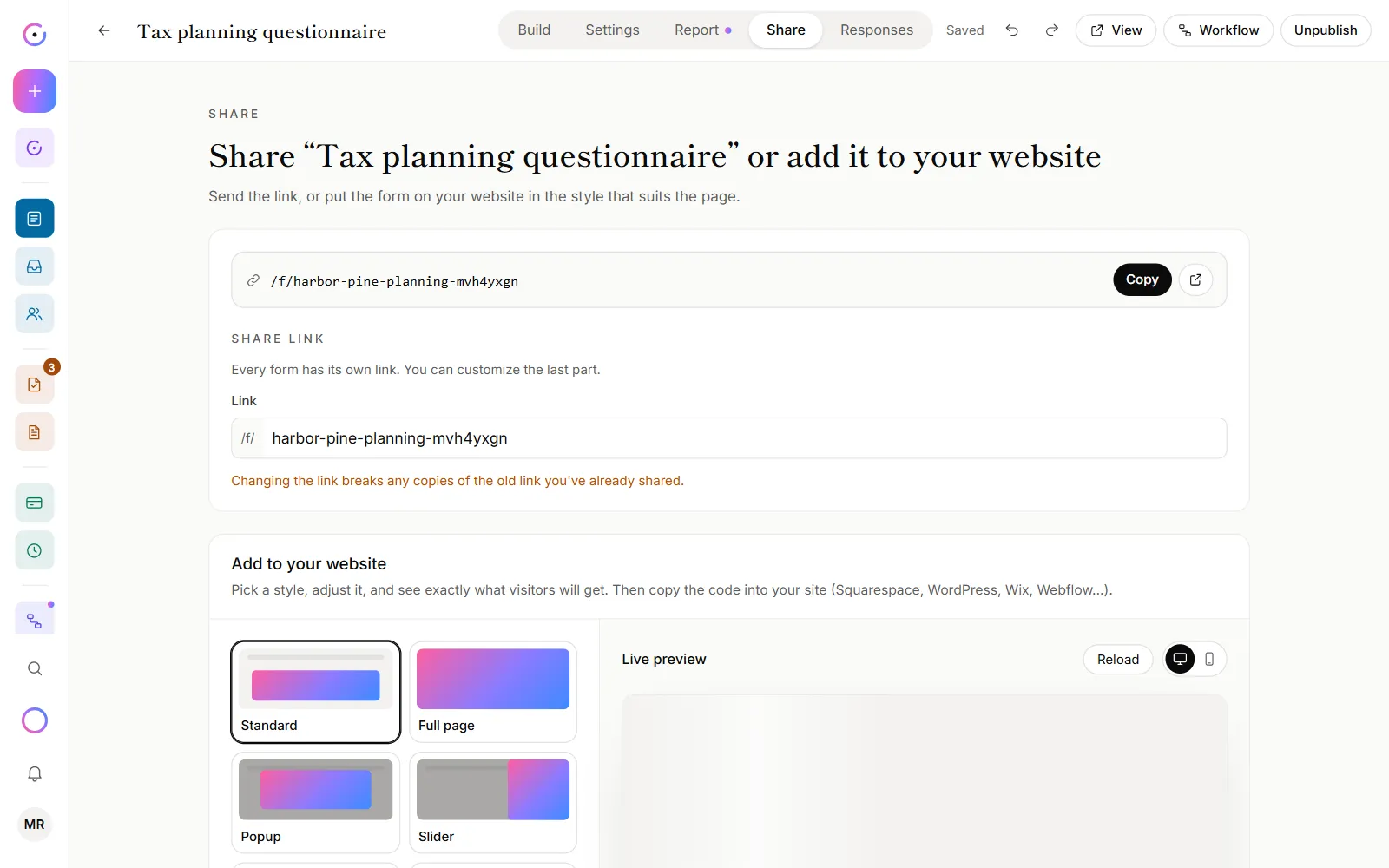
- Go to Forms and open the form.
- Click the Share tab.
- Click Copy next to the link.
- Paste it wherever you want to send it.
On a phone, a Share button also appears next to the link. It opens your phone's own share menu, so you can send the link by text or any app.
In a hurry? On the Forms page, each published form has a link icon. Click it to copy the link without opening the form.
Change the end of the link
Each link ends with a short name for the form, like /f/tax-checkup. You can change that part.
- On the Share tab, find Share link.
- Type the new ending in Link. Use lower-case letters, numbers and dashes.
- Click Save link.
Changing the link breaks every copy of the old one you've already sent or posted. Change it before you share the form, not after.
See what clients will see
- Before you publish: click Preview at the top of the builder. The form opens in a new tab, and nothing you enter is saved.
- After you publish: click View at the top of the builder, or the open icon next to the link on the Share tab. This is the real form, so a test you submit there counts as a response.
- Inside the builder: click Try it above the form to fill it in without leaving the page. Answers aren't saved.
Good to know
- Links look good in chats. When you paste a published form's link into Slack, iMessage or LinkedIn, it shows a card with the form's title and your firm's name.
- Voice forms get a QR code. If the form has a voice conversation, the Share tab shows a QR code clients can scan with a phone camera. See How voice forms work.
- Tag the people you send it to. Add details to the end of the link, like a client number or a campaign name. See Prefill answers and hidden fields.
- Who can do what. Anyone on your team can copy the link. Changing it and publishing the form take an admin or owner.
Why can't I click Copy?
The form is still a draft. The Copy button stays off until you publish, so you don't send clients a link that doesn't work yet. Click Publish at the top of the builder, then copy the link.
Why does it say "That link is already used by another form"?
Every form link is unique, across all of OneForm. Pick a different ending, for example by adding your firm's name. Links that start with "sample-" are kept for OneForm's sample forms.