Hidden fields carry details in the form's link that clients never see or type: a client number, the name of a campaign, who referred them. They arrive with the answers, so you know exactly where each response came from.
For example, /f/tax-checkup?client_id=1042 fills the hidden field client_id with 1042.
Add a hidden field
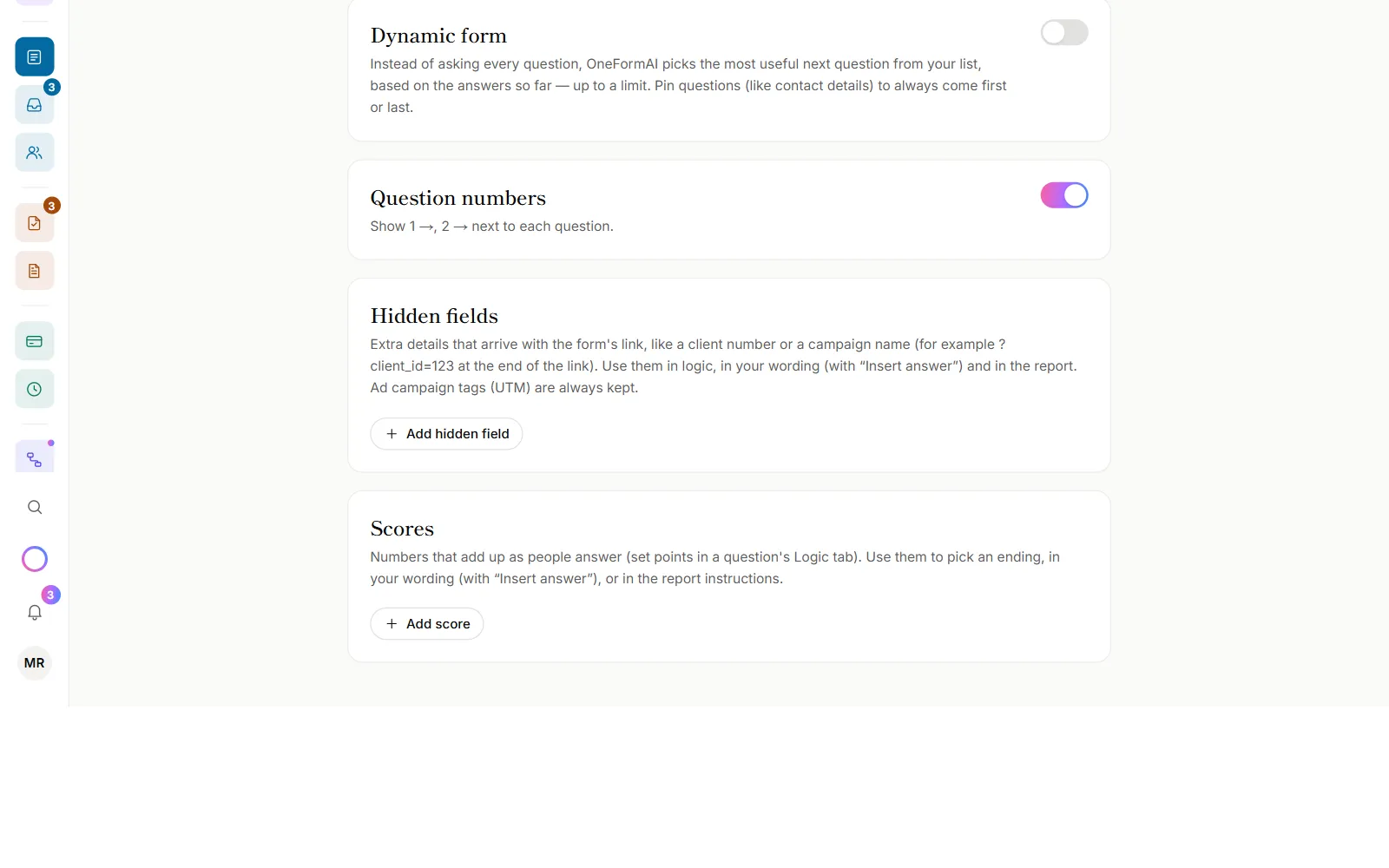
- Go to Forms and open the form.
- Click the Settings tab and scroll to Hidden fields.
- Click Add hidden field.
- Type its name, like
client_id. Use letters, numbers, dashes and underscores. - Optionally, give it a Label. That's the name your team sees with the answers.
Changes save as you make them.
Put a value in the link
- Copy the form's link from the Share tab.
- Add
?, the hidden field's name,=, and the value:?client_id=1042. - For more than one, join them with
&:?client_id=1042&ref=smith.
Send each client a link with their own value. Spaces and symbols need encoding in a link, so stick to letters, numbers and dashes in values where you can.
Campaign tags work without setup
The five standard campaign tags are always kept, even if you didn't add them as hidden fields: utm_source,
utm_medium, utm_campaign, utm_term and utm_content. Use them on links in ads, newsletters and social posts:
?utm_source=newsletter&utm_campaign=spring.
On your website
When the form is on your website, details can come from the page's own link instead. On the Share tab, under Add to
your website, type the names in Pass details from your page's link into the form, for example ref, client_id. A
visitor who lands on yourfirm.com/tax?ref=smith then brings ref=smith into the form. Campaign tags on the page's
link always come through.
Where the values show up
- With the response. Open it on the Responses page: they're under Extra details from the link.
- In downloads. Each one gets its own column, marked "(hidden)".
- In the report. OneFormAI reads the hidden fields you added, so your report instructions can use them. It doesn't read campaign tags.
- In your questions and logic. Use them in Insert answer, in show-and-hide rules, and to pick an ending. See Logic and branching.
- On the Leads page. Campaign tags become the lead's source. A
refvalue, or "refer" in a campaign tag, counts as a referral in the lead score. See Leads explained.
Good to know
- Only names you added are kept. Anything else in the link is ignored, so nobody can slip extra data in.
- Values are cut to 300 characters.
- Hidden fields don't fill in questions. To have clients confirm a detail, ask it as a question.
Why is my hidden field empty?
- The name in the link doesn't match.
clientidandclient_idare different names. Check the spelling on the Settings tab. - The value was dropped on the way. Some email and ad tools rewrite links. Open the link you actually sent and check
that the
?name=valuepart is still there.