Logic makes a form fit each client. You can hide questions that don't apply, jump ahead, keep a score, and show a different ending depending on the answers. Every rule lives on the question it belongs to.
Show a question only when it applies
- In the builder, select the question.
- In the side panel, open the Logic tab.
- Under Show this question, choose Only if….
- Pick an earlier question, a comparison (such as is, is any of or is answered) and the answer.
- To test more than one thing, click Add condition, then choose All must match or Any can match.
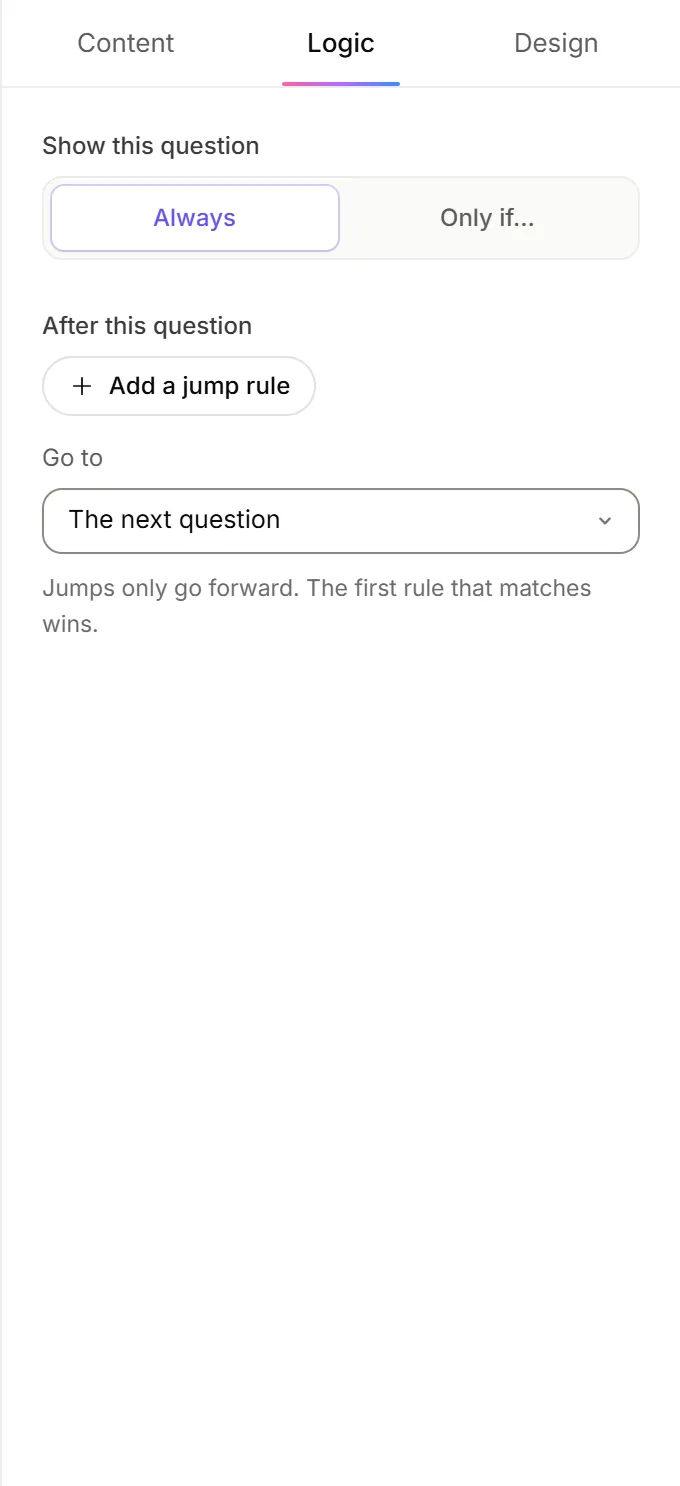
Conditions can test earlier questions, scores, and hidden fields (details passed in the form's link). A hidden question is skipped, even if it's required.
Jump ahead after a question
- Select the question and open the Logic tab.
- Under After this question, click Add a jump rule.
- Set the condition, then choose where to go under …then go to: a later question, or an ending.
- Under Otherwise go to, choose where everyone else goes. The next question is the default.
Jumps only go forward, and the first rule that matches wins.
Keep a score
Scores add up as people answer. Use them for quizzes, readiness checks or to choose an ending.
- Select a Multiple choice, Yes / No, Number or Line items question and open the Logic tab.
- Under Scoring, give the score a name (it starts as
score). - Enter points for each answer. For numbers and line items, tick Add the answer to the score instead.
You can list, rename and set a starting value for each score in the Settings tab, under Scores.
Send people to different endings
- In the list on the left, next to Endings, click Add.
- Under Show this ending when, set the conditions, for example the score ≥ 40.
- Write the ending's title and message.
Endings are checked from top to bottom. When none match, people see the default Thank-you screen. A jump rule can also send people straight to an ending. See Welcome and thank-you screens.
Check all your rules
Once a form has logic, a Logic map button appears above the question list. It lists every rule in order, and you can click a question to edit it. Questions with a rule show a small branch icon in the list.
Good to know
- Scores can appear in your wording and in the report instructions. See Personalize questions with answers.
- Dynamic forms ignore jump rules. "Show only if" rules still work. See Dynamic forms.
- Changing or deleting a question that other rules use asks first, then removes those rules.
Why is my logic not working?
A ⚠ next to a question, or on the Logic map button, means a rule needs attention. Open the question's Logic tab to read why. The usual causes:
- "A jump goes backwards and will be ignored." Move the target question after this one.
- "…uses a question that comes later." Conditions can only test questions that come before.
- "…uses an answer that no longer exists." An option the rule tested was deleted. Pick an answer again.
Why is the Logic tab greyed out?
It works on questions only. Select a question in the list, not the welcome screen or an ending.