Here's what a client gets from your firm, from the moment they submit a form to the report arriving in their inbox. Every email comes in your branding, under your sender name, and their replies come to you.
Right after they submit
The client gets a confirmation email: We've received your answers for reports, or We've received your details for documents. It says their report is being prepared, and when to expect it, using the Confirmation email promise in Settings → Reports & emails.
Some exceptions:
- If the report is for sale, they get Payment received once they pay, with a link to their own page.
- If the report went out automatically straight away, they get the report itself instead.
- Documents set to Only our team (no confirmation email) don't send one.
You can turn confirmations off in Settings → Emails. See Emails OneForm sends for you.
The report email
When the report is sent, the client gets an email with:
- A subject like "Priya, your Tax Savings Plan is ready", or the subject the reviewer wrote.
- The report title as the heading, and a greeting by first name.
- A message: the reviewer's own, or the summary OneFormAI wrote.
- Key points, as a short numbered list.
- The PDF attached, named after the report and the client.
- A button for the next step, such as Book your strategy call, if the form has one.
- Your sign-off, then your address, contact details, license and disclaimer at the bottom.
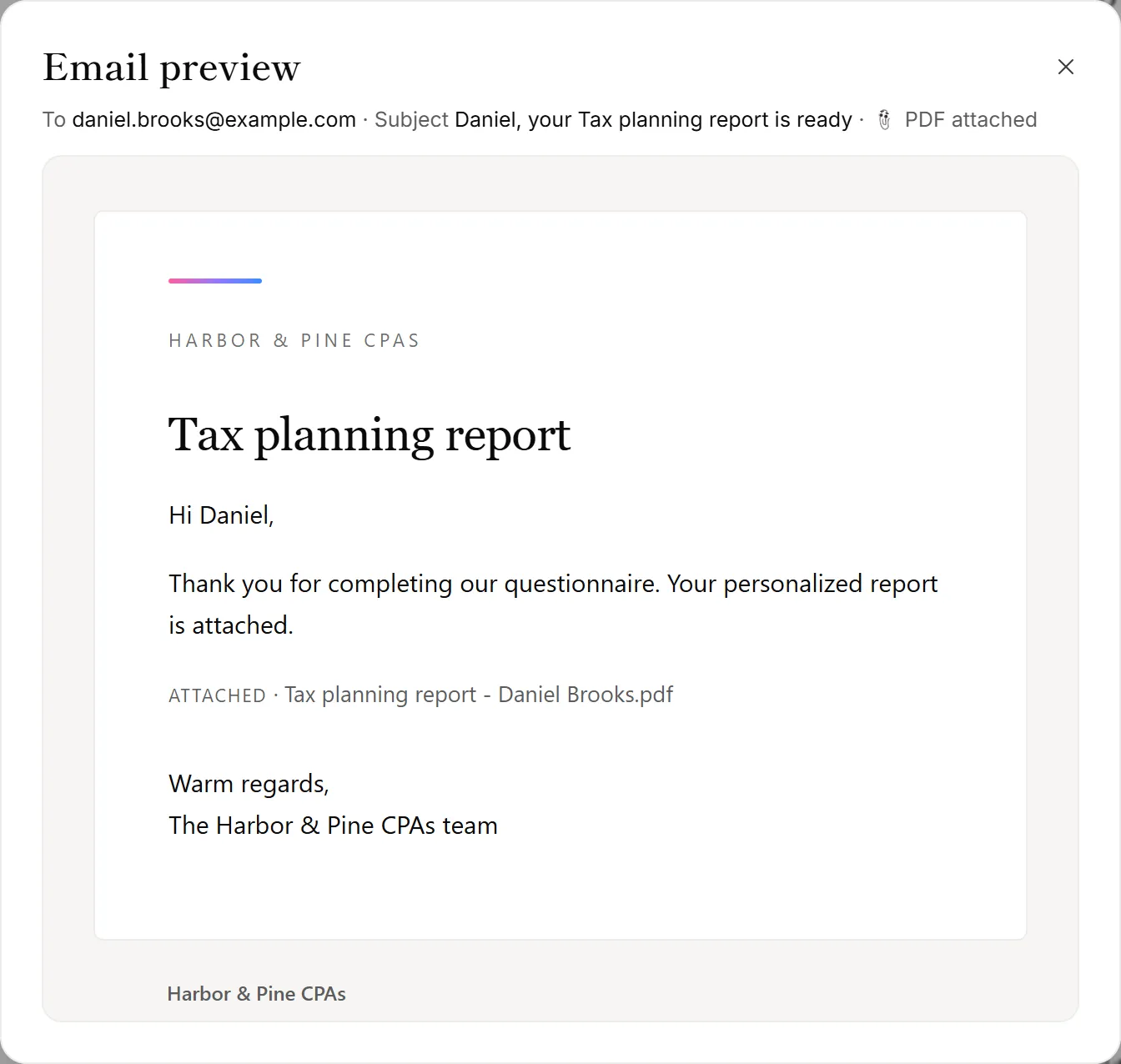
To see exactly what a client will get, open the report in Review and click Preview email.
The PDF
The PDF has your logo, the report title, "Prepared for" with the client's name, and the date. It ends with your sign-off and disclaimer. Its look follows the PDF style chosen on the form. If you uploaded your own PDF, that file is sent as it is.
Paid reports
Clients who paid for a report also get a link to their own page, where they can read the report online and download it again later. The report email includes a Read it online link to the same page.
After it's sent
- A reminder, if you've turned on Report not opened and they haven't opened the email after a few days. See Schedule a report and send reminders.
- Replies go to your reply-to address. See Set your sender name and reply-to address.
Good to know
- The next-step button is set on the form's Report tab, under Button in the email. It can open your booking link or another of your forms. Without a booking link in Settings, the booking button isn't shown.
- Clients don't need an account. Everything comes by email.
Why didn't my client get their report?
Open the report and check the Activity tab. It shows whether the email was sent, delivered, opened or bounced. If it bounced, check the address and resend it. Point your client to Where is my report? if it may be in their spam folder.