Your profile is yours, not the firm's. It holds how your team sees you, how you sign in, and where you're signed in. To open it, click your name or photo at the top right and choose Profile.
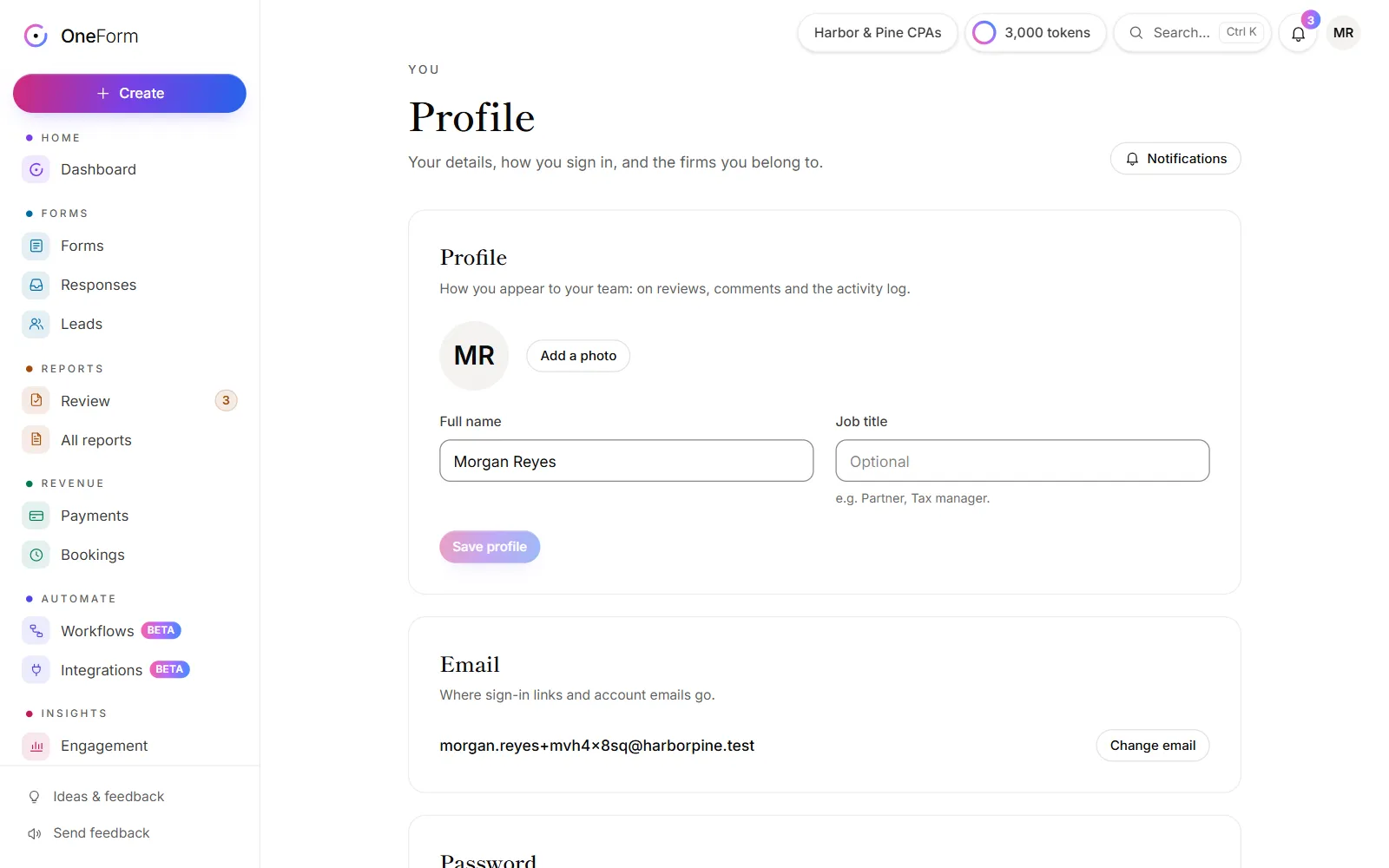
Change your name, photo or job title
- Go to Profile.
- Click Add a photo or Change photo and pick a PNG, JPG or WebP image. Remove takes it off.
- Edit your Full name and Job title.
- Click Save profile.
Your team sees these on reviews, comments and the activity log.
Change your email address
- Under Email, click Change email.
- Enter the New email.
- Enter your Current password. If you don't use a password, this works within 15 minutes of signing in.
- Click Send confirmation link.
- Open the link OneForm sends to the new address within an hour.
Until you open the link, keep signing in with your old address. Once the change is done, your other devices are signed out.
Set or change your password
You don't need a password: OneForm can email you a sign-in link each time. To add one or change it:
- Under Password, enter your Current password, if you have one.
- Enter the new password. Use at least 10 characters. A short phrase is easiest to remember.
- Click Set password or Change password.
Adding your first password works within 15 minutes of signing in, to confirm it's you. Once it's saved, your other devices are signed out, and OneForm emails you that your password changed. OneForm refuses passwords that are too common or have appeared in a known data breach.
See where you're signed in
Sessions lists every device where you're signed in, with This device marking the one you're using.
- Click Sign out next to a device to sign it out.
- Click Sign out other devices to sign out everywhere except here.
If you don't recognize a device, sign out other devices and change your password.
Good to know
- Google and Microsoft sign-in. If you've signed in with Google or Microsoft, your profile shows that account. Click Unlink to stop using it. You can still sign in with an email link. See Sign in and two-step.
- Appearance. Choose Light, Dark or System for this browser.
- Terms and privacy. See which versions of the Terms and Privacy Policy you agreed to, and change your choice about marketing emails in Notifications.
- Notifications. Click Notifications at the top of your profile to choose what OneForm tells you about. See Your notifications.
Can I turn on two-step verification?
Two-step sign-in with an authenticator app isn't available for firm accounts. To protect your account, sign in with Google or Microsoft, or with email links, and turn on two-step verification for that Google, Microsoft or email account. If you use a password, make it one you don't use anywhere else.
Why can't I change my email?
- Your password isn't right. Enter the password you sign in with now.
- You signed in too long ago. Without a password, the change only works within 15 minutes of signing in. Sign out, sign back in with an email link, and try again.
- The link expired. Confirmation links work for an hour. Start the change again.