Every new firm gets a set of sample forms: one of each kind of form OneForm can make, plus a copy of every template. Open them for ideas, try their links, or copy one to make it yours.
What's in the samples
The samples show what OneForm can do, for example:
- a form with a video, and one with images;
- a scored quiz with different endings;
- a form whose questions change with the answers, and a dynamic form where OneFormAI picks the questions;
- a form in English, French and Spanish, and a voice form;
- a booking page, a paid report and a form that offers a call at the end;
- an internal memo for your team and a document for clients;
- every tax check-up template.
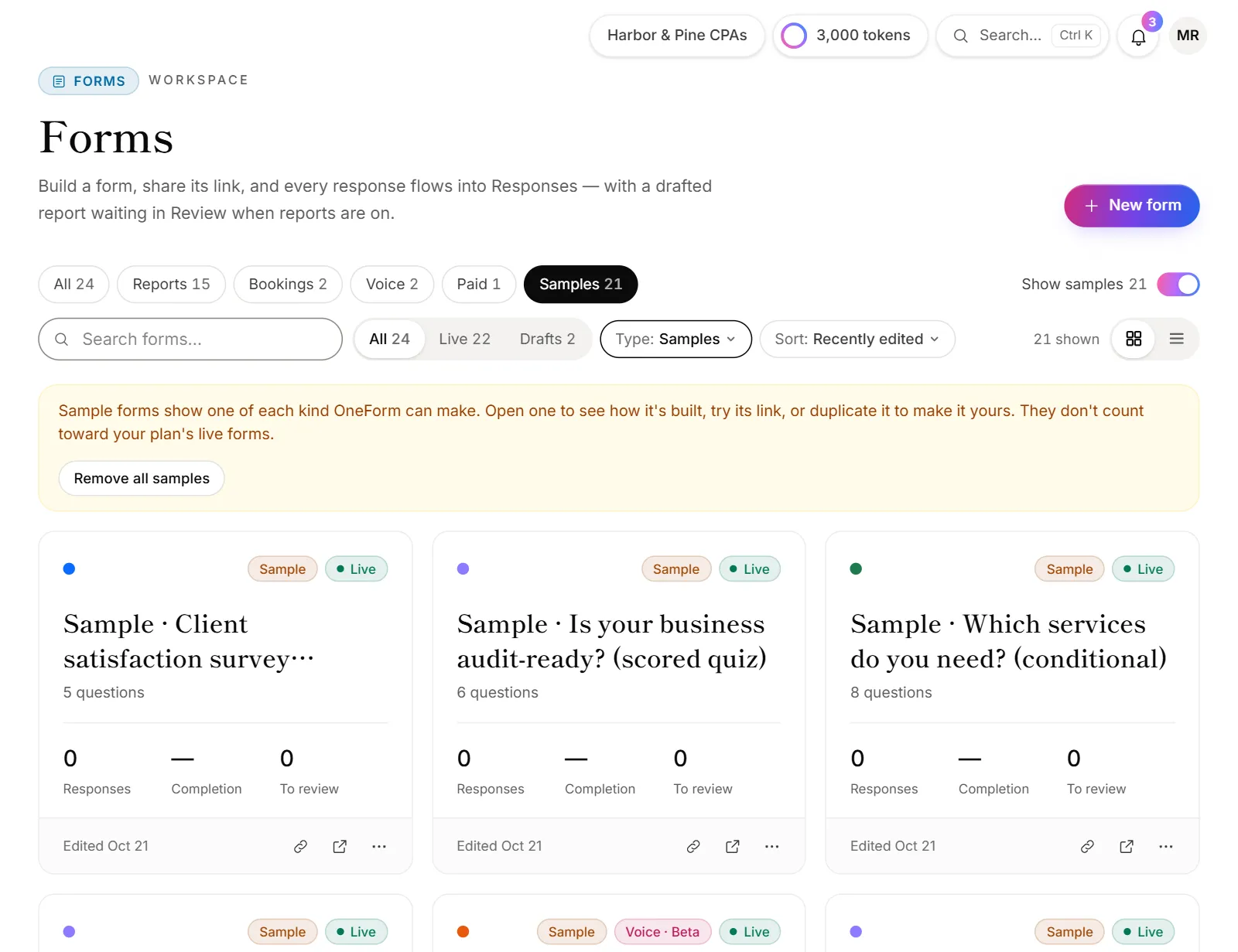
Each one is titled Sample · … and carries a Sample tag in your forms list. They're published, so their links work straight away.
See the samples
Samples start hidden on the Forms page.
- Go to Forms.
- Turn on Show samples above the list (Samples on a phone).
- To see only the samples, click the Samples filter.
Your choice is remembered on this device.
Make a sample your own
Open a sample in the editor to see how it's built. To use it for real:
- Copy it. On the form's card, open the ⋯ menu and choose Duplicate. The copy is your own form.
- Or change it in place. Once you edit a sample's questions or give it its own link, it becomes one of your forms. It stays when you remove the samples.
Remove all the samples
- Go to Forms and turn on Show samples.
- Click the Samples filter.
- Click Remove all samples.
- Confirm with Remove samples.
The sample forms are deleted, with any responses and reports they collected. Samples whose questions you edited are your own forms now, so they stay.
Add the samples back
When you have no samples, the bottom of the Forms page asks "Want to see what OneForm can make?"
- Click Add sample forms.
Any samples you deleted come back. Samples you still have keep your changes.
Good to know
- Samples don't count as live forms. They don't use up your plan's live forms until you make one your own. If your plan has no room left then, OneForm tells you before it saves the change. See When you reach a plan limit.
- Removed samples stay removed. New samples OneForm adds later aren't added to your firm until you click Add sample forms.
- Responses to samples are real. If someone fills in a sample, the response and its report show up like any other.
Why don't I see Remove all samples?
Only owners and admins can remove or add samples. You also need to turn on Show samples and pick the Samples filter first.