When you create your OneForm account, a short setup walks you through the basics: who you are, your firm's details, your team, payments and bookings. Each step takes a minute, and you can skip any of them and come back later.
Before you start
Owners and admins set up the firm. If someone invited you to an existing firm, you only see About you (and Set a password if you signed in with an email link).
Go through setup
Setup opens on its own after you confirm your email. To open it again later, go to setup.
- About you. Enter your Full name and your Job title, such as Partner or Tax manager. You can add a photo too. Your name shows on reports you sign off and in emails to your team.
- Set a password (optional). If you signed in with an email link, you can add a password so you can also sign in without opening your inbox. Email links keep working either way.
- Your firm. Enter your Firm name, Website or Phone, Time zone and Logo, and pick a Brand color if you like. These appear on your forms, reports and client emails.
- Invite your team. Type a teammate's email, choose their role, and click Send invites. They get an email with a link to join.
- Get paid. Click Connect Stripe to charge clients for reports and calls. Only the firm's owner can connect Stripe, since payouts go to their bank.
- Set up bookings. Connect Google Calendar or Outlook, then choose When clients can book.
- On the last screen, click Go to OneForm.
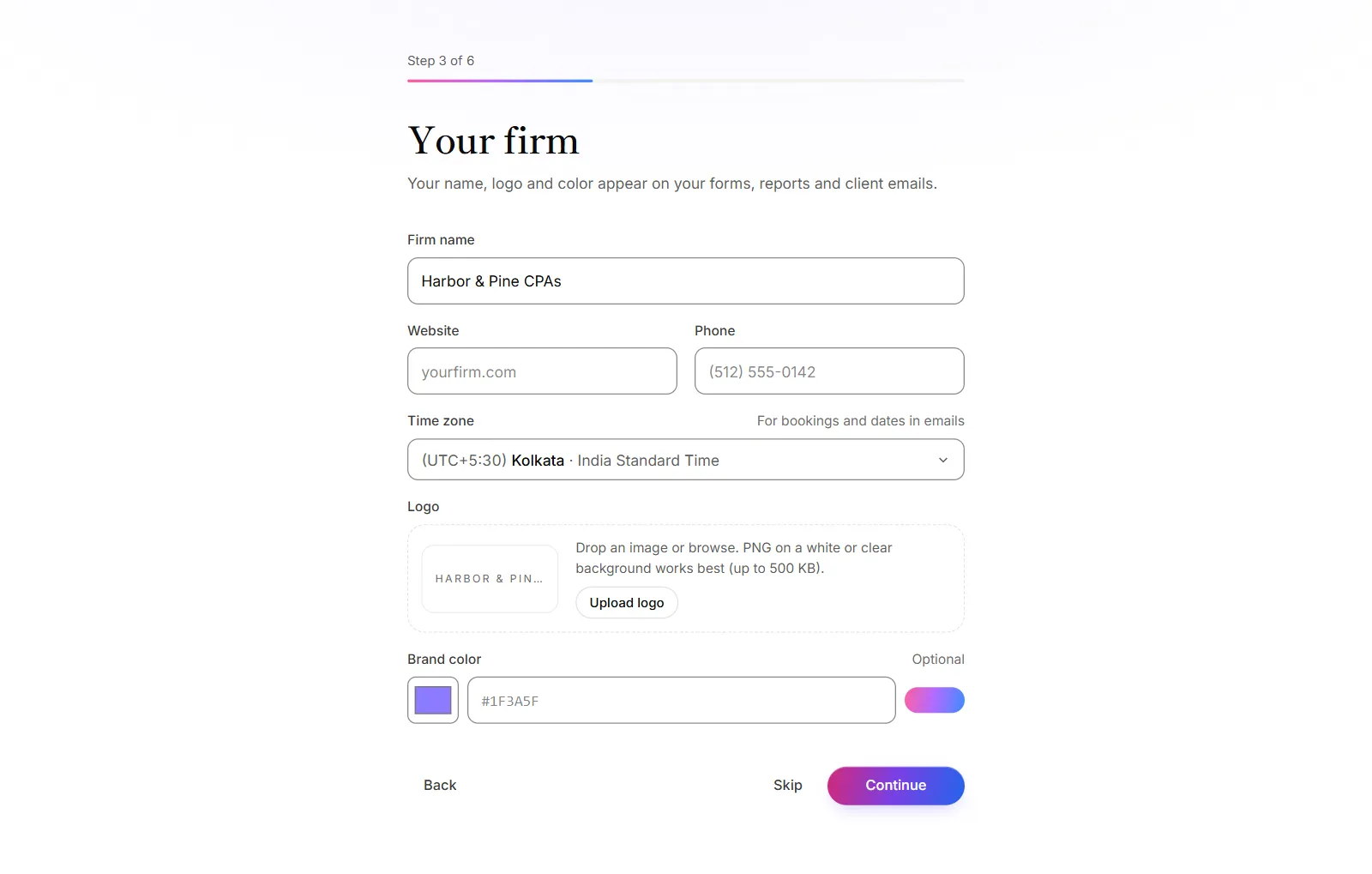
At any step, click Skip to move on, or Back to return to the step before. Finish later at the top right takes you into OneForm and keeps the steps you haven't done.
The setup checklist
Until every step is done, a small reminder at the top right of OneForm shows how many steps are left, such as 3 steps left. Click it to see the checklist:
- Each step shows whether it's done. Skipped steps say Skipped and still count as left.
- Click a step to go straight to it, or click Continue setup for the next one.
- Click Snooze for a week to hide the reminder for seven days.
A step counts as done wherever you finish it, not only in setup. For example, inviting a teammate from Firm → Team ticks off Invite your team.
Good to know
- Your logo: PNG, JPG, WebP or SVG, up to 500 KB. A PNG on a white or clear background works best.
- Change anything later. Your firm name, logo, brand color and contact details are in Firm → Settings. Your time zone for bookings is in Bookings → Availability.
- Steps depend on your plan. If your plan has room for only one person, setup leaves out Invite your team.
- Next step: build your first form. See From your first form to your first report.
Why does setup ask me to set my password again?
Your confirmation link opened in a different browser from the one you signed up in. For your security, the password you chose at sign-up wasn't kept. Set it again on the Set a password step, or skip it and sign in with email links.
Why can't I connect Stripe during setup?
Only the firm's owner can connect Stripe, because payouts go to their bank. Ask the owner to connect it from Payments. See Connect Stripe.