OneForm works in your phone's browser, with nothing to install. Sign in at the same address you use on your computer. The pages are the same, but the menu moves to the bottom of the screen.
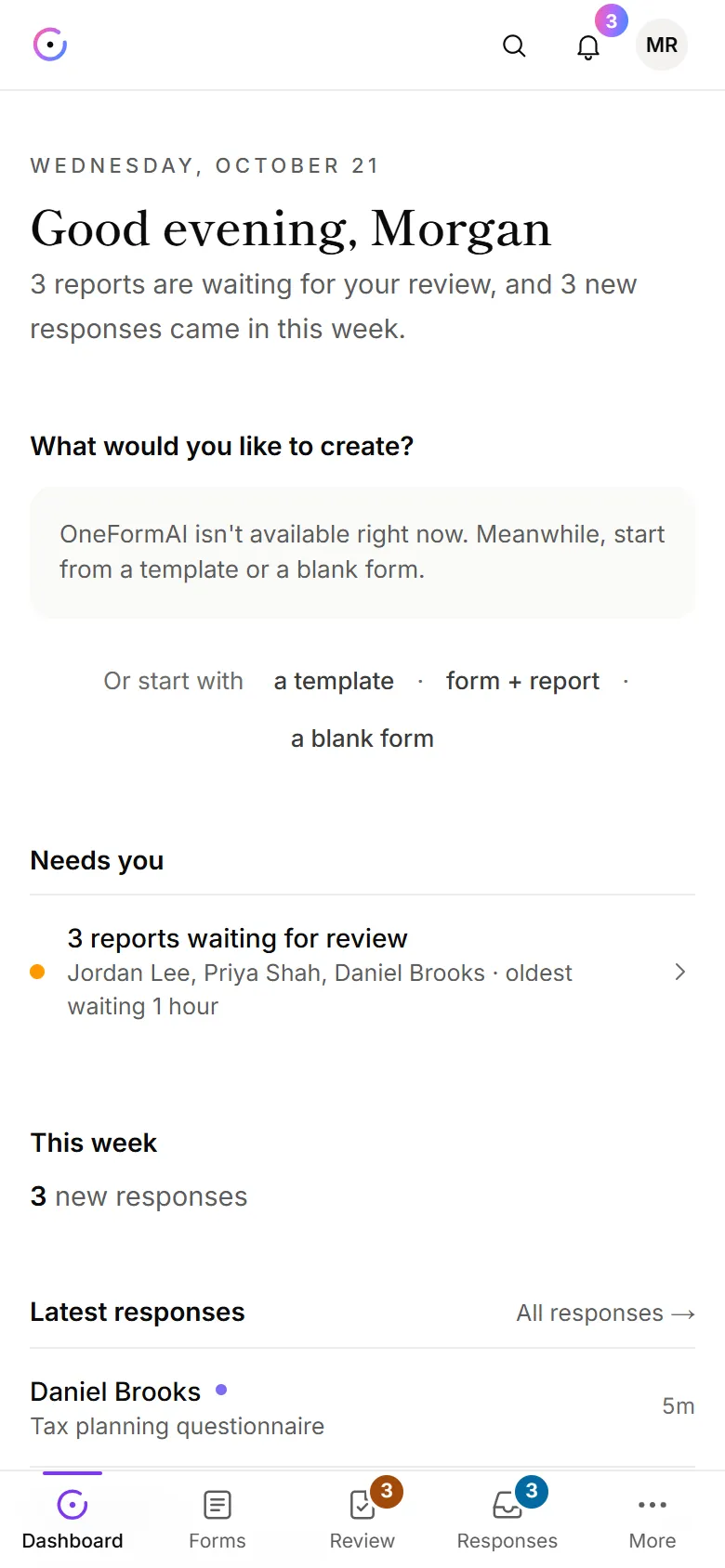
The tabs at the bottom
The bar at the bottom of the screen has the pages you'll use most:
- Dashboard
- Forms
- Review, with the number of reports waiting for you
- Responses, with the number of new responses
- More, for everything else
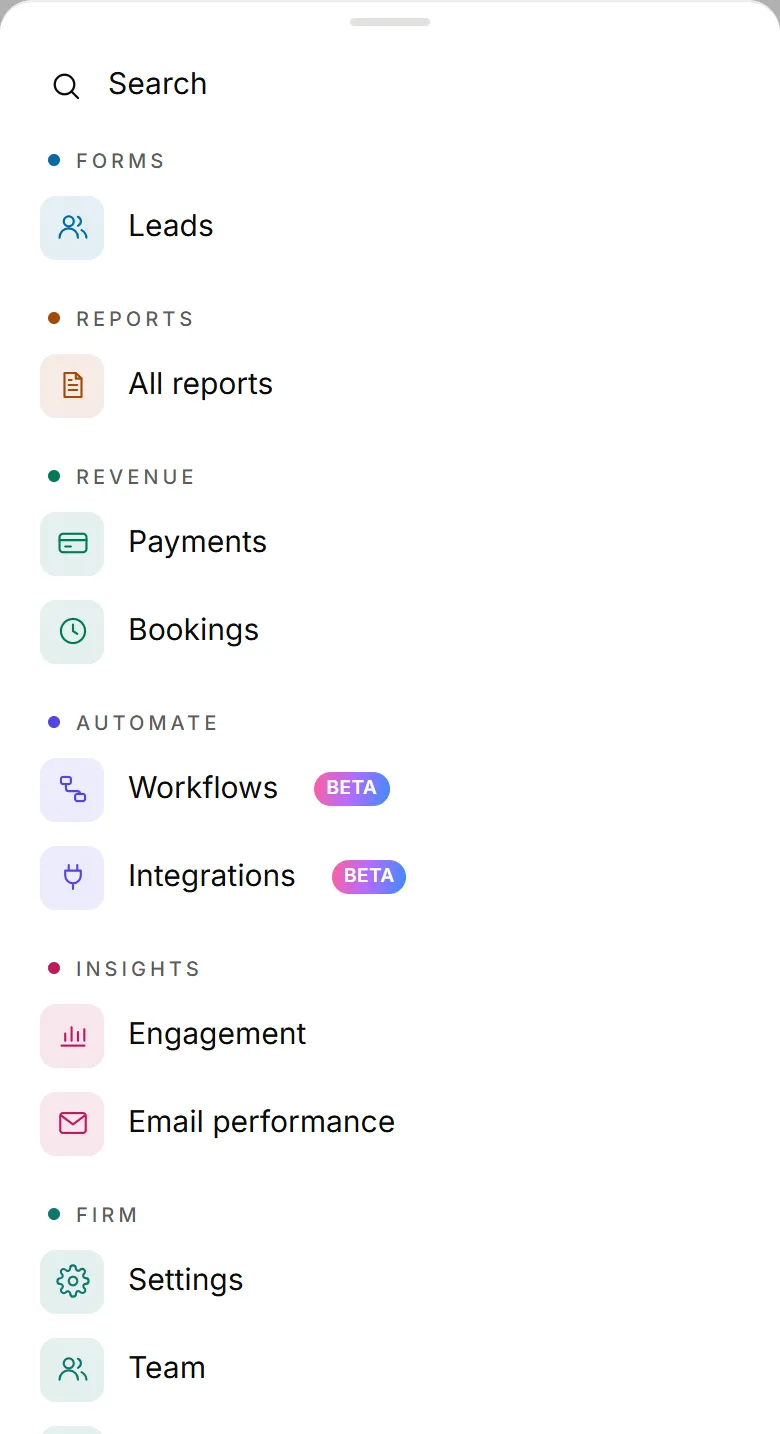
The More menu
Tap More to open every other page, grouped the same way as the menu on a computer: Leads, All reports, Payments, Bookings, Workflows, Integrations, Engagement, Email performance, Settings, Team and Billing.
Under You you'll find your Profile and Ideas & feedback. At the bottom are Send feedback and the Appearance switch for light or dark.
The bar at the top
From left to right:
- The OneForm logo takes you to your dashboard.
- Upgrade (owners only, while there's a bigger plan) is the sparkle button.
- Setup steps left, until setup is done.
- Search finds any form, client, report or setting.
- The bell shows your notifications.
- Your photo or initials opens your account menu.
On a phone, your OneAI Tokens are in the account menu, under your name. Tap them to see the details on Billing.
Edit a form on your phone
- Open the form from Forms.
- Tap a question in the list to edit it.
- Tap the back arrow to return to the list.
- Tap ▶ Preview to see the form as your clients will.
Your changes save as you go, the same as on a computer.
Good to know
- Everything is here. Phones have the same pages and settings as a computer.
- Search is one tap away. Tap the magnifying glass at the top, or Search at the top of the More menu.
- Your clients can use phones too. Your forms work on any screen size.
Where did the menu go?
On a phone, the menu on the left becomes the tabs at the bottom of the screen. Tap More for every page that isn't a tab. The form, report and workflow editors have their own bar instead of the tabs. In the form editor, tap the back arrow at the top left to return to Forms.