The quickest way to learn OneForm is to run one form from start to finish: build it, fill it in yourself as a client would, and send yourself the report.
Before you start
You need to be an owner or admin to create and publish forms. Building a form with OneFormAI and drafting a report use OneAI Tokens.
1. Build the form
- Click Create in the menu on the left, then Form with OneFormAI.
- Describe the form in a sentence, such as "A year-end tax planning questionnaire for business owners that sends them a planning memo". You can also attach an existing form, a photo or a PDF to build from.
- Click Build. OneFormAI may ask A few quick questions first. Answer what you can.
- Check the summary under Your form is ready, then click Create form (Build it when the form comes with steps that run after each response).
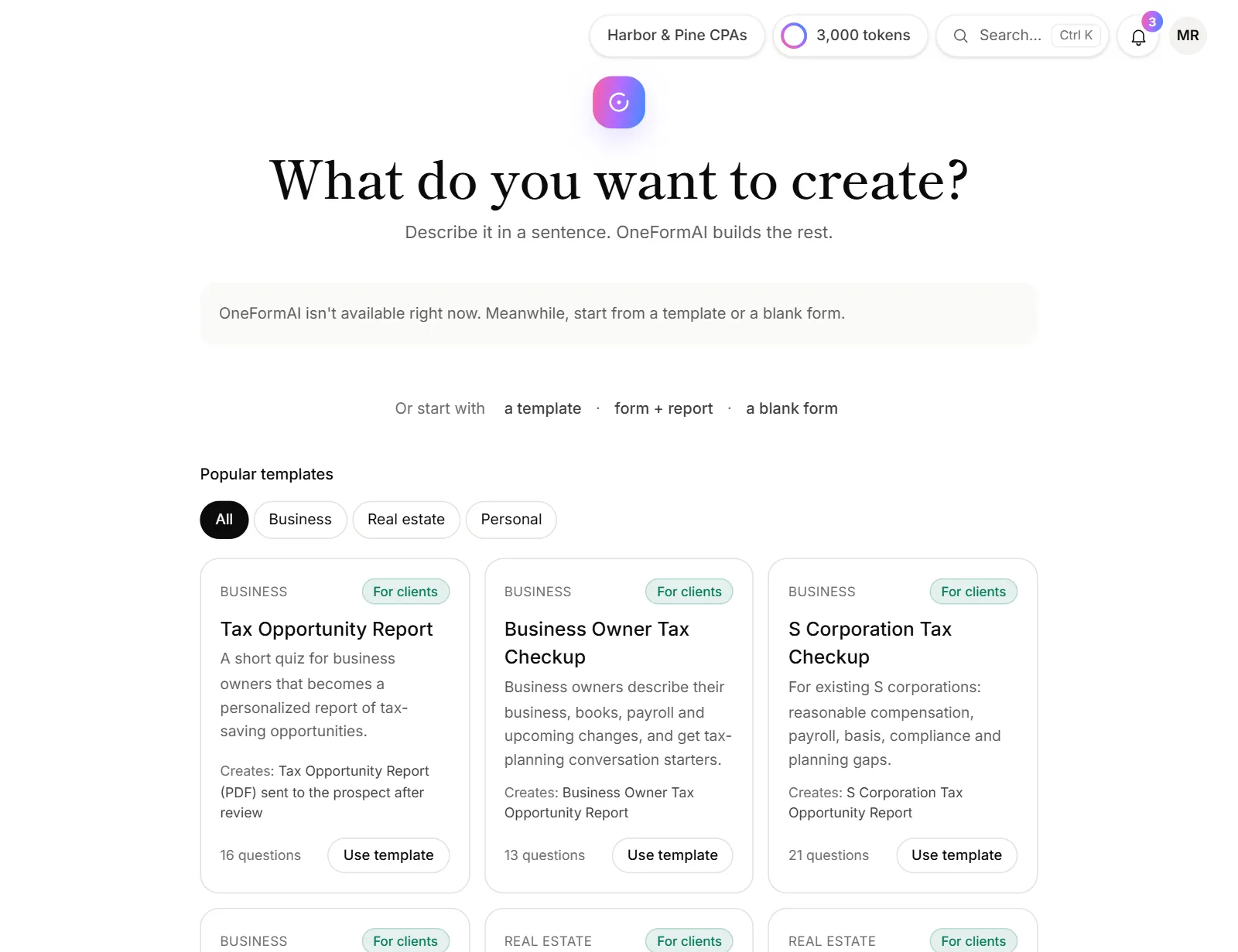
Prefer to start from something ready-made? Under the box, click a template and then Use template on the one you want. See Start from a template.
2. Publish it
A form built with OneFormAI opens on its launch screen, with a checklist under Before you share it.
- Work through anything still marked to do, such as connecting Stripe for a paid report.
- Click Publish. The form is now Live.
- Under Share it, copy the link.
From a template, the form opens in the editor instead. Click Publish at the top right.
3. Fill it in yourself
- Open the form's link in a new tab.
- Answer the questions as a client would. Use an email address you can check, since that's where the report goes.
- Submit the form.
To look at the form without sending a response, click Preview in the editor. Answers in the preview aren't saved.
4. Review the draft
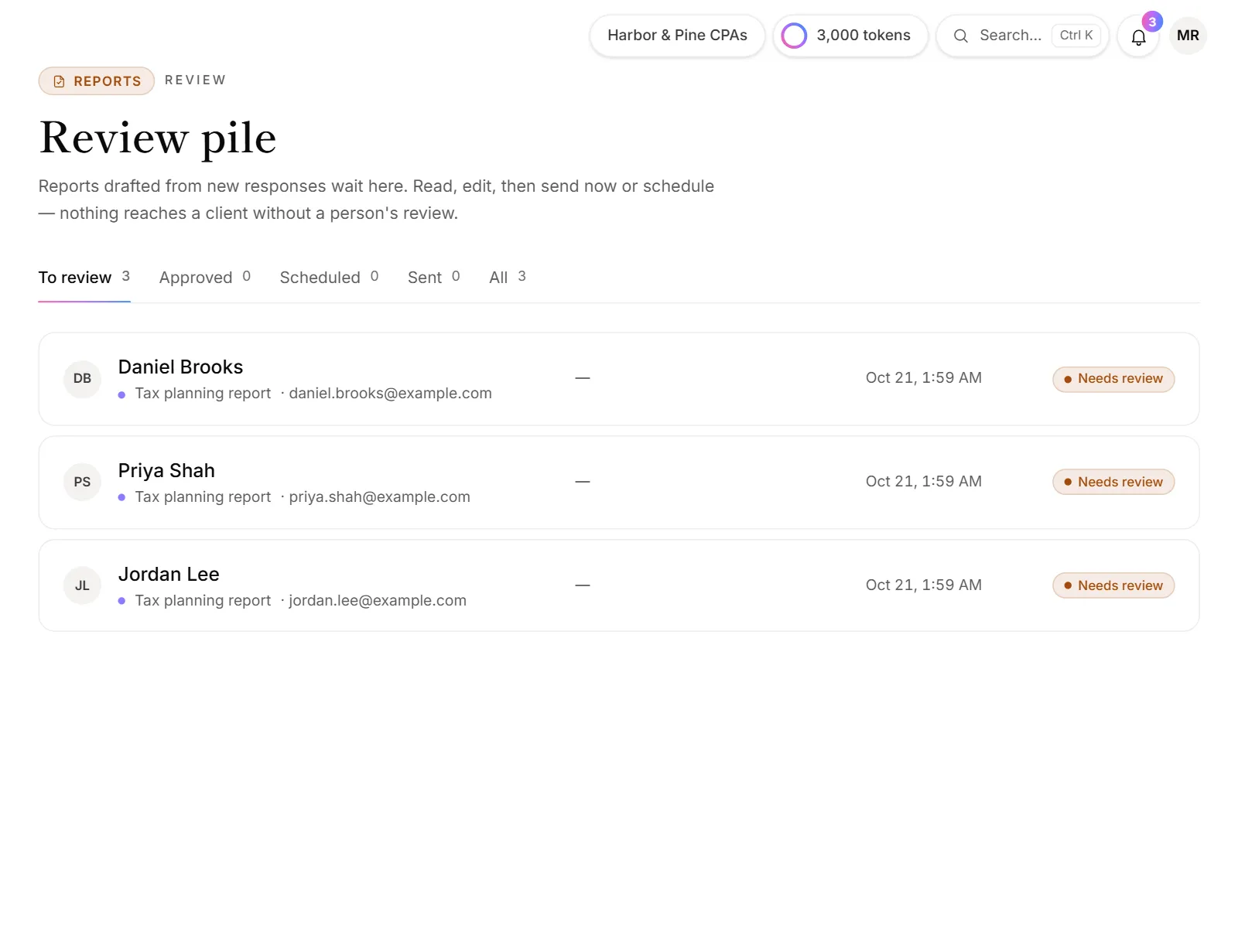
- Go to Review in the menu. The number next to it shows how many reports are waiting.
- Open your report. It's ready as soon as OneFormAI finishes drafting it.
- Read the draft and edit anything you'd like to change.
- Click Approve.
5. Send it
- Click Send.
- Check the details and click Approve & send (or Send now if you already approved it).
- Open your inbox. The report arrives as an email with the PDF attached.
Good to know
- Test responses are real responses. They show on the Responses page and count toward your plan's responses for the month. Delete them when you're done if you like.
- Nothing goes out on its own. Reports wait for review unless you turn on automatic sending for a form. See Approve and send a report.
- Change the report. The form's Report tab holds the instructions OneFormAI follows. See How AI reports work.
Why didn't a report show up on the Review page?
- The form doesn't write reports. Forms made as a plain Form (not Form + Report) collect answers only. Turn the report on in the form's Report tab.
- The response is waiting for room. If your firm has used this month's responses, new ones wait until there's room. See When you reach a plan limit.
- It's still drafting. Give it a minute, then refresh the page.
Why can't I publish the form?
Your plan may have no room for another live form. The message under Publish says so and links to the plans. See When you reach a plan limit.