OneForm has three places to find things: the menu on the left, the bar at the top right, and your dashboard. This guide shows what's in each.
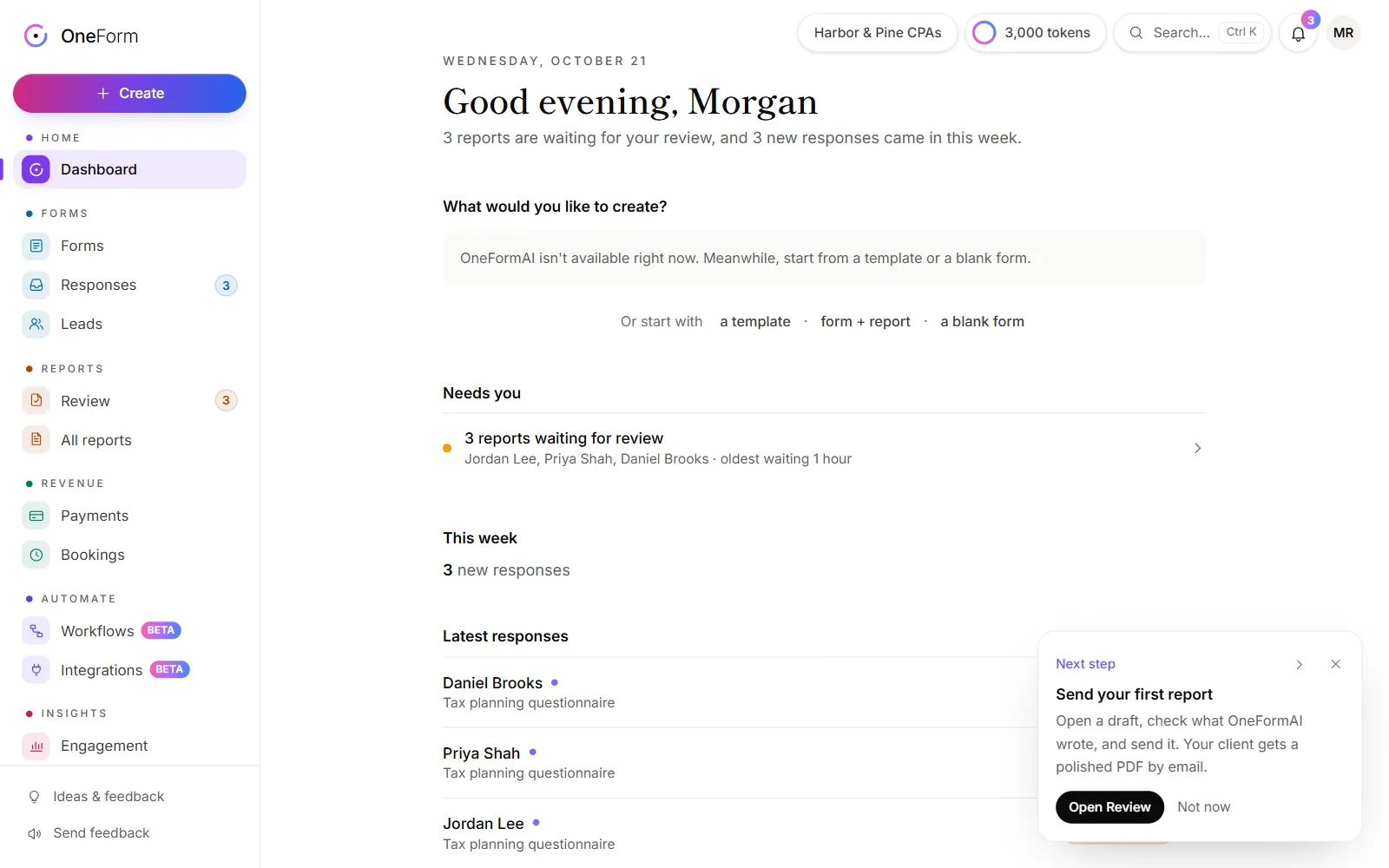
The menu on the left
The menu groups pages by what you're doing. Each section has its own color, and the page you're on takes that color too.
| Section | Pages |
|---|---|
| Home | Dashboard |
| Forms | Forms, Responses and Leads |
| Reports | Review and All reports |
| Revenue | Payments and Bookings |
| Automate | Workflows and Integrations |
| Insights | Engagement and Email performance |
| Firm | Settings, Team and Billing |
A number next to Review shows the reports waiting for you. A number next to Responses shows new responses since you last looked. Pages marked Beta are new and still being improved.
At the bottom of the menu, Ideas & feedback is where you suggest features and vote on others' ideas, and Send feedback reports a problem.
When you open a form, a report or a workflow to edit it, the menu shrinks to icons so the editor gets the full width.
The Create button
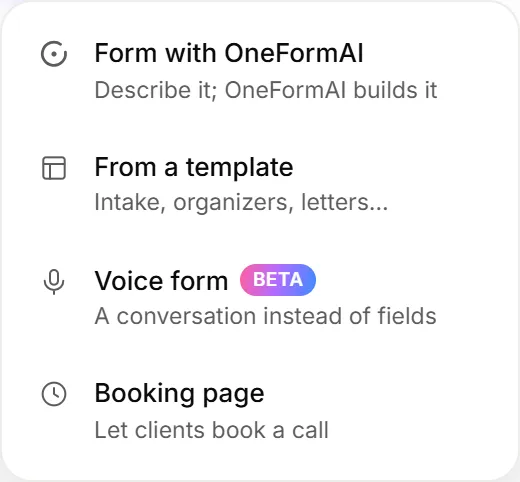
Create, at the top of the menu, starts anything new:
- Form with OneFormAI: describe the form and OneFormAI builds it.
- From a template: start from a ready-made form.
- Voice form: a conversation instead of fields.
- Booking page: let clients book a call.
The bar at the top right
From left to right, you may see:
- Upgrade: shown to owners while there's a bigger plan. See Plans explained.
- Steps left: your setup checklist, until setup is done. See Set up your firm.
- Your firm's name, on wide screens. If you belong to more than one firm, click it to switch.
- OneAI Tokens: how many tokens are left this month. Click it for details. See OneAI Tokens.
- Search: find anything. See Search and keyboard shortcuts.
- The bell: your notifications.
- Your photo or initials: your account menu.
The account menu has your Profile, Billing and Settings, Switch firm (when you belong to more than one), Help & feedback, the light and dark theme switch, and Sign out.
Your dashboard
The Dashboard is where you land after signing in. It shows only what has something in it:
- What would you like to create?: describe a form and OneFormAI builds it.
- Needs you: reports waiting for review, reports that didn't send, responses on hold, and apps or workflows that need fixing.
- Since your last visit (or This week on your first visit): new responses, reports sent, payments and calls booked.
- Coming up: your next booked calls, with a Join button when there's a meeting link.
- Latest responses: the newest answers. Click one to open it.
- Continue where you left off: forms you were working on.
A tip card in the bottom-right corner suggests something you haven't tried yet. Click Not now to hide that tip for a while, or × to hide tips for this visit.
Good to know
- Your role decides what you see. Only owners and admins see the Create box on the dashboard, for example. See Roles and permissions.
- On a phone, things move. The menu becomes a bar at the bottom of the screen. See Use OneForm on your phone.