Each form has a Report tab where you decide what every response turns into: an advice report written by OneFormAI, a document such as an engagement letter, or a PDF you upload. Changes save automatically.
Before you start
You need to be an admin or owner to change a form. The form should ask for the person's email (an Email or Contact info question), so OneForm knows where to send the report.
Turn on reports
- Go to Forms and open the form.
- Click the Report tab at the top.
- Click Turn on reports, or use the switch in the top-right corner so it says On.
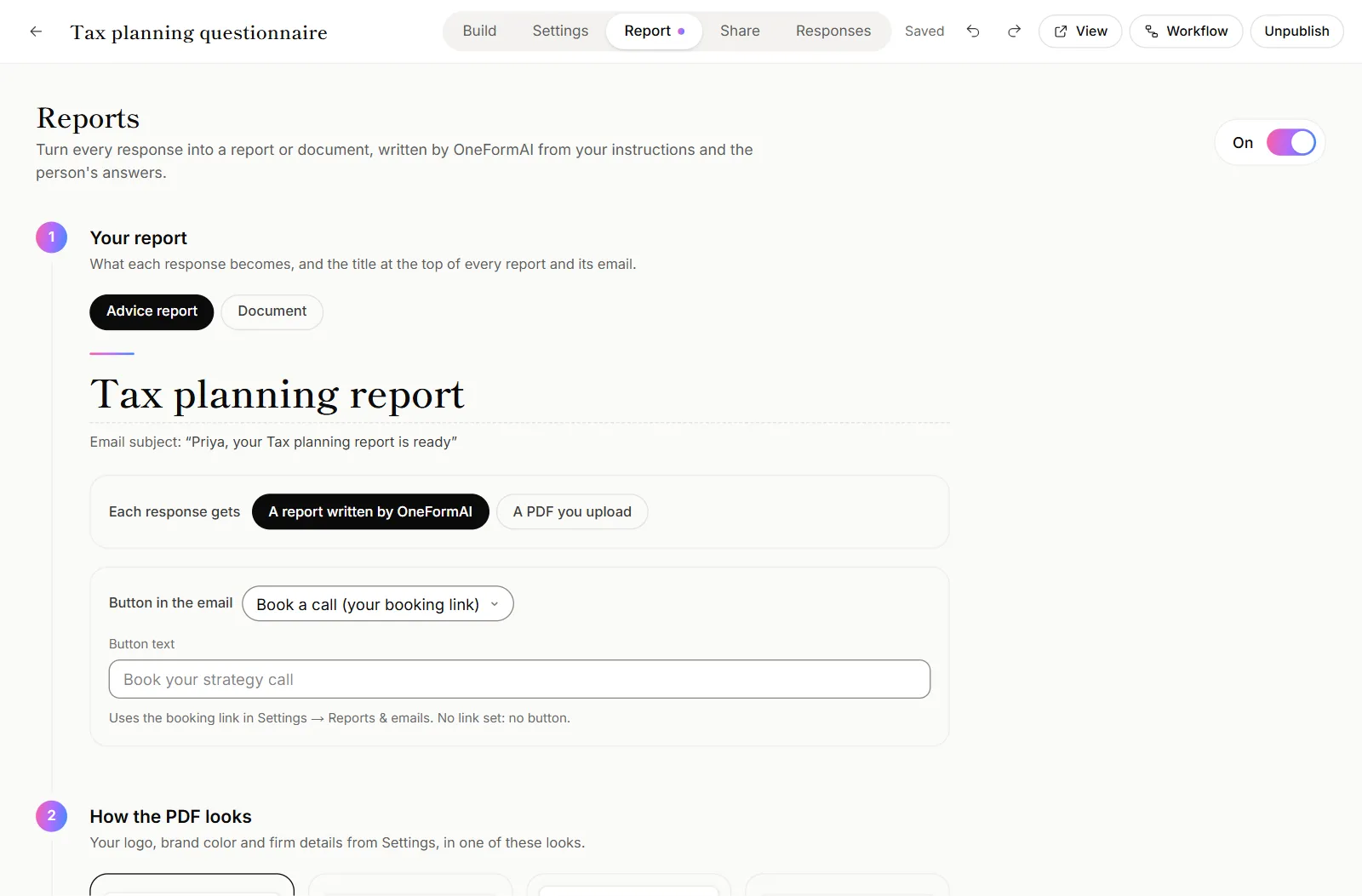
Choose what each response becomes
- Under Your report, pick Advice report or Document.
- For a document, pick its type from the list next to it: for example Engagement letter, Proposal / quote, Tax organizer, Document request list or Memo / letter.
- Click the large title and type the name clients will see, like "Your 2026 Tax Savings Plan". It's the heading of the report and part of the email subject, shown just below it.
- Next to Each response gets, choose:
- A report written by OneFormAI: a new report for each person, from your instructions and their answers.
- A PDF you upload: everyone who completes the form gets the same file. Upload it, and add a line or two for the email if you like.
- Under Button in the email, choose what the client is invited to do next: Book a call (your booking link), Open another form, or No button. You can change the button text.
Extra choices for documents
- Who receives it? Choose The person who filled the form, or Only our team (no confirmation email) for internal records.
- Write it with OneFormAI: turn it off to lay the answers out neatly instead, which suits invoices and records.
Finish the setup
The rest of the tab walks you through, in order:
- How the PDF looks: pick a style. See Brand your reports, sign-off and disclaimer.
- Instructions and a sample report: tell OneFormAI what to write, then try it on a real response. See Write better report instructions.
- How reports go out: Review before sending or Send automatically. See Send reports automatically.
- Sell this report: charge for it if you want to. See Charge for a report.
- Gets better as you rate: the rules OneFormAI has learned from your ratings.
Good to know
- Forms built with OneFormAI come with an idea for the report. The first time you open the Report tab, OneFormAI writes the full instructions from that idea.
- Changes apply to new drafts. Drafts already waiting in Review keep what they were written with. Re-draft one to use your new settings.
- Turning reports off stops new drafts. Reports already made stay in Review and All reports.
Why does it say the form doesn't ask for an email?
The How reports go out step shows this when the form has no Email question and no Contact info question with an email in it. Reports still get drafted, but each one needs a recipient typed in by hand before it can be sent. Add an email question to the form to fix it.
Why can't I change the Report tab?
Only admins and owners can change forms. Reviewers and viewers can read the tab but not save changes. See Roles and permissions.