The welcome screen introduces your form. The thank-you screen closes it, and can point clients to what's next: a call to book, your website, or a paid report. Both are at the top and bottom of the question list in the builder.
Set up the welcome screen
- In the builder's Build tab, select Welcome screen at the top of the list.
- Turn on Show a welcome screen if it's off.
- Under Text, write the Title, a Description and the Button text (it starts as Start). Add a Headline (card) or a Badge such as "FREE" if you like.
- Under Look, turn on Show the firm logo, choose a Layout, and upload an image.
- Under Links, click Add a link for your website, social profiles, email, phone or booking page.
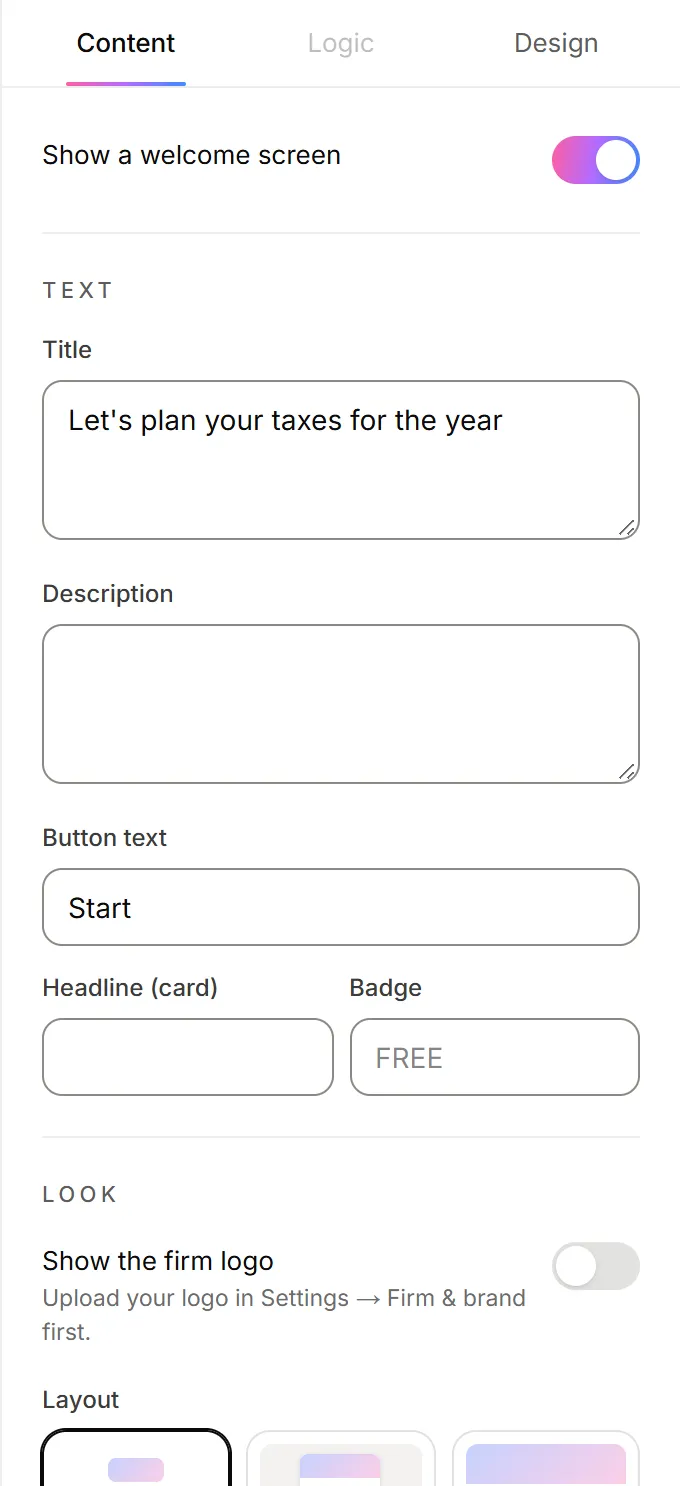
You can also click any text in the preview and type over it.
Set up the thank-you screen
- Select Thank-you screen under Endings in the list.
- Write the Title and Description. Open Personalize with answers to add the client's name or score.
- Choose what happens next. Each option is described below.
Add a button
Under Button, enter the Button text and the Button link, for example "Visit our website".
Let people book a call
- Under Book a call, turn on Let people book a call here.
- Choose OneForm's scheduler to use the call set up in the form's Settings tab, under Consultation. Or choose Another tool's page and paste a booking link from Calendly, Cal.com or another tool.
See Offer a call after a form and Use another booking tool.
Send people to a web page
- Under Send to a web page, paste the page's address.
- Set how many seconds to wait under After.
- Optional: under Add answers to the link, pick answers to pass along.
Only pass emails or other personal details to pages you control. Answers in a link can end up in that site's analytics.
Offer a paid report
If the form sells its report, the report's price and pay button show on every ending. On an ending for people who shouldn't be offered it, turn off Offer the paid report here. See Charge for a report.
Show a different ending to different people
Click Add next to Endings to add another ending, then set Show this ending when. See Logic and branching.
Good to know
- Layouts include Classic, Card, Hero, Banner, Background, Dark background, two Split layouts, Side panel and Portrait (a round photo, good for an advisor).
- With a background photo, use Darken the photo so the text stays readable.
- Links with a label show as buttons. Links without one show as icons.
- You can't delete the default thank-you screen. Other endings have Delete this ending. Jumps that went to a deleted ending go to the default thank-you screen.
Why isn't my logo showing?
Upload it first in Settings, under Firm. Then turn on Show the firm logo on the screen where you want it.
Why does "OneForm's scheduler" show nothing?
The form's call isn't turned on. Open the form's Settings tab and turn on Consultation.