OneForm has its own scheduler. Clients pick an open time, the call goes on your calendar, and OneForm sends the invitations and reminders. Calls can be free or paid.
Three ways to take bookings
| Way | Best for | Where to set it up |
|---|---|---|
| A booking page | A link anyone can use to book a call: on your website, in your email signature, on a business card. | Create a booking page |
| A call after a form | Offering a call at the end of a form, to everyone or only to good fits. | Offer a call after a form |
| Another booking tool | You already use Calendly, Cal.com or similar and want it on a form's thank-you screen. | Use another booking tool |
Booking pages and calls after a form both use OneForm's scheduler, so they share your hours, your calendar and your reminders. Another booking tool works on its own: OneForm shows its page, and that tool does the rest.
The Bookings section
Go to Revenue → Bookings. The tabs are:
- Overview: today's calls, the rest of the week, and how the last 30 days went: calls booked, paid calls, the no-show rate and the cancellation rate.
- Calendar: every call in a list or a week view. See Manage your bookings.
- Booking pages: your booking pages, and the forms that end with a call.
- Availability: your hours and days off. See Set your availability.
- Integrations: your calendar and video tool. See Connect your calendar.
- Settings: reminders, changes, cancellations and refunds. See Reminders, cancellations and rescheduling.
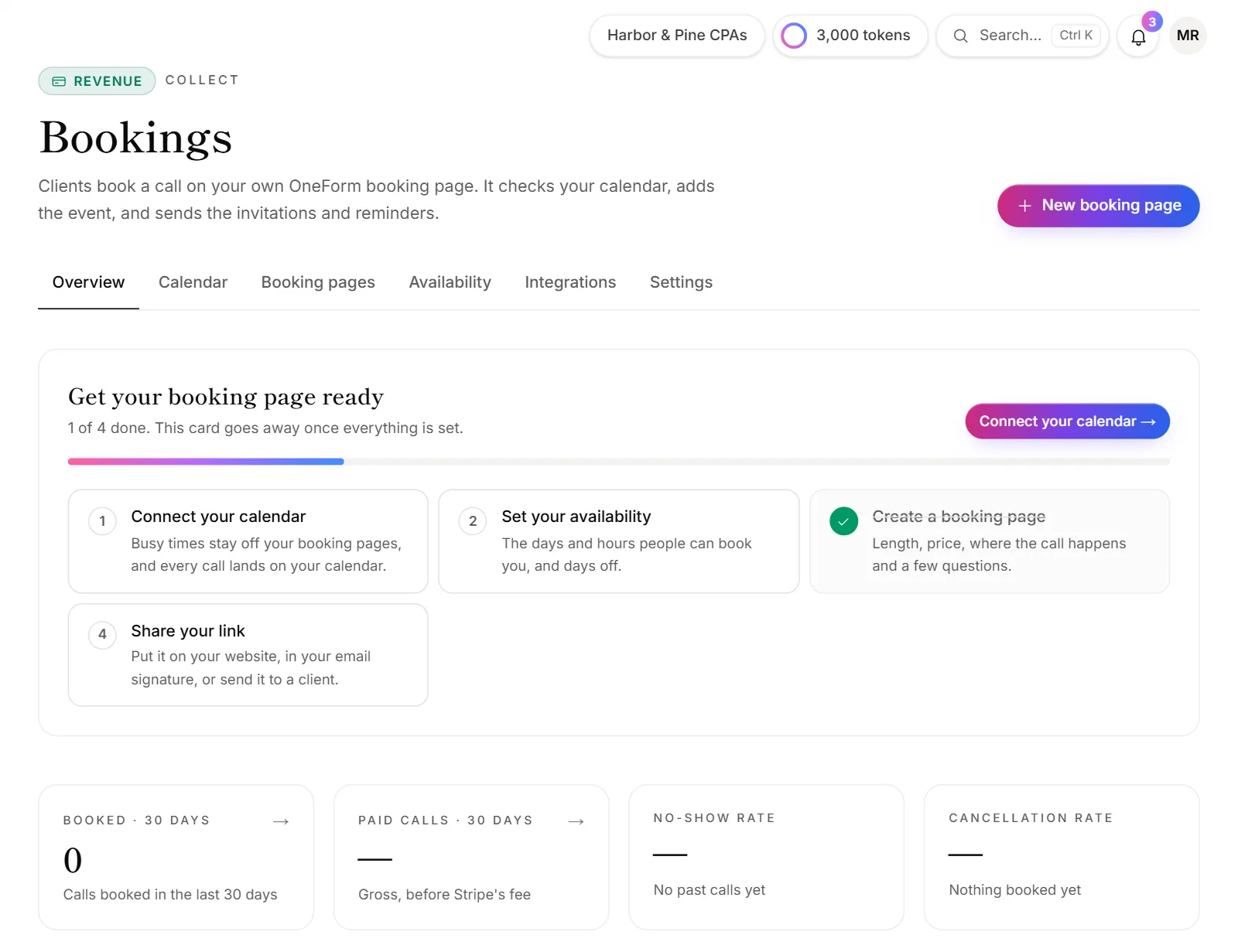
Get set up
Until everything is set, the Overview shows Get your booking page ready. Work through it from the top:
- Connect your calendar, so busy times stay off your booking pages and every call lands on your calendar.
- Set your availability: the days and hours people can book you.
- Create a booking page: its length, price, place and a few questions.
- Connect Stripe, if any page is paid. See Charge for a call.
- Share your link.
The card goes away once every step is done.
Good to know
- Bookings are on every plan, Free included, and so are paid calls.
- No calendar? Bookings still work. Each call arrives by email with a calendar invitation.
- Who can do what: everyone can see bookings. Reviewers can also reschedule, cancel and add notes. Owners and admins set up booking pages, hours and settings. See Roles and permissions.
Why don't I see the New booking page button?
Only owners and admins create booking pages. Ask one of them, or ask for a different role.