A booking page is a short page where clients book a call with you. They answer a few questions, pick an open time, and get a confirmation with a calendar invitation. The call goes on your calendar.
Create the page
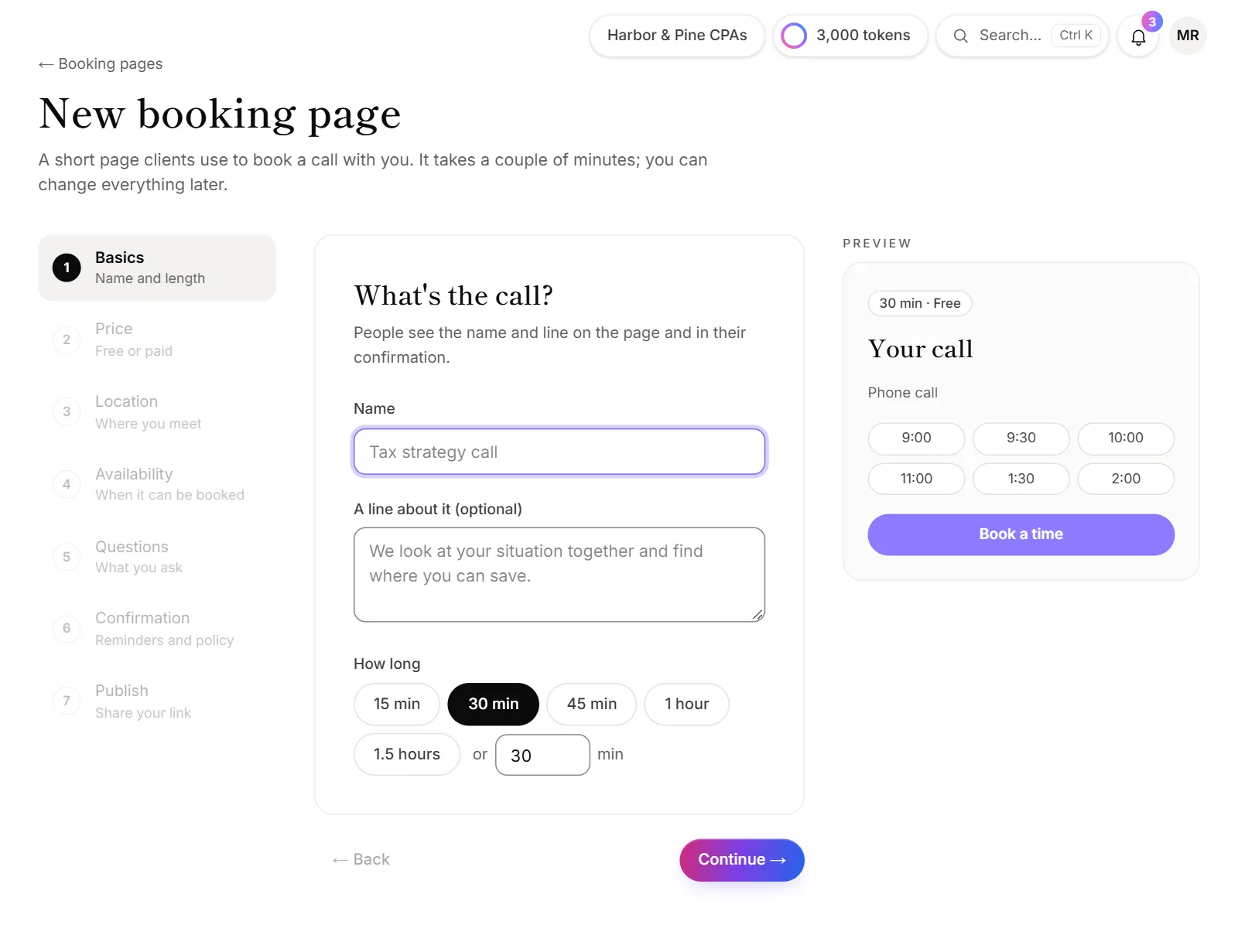
- Go to Bookings and click New booking page.
- Basics: give it a Name, an optional line about it, and pick How long the call lasts.
- Price: choose Free or Paid. See Charge for a call.
- Location: choose where you meet: Google Meet, Microsoft Teams, Zoom, Phone call, In person or Your own link.
- Availability: keep My usual hours, or choose Hours just for this page.
- Questions: name and email are always asked. Choose whether to ask for a phone number, and add questions with Short answer, Paragraph or Choice.
- Confirmation: add an optional Confirmation message, and choose your reminder and cancellation rules.
- Publish: check the summary and click Publish booking page, or Save as draft.
Click Continue → to move between steps. You can change everything later.
Share it
After publishing, you get four ways to share it:
- Link: copy it into emails, your signature or a "Book a call" button.
- On your site: a code that shows the page on your website.
- Button + popup: a code for a button that opens the page over your website.
- QR code: download it for your office door or business cards.
To share later, click Share on the page's card in Booking pages. Putting the page on your website uses embeds, which depend on your plan. See Embed a form on your website.
Change, pause or copy a page
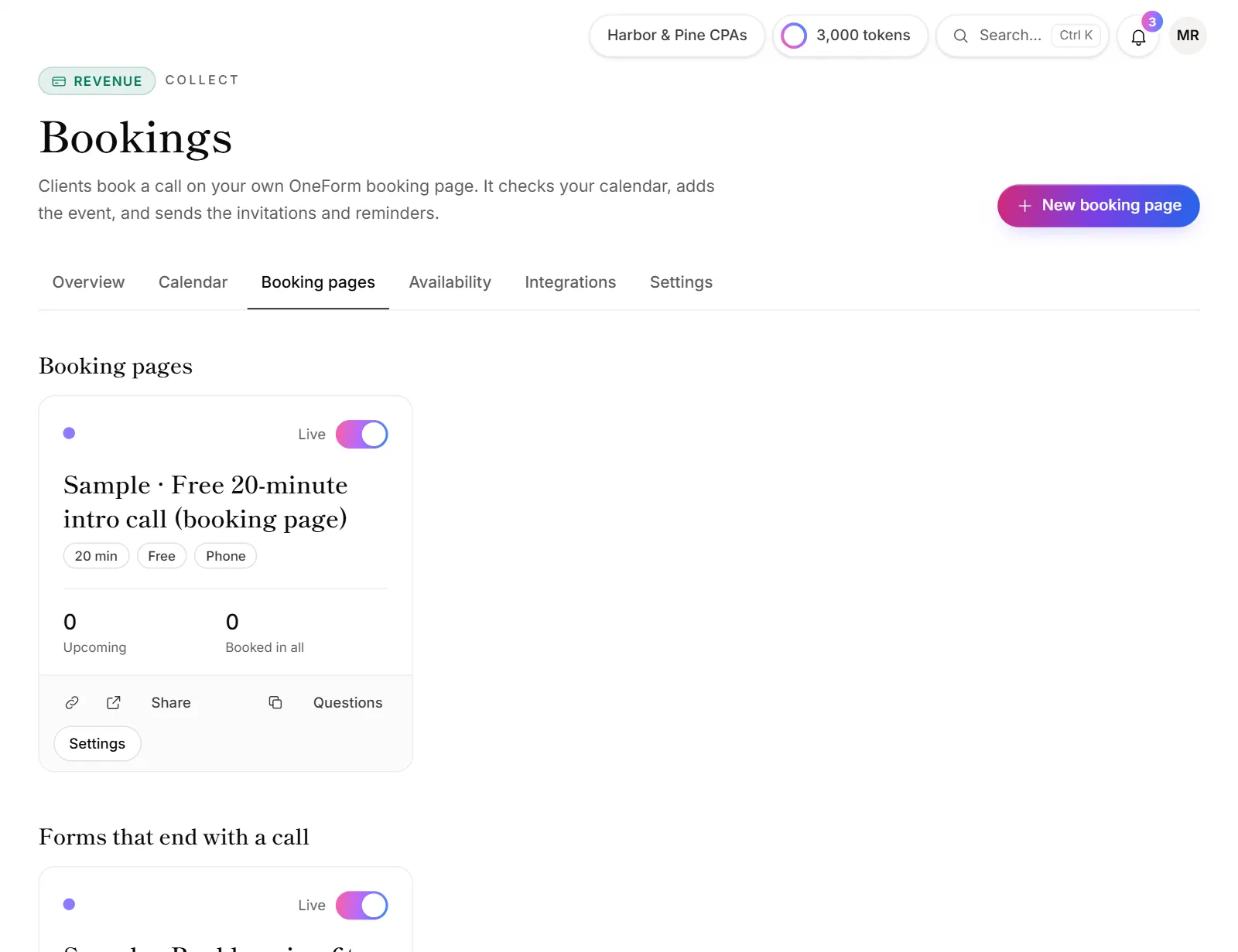
On each card in Booking pages:
- Settings opens the same steps. Click Save changes when you're done.
- Questions opens the page in the form builder, for more question types, logic, the design and the thank-you screen.
- The Live switch pauses the page. A paused page's link doesn't work until you turn it back on.
- The copy icon duplicates the page.
Good to know
- A booking page is a form. It's also listed in Forms, and its answers are in Responses.
- Video links need a connected account. Greyed-out options say what to connect. See Add video meetings.
- Left to connect something? OneForm keeps what you'd filled in on a new page. Click Start over to clear it.
- Forms that end with a call are listed on Booking pages too. See Offer a call after a form.
Why can't I go to the next step?
The step says what's missing, for example "Give the booking page a name." or "Every question needs some text." Fix it and click Continue → again.
Why does a client see "You've already booked this call"?
One email address can only book the same page a couple of times a day. The client can change their time from the link in their confirmation email.