Your availability decides which times clients see. Every booking page and every call after a form uses it, unless a page has its own hours. Busy times on your connected calendar are always kept free too.
Set your weekly hours
- Go to Bookings → Availability.
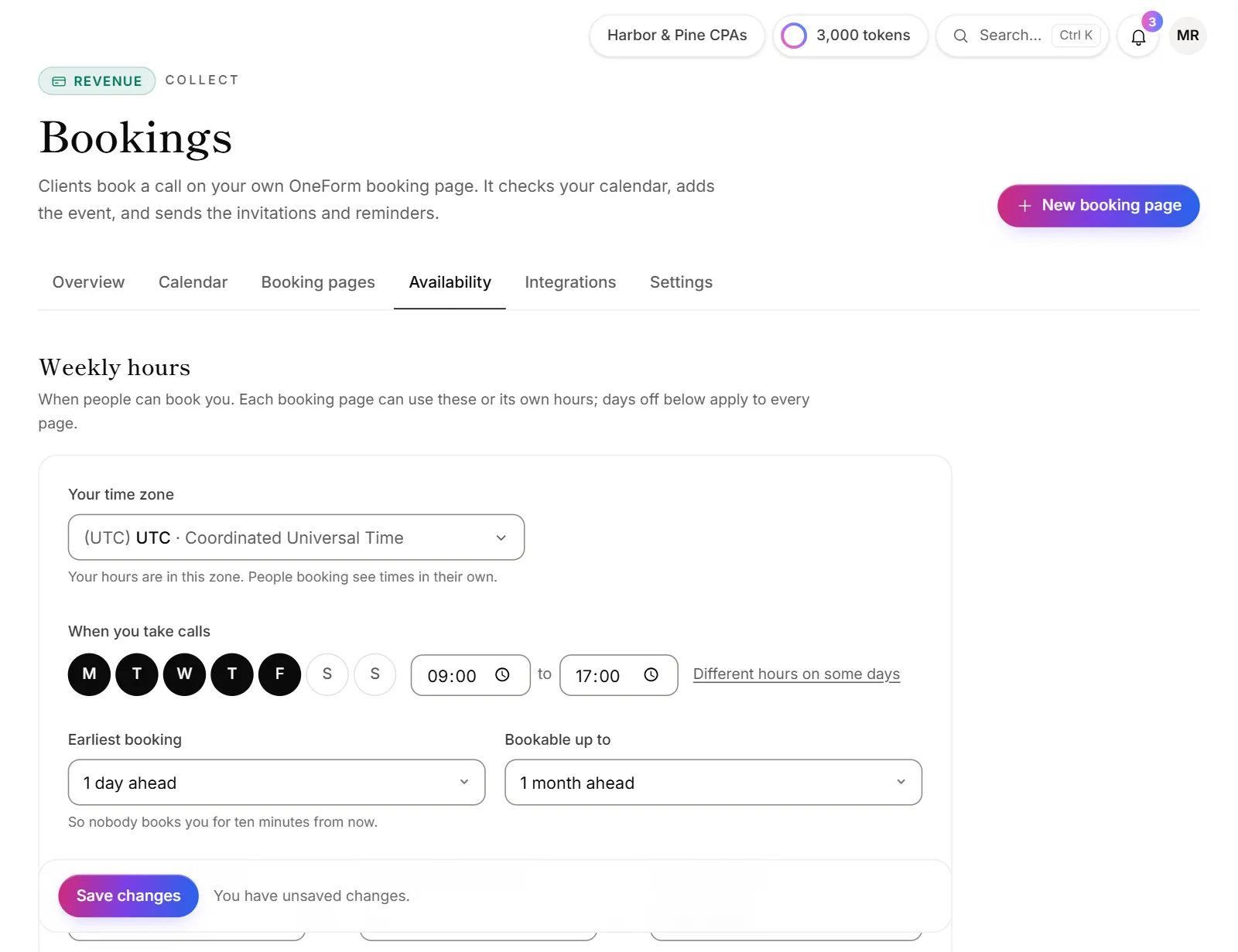
- Check Your time zone. Your hours are in this zone. People booking see times in their own.
- Under When you take calls, click the days you work, then set the start and end time.
- Need different hours on some days, or a lunch break? Click Different hours on some days. Then set each day, and click Add a break to split a day into two or three windows.
- Click Save changes at the bottom.
Set the booking rules
On the same page:
| Setting | What it does |
|---|---|
| Earliest booking | How much notice you need, so nobody books you for ten minutes from now. |
| Bookable up to | How far ahead people can book. |
| Free time before each call and Free time after each call | A gap kept open around every call. |
| Start times every | How often a call can start, such as every 30 minutes. |
Click Save changes when you're done.
Add days off and special hours
- Under Days off and special hours, click Add a day off or special hours.
- Pick the From date, and a To (optional) date for more than one day.
- Choose Closed all day, or Different hours and set the times.
- Click Add this date (or Add these dates).
- Click Save changes.
Days off apply to every booking page. Nothing can be booked on a closed day. To tidy up, click Remove on a date, or Clear past dates.
Give one booking page its own hours
- Go to Bookings → Booking pages and click Settings on the page.
- Click the Availability step and choose Hours just for this page.
- Set the hours. You can also change the free time, notice and booking window for this page, and set At most per day.
- Click Save changes.
Each rule left on Your default follows the Availability page.
Good to know
- A call after a form uses the hours on the Availability page.
- The setup checklist on the Bookings overview ticks Set your availability once you save this page.
- Your connected calendar's busy times are skipped automatically. See Connect your calendar.
Why do clients see "No open times in this period"?
Something is closing every slot. Check:
- Your hours have at least one working day.
- Earliest booking isn't longer than Bookable up to.
- Days off don't cover the whole period.
- Your calendar isn't full of busy events in that period.
- At most per day on the booking page isn't already reached.
Why can't I change my availability?
The page says "Only owners and admins can change availability." Ask an owner or admin.