When a call is set to a video tool, OneForm makes a new meeting link for every booking. The link goes in the client's confirmation, their reminders and the event on your calendar.
Before you start
Each video tool needs its account connected:
- Google Meet comes with Google Calendar. See Connect your calendar.
- Microsoft Teams comes with Outlook or Microsoft 365, on a work or school account.
- Zoom needs your Zoom account. See Zoom for OneForm.
Pick the video tool for new booking pages
- Go to Bookings → Integrations.
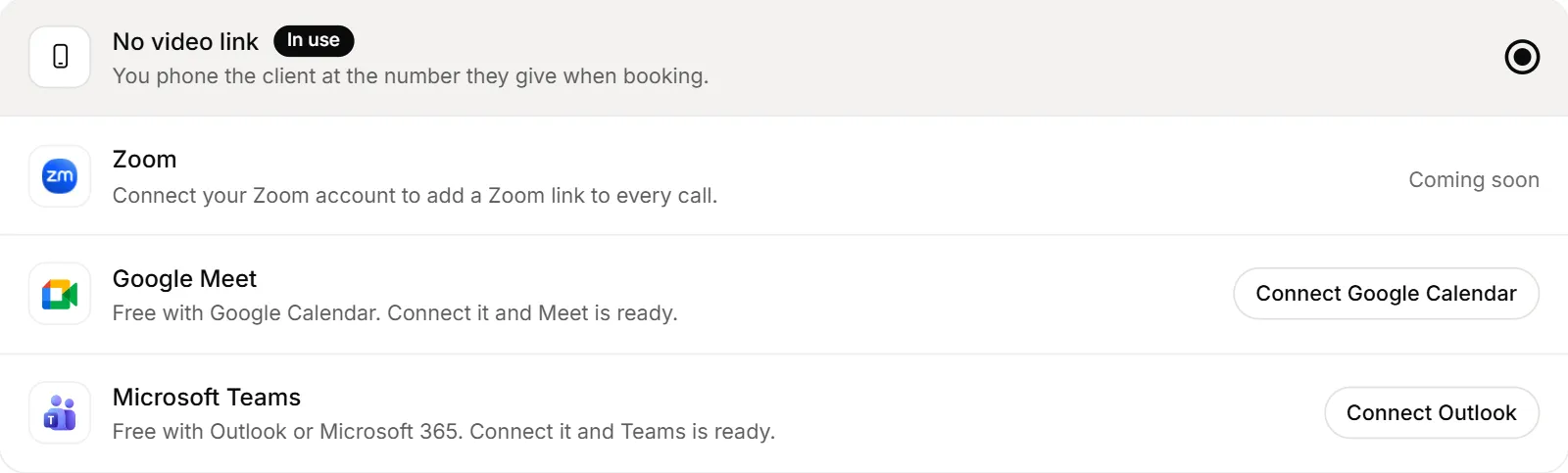
- Under Video calls, click the tool you want: Zoom, Google Meet, Microsoft Teams or No video link.
- If it isn't connected yet, click its button (such as Connect Zoom or Allow calendar access) and follow the steps.
The one you picked shows In use. It saves as soon as you click.
Set it on one booking page or form
The pick above is only the starting point for new pages. Each one can choose its own:
- A booking page: click Settings on its card in Booking pages, then the Location step.
- A call after a form: the form's Settings tab → Consultation → Where the call happens.
Besides video, you can choose Phone call, In person, or Your own link for a meeting room link that never changes.
Good to know
- Google Meet links can take a minute. Until then, the location reads "Google Meet (link to follow)", and the link is sent when it's ready.
- Moving or cancelling a call moves or removes its meeting too.
- Need to fix a link? Open the booking in Bookings → Calendar and click Add a join link to paste one. See Manage your bookings.
Why is a video tool greyed out?
Its account isn't connected, or it's connected without calendar access. The option says what it needs, such as "Needs Google". Connect it on Bookings → Integrations.
Why does my video tool say "Not working"?
It's your pick, but it can't make links right now, usually because the account needs reconnecting. Click Reconnect next to it, or Allow calendar access for Meet and Teams. Until it's fixed, booked calls don't get a video link.