Connect the calendar you work from. OneForm then checks it before offering a time, so clients can't book over your meetings. Every booked call goes on it, and moves or comes off it when the booking changes.
Connect a calendar
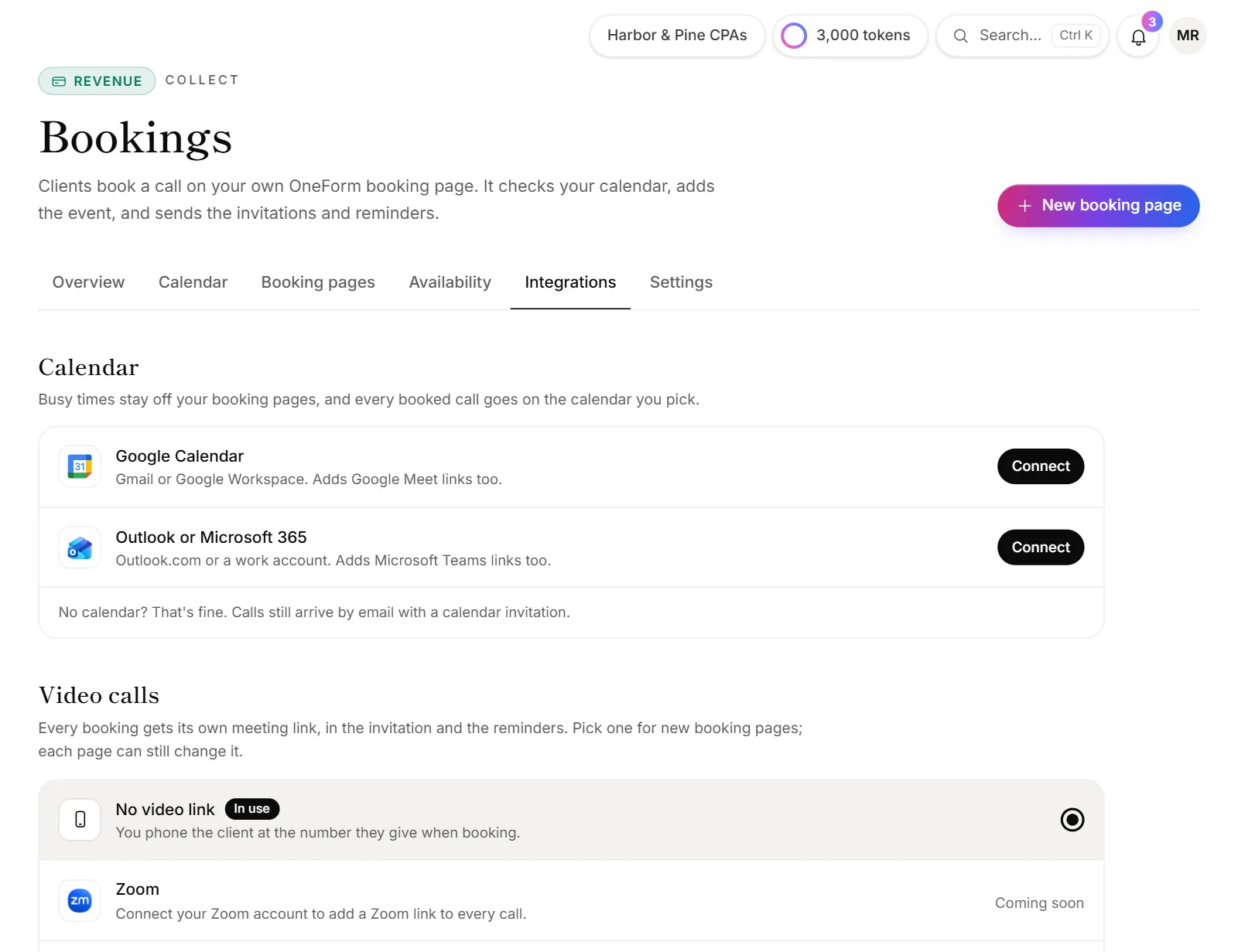
- Go to Bookings → Integrations.
- Under Calendar, click Connect next to Google Calendar or Outlook or Microsoft 365.
- Sign in and allow calendar access.
You come back to Bookings. The first calendar you connect becomes your bookings calendar: its busy times are checked, and booked calls go on it.
Choose where calls go and what's checked
Each connected account has these choices:
- Add calls here: booked calls go on this account. Only one account can have it.
- Check for conflicts: this account's busy times are kept free too. The account calls go on is always checked.
- Choose calendars: pick the calendar booked calls go on under Add booked calls to, and tick which of the account's calendars are checked under Check for conflicts.
Changes save as soon as you click. To check a second account, such as a personal calendar, click + Google Calendar or + Outlook under the list.
Good to know
- No calendar? That's fine. Calls still arrive by email with a calendar invitation, but OneForm can't see your other meetings.
- Switching calendars keeps the old one checked for conflicts, so you never open up double bookings by accident.
- Video links come with it. Google Calendar can add Google Meet links, and Outlook can add Teams meetings. See Add video meetings.
- Renaming or disconnecting an account is on the Integrations page. Click Manage next to the account. See Google Calendar and Meet and Outlook Calendar and Teams meetings.
- Calendars are on every plan, for bookings.
Why does my account say "Calendar access not allowed yet"?
The account was connected for something else, such as Google Sheets, or the calendar box wasn't ticked when you signed in. Click Allow access and tick the calendar permissions.
Why does Bookings say my calendar stopped working?
The banner "Your bookings calendar stopped working. Reconnect it on the Integrations tab." means the account needs signing in again. Click Reconnect next to it. Until then, your team gets an email saying bookings can't use your calendar.
Why did a client see "We couldn't check the calendar just now"?
OneForm couldn't read your calendar at that moment, so it didn't book the time rather than risk a double booking. The client can try again in a minute. If it keeps happening, reconnect the calendar. See Calendar not syncing or double bookings.