OneForm reads your calendar to keep busy times off your booking pages, and adds each booked call to the calendar you pick. When that stops working, calls go missing from your calendar or clients book over your meetings.
Symptoms
- A client booked a time when you already had a meeting.
- Booked calls don't appear on your Google or Outlook calendar.
- A booking shows Calendar issue on Bookings → Calendar.
- Booked calls have no Google Meet, Teams or Zoom link.
- Times on your booking page are an hour or more off.
Likely causes, most common first
- The meeting is on a calendar OneForm doesn't check. OneForm checks the calendar booked calls go on, plus the accounts and calendars you tick. A meeting on any other calendar doesn't block the time.
- The calendar connection broke. Google or Microsoft access was removed or expired. OneForm skips that calendar so bookings keep working, which means its busy times aren't checked until you reconnect.
- Calendar access wasn't allowed. The account is connected, but you didn't tick calendar access when you signed in.
- No calendar is picked for booked calls, so OneForm has nowhere to add them.
- The meeting is marked "free" (or "available") in your calendar, so it doesn't count as busy.
- Your time zone is wrong under Availability.
What to check
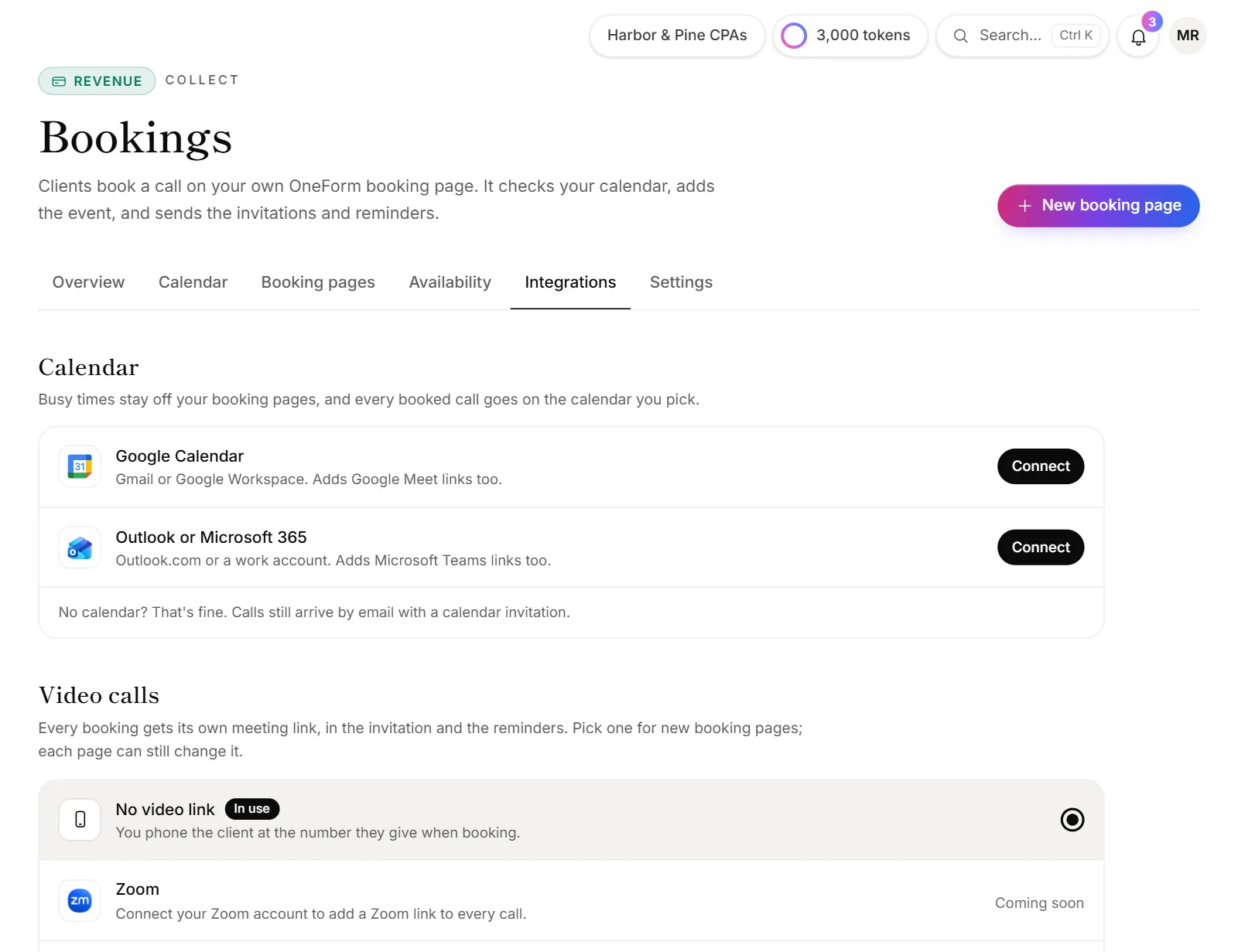
- Go to Bookings → Integrations.
- Under Calendar, read the line under each account:
- Booked calls go here: this is the calendar new calls are added to.
- Checked for conflicts: its busy times are kept off your booking pages.
- Not used by bookings: OneForm ignores it.
- Calendar access not allowed yet: cause 3.
- Needs reconnecting, or an error such as Google access was removed or expired: cause 2.
- If you see Pick a calendar for booked calls., that's cause 4.
- Click Choose calendars on an account to see exactly which of its calendars are checked.
- Go to Bookings → Availability and check Your time zone.
How to fix it
- Broken connection: click Reconnect next to the account and sign in again.
- Calendar access not allowed: click Allow access and tick calendar access when Google or Microsoft asks.
- Another account has your meetings: connect it with + Google Calendar or + Outlook under the list, then tick Check for conflicts on it.
- Another calendar in the same account: click Choose calendars and tick it under Check for conflicts.
- Nowhere to add calls: choose Add calls here on the account you want.
- Wrong times: fix Your time zone under Availability. Clients always see times in their own time zone.
- Need a gap between calls: set Free time before each call or Free time after each call under Availability.
Two clients can't book the same slot. If they try at the same moment, the second one sees That time was just taken. Please pick another.
Why does a booking say "Calendar issue"?
OneForm couldn't add that call to your calendar, or couldn't make its meeting link. Hover the chip to read why. The booking itself is confirmed and the client has their invitation. OneForm tries again a few times over the next half hour, so fix the cause quickly, for example by reconnecting Zoom or allowing calendar access. The event and link are then added on the next try.
Why didn't I know my calendar was disconnected?
OneForm emails your alert list when bookings can't use a calendar, with the subject Bookings can't use followed by the account's name. It sends this at most once a day per calendar. The connection also shows under Needs attention on the Integrations page.
When to contact support
Use Send feedback in the sidebar, or oneform.si/support, when a calendar keeps disconnecting after you reconnect it, or when a client booked over a meeting on a calendar that shows Checked for conflicts. Include the booking's date and time.