Every draft waits on the Review page until someone on your team checks it. You can change anything: the report, the email that goes with it, and who it goes to.
Before you start
Reviewers, admins and owners can edit drafts. Viewers can open them but not change them.
Find drafts waiting for you
- In the menu, under Reports, click Review.
- Drafts waiting for you are under To review. The other tabs are Approved, Scheduled, Sent and All.
- Click a draft to open it.
A draft shows Drafting while OneFormAI is still writing it, and Needs review once it's ready.
Edit the report
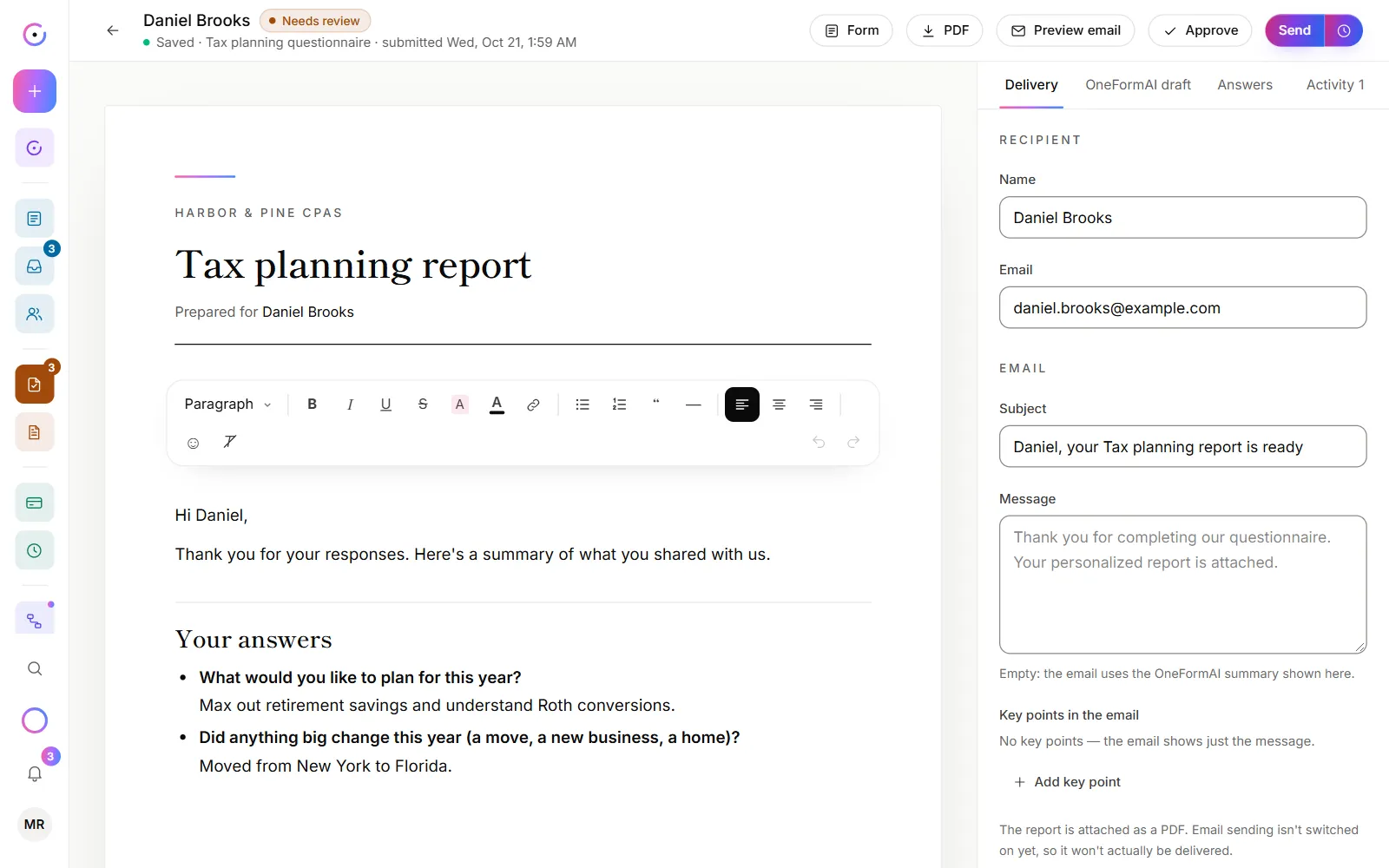
- Click anywhere in the report on the left and type. The title at the top can be changed too.
- Watch the line under the client's name in the top bar: it says Saved once your changes are kept.
Your changes save automatically. To check the result, click PDF to download it, or Preview email to see the email the client will get.
Edit the email and recipient
- On the right, click the Delivery tab.
- Under Recipient, check the Name and Email.
- Under Email, change the Subject or write a Message. Left empty, the message is the summary OneFormAI wrote.
- Edit, remove or add Key points in the email.
Check the answers
Click the Answers tab to see everything the client answered, next to the draft.
Re-draft with a note
When a draft needs more than a few edits, ask OneFormAI to write it again.
- Click the OneFormAI draft tab.
- Under Note for this report, say what to change, for example "Keep it shorter" or "They mentioned they're selling the business next year."
- Click Re-draft with OneFormAI, then Re-draft to confirm.
The new draft replaces the current one, including your edits. The note applies to this report only. To change every future report, edit the form's instructions with Edit the form's report instructions.
Rate the draft
On the OneFormAI draft tab, rate the draft under How good was this draft?. Your ratings teach OneFormAI how your firm likes this form's reports. See Write better report instructions.
Send your own PDF instead
At the bottom of the report, next to Prefer to send your own PDF instead?, click Upload a PDF. That file is sent as the report for this client only. Click Use the written report to switch back.
Good to know
- Approve it when it's ready. Click Approve in the top bar, or approve and send in one step. See Approve and send a report.
- Re-drafts use OneAI Tokens. If your tokens are used up, the draft stays as it is. See OneAI Tokens and reports.
- Scheduled and sent reports can't be edited. Cancel a schedule to make changes. A sent report shows the version the client received.
Why does it say the report was changed in another tab?
Someone else, or you in another tab, changed the report after you opened it. Your latest edits here weren't saved, so they can't overwrite the newer version. Click Reload to get the latest version, then make your changes again.
Why is the draft a summary of the answers?
OneFormAI couldn't write it. The OneFormAI draft tab says why: for example, your OneAI Tokens ran out, or the client said no to AI processing. Once the cause is fixed, for example after you add tokens, click Re-draft with OneFormAI. When the client said no to AI, edit the summary by hand instead.