Connect Google Calendar so clients can only book times you're free, and booked calls land on your calendar. Calls set to Google Meet get a Meet link of their own.
Connect Google Calendar
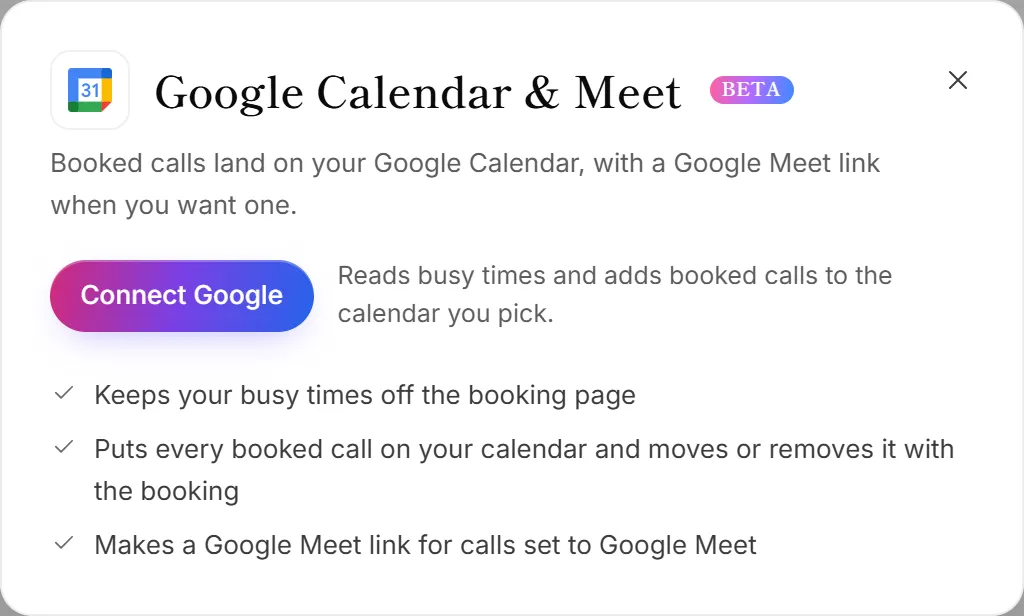
- Go to Integrations. The Google Calendar & Meet panel opens.
- Click Connect Google.
- Choose your Google account and allow calendar access. Leave the calendar boxes ticked.
- You're back in OneForm, and the Google account is connected.
The first calendar you connect becomes your bookings calendar: OneForm checks it for busy times and adds booked calls to it. If your Google account is already connected for something else, click Allow next to Calendar & Meet on its card instead.
You can also connect from Bookings → Integrations, where you choose which calendar gets booked calls and which others to check for conflicts. See Connect your calendar.
What OneForm can do in your calendar
- See your calendar list and when you're busy, so booked times never clash.
- Add, move and remove events for calls booked through OneForm.
- Make a Google Meet link for calls set to Google Meet.
OneForm doesn't change your other events. The access is stored encrypted.
Disconnect Google Calendar
On the Integrations page, click Manage on the Google card, then Disconnect. Your booking pages stop checking that calendar, and new calls don't go on it. This removes the whole Google account, so Sheets, Drive and Chat stop working for it too. OneForm also gives up its access in your Google account, unless another OneForm firm still uses that account.
Good to know
- Choosing Google Meet for a booking page is covered in Add video meetings.
- No calendar? Calls still reach you by email with a calendar invitation.
Why does it say "Calendar access not allowed yet"?
The Google account is connected, but calendar access was unticked in Google's window. On Bookings → Integrations, click Allow access and tick the calendar boxes this time.
Why can clients book times when I'm busy?
OneForm only checks the calendars you chose. On Bookings → Integrations, click Choose calendars and tick every calendar under Check for conflicts. If the Google card shows Needs attention, click Reconnect.