Lead scoring ranks people by how well they fit your firm and how engaged they are. You set it up in two places: points for answers on each form, and the grades and signals for the whole firm.
Give points to answers
This is where you tell OneForm what a good client looks like. It works on multiple-choice and yes/no questions.
- Go to Forms and open the form.
- On the Build tab, click a multiple-choice or yes/no question.
- Next to each answer, type the points it's worth. Multiple-choice questions have a Lead pts column next to the choices; yes/no questions have a Lead points section. Use a minus number for a poor fit, and leave 0 when it doesn't matter.
- To get a suggestion, click Suggest lead points. OneFormAI reads the question and the rest of the form and fills in points you can change.
For example, on "What's your business's yearly revenue?", you might give the top band 25 points and the lowest 0.
Each answer can be worth from −20 to 30 points. If someone fills in the same form twice, only their latest answers count.
Set the grades and signals
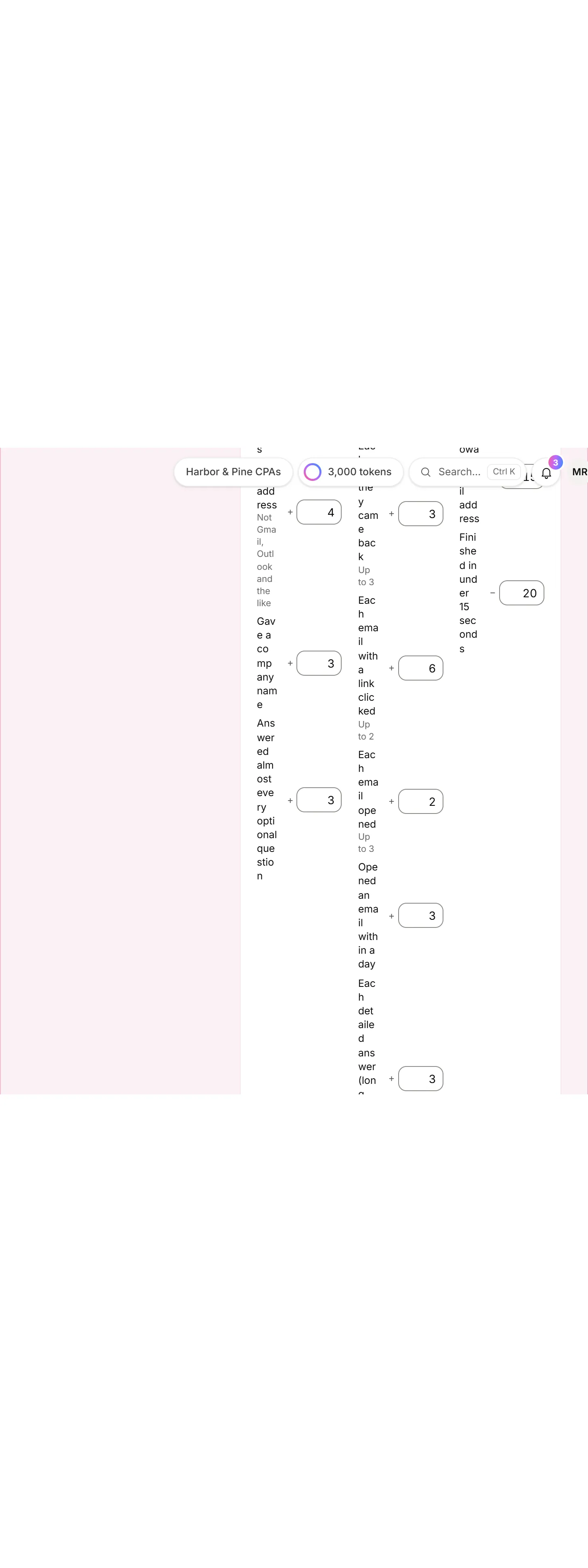
- Go to Settings and scroll to Lead scoring.
- Under Grades, set Hot from and Warm from. Anyone below Warm from is Cold.
- Under Engagement fades, choose after how many quiet days intent points halve. 0 keeps them forever.
- Change the points for any signal:
- About them: a phone number, a business email address, a company name, answering almost every optional question.
- What they did: more forms submitted, coming back on other days, clicking and opening your emails, opening an email within a day, detailed answers, coming from a referral or a campaign.
- Red flags: an email that bounced or was marked as spam, a throwaway email address, finishing in under 15 seconds. These take points off.
- Click Save changes.
Set a signal to 0 to ignore it. Reset to defaults puts everything back the way it started.
Good to know
- Scores change right away. Every lead is rescored as soon as you save, on the Leads page, in downloads and in what you send to your CRM.
- Fit never fades. Only intent (what they did) halves with quiet time. Who they are doesn't change.
- Caps keep it balanced. Fit counts up to 60 and intent up to 40, so the total stays between 0 and 100.
- Changing the scoring, like lowering Hot from, starts your "Lead becomes Hot" workflows for everyone who's now Hot. Hot-lead emails wait for each person's next activity, so you don't get a burst of them. See Hot-lead alerts.
- Already scoring with logic? On a form where no answer has lead points, a score named
lead_scoreorscore(from the form's Scores) counts towards fit instead. See Logic and branching. - Suggest lead points uses OneAI Tokens, like other OneFormAI help in the builder.
- Who can change it. Settings take an admin or owner. Lead points on a form take anyone who can edit forms.
Why are all my leads Cold?
- No answers have points yet. Without them, fit only comes from contact details, which can't reach Hot on the default settings. Add lead points to the questions that matter most.
- They've gone quiet. Intent fades over time. Set Engagement fades to 0 if you'd rather it didn't.
- The thresholds are high. Lower Hot from and Warm from.
Why can't I change Lead scoring?
Changing the scoring depends on your plan: the section shows an upgrade badge when it isn't included. If you can see it but not change it, your role doesn't allow it. Ask an admin or owner.