Download any form's responses as a spreadsheet you can open in Excel, Google Sheets or Numbers. From the Leads page you can also download one row per person, ready for your CRM or TaxDome.
Download a form's responses
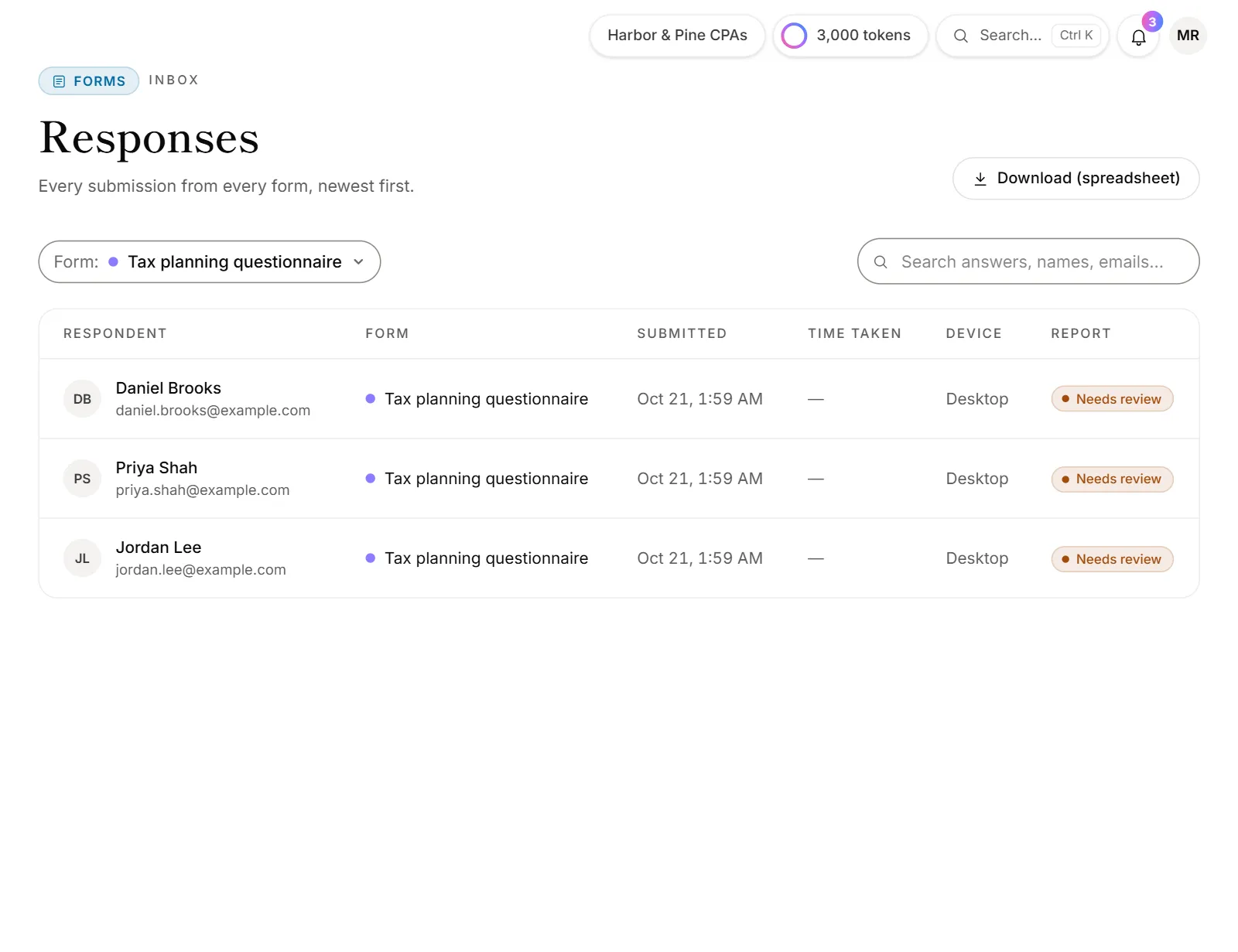
- Go to Responses.
- Pick the form in the form filter. The download is for one form at a time.
- Click Download (spreadsheet).
You can also open the form in the builder, click the Responses tab, and click Download (spreadsheet) there.
What's in the file
The file has one row per response, oldest first, and these columns:
- Submitted at
- One column per question, titled with the question. A contact info question gets a column for each of its fields, like "Contact › Email".
- Answers to questions you've since deleted, marked "(deleted question)", so nothing is lost.
- Time taken (s), Device and Report status
- Taxpayer consent, on forms that ask for it: what they agreed to, who signed and when.
- Hidden fields and campaign tags, one column each, marked "(hidden)".
Download your leads
The Leads page lists one row per person, across all your forms.
- Go to Leads.
- To download only some people, tick them, or filter the list by grade, form or search. Otherwise everyone listed is included.
- Click Export. The menu says what it applies to.
- Choose one:
- Download (spreadsheet): name, email, phone, company, score, grade, the forms they filled in, their activity, and the top reasons for their score.
- Download for TaxDome: a file in TaxDome's client import format. In TaxDome, import it as clients. A long list is split into several files to fit TaxDome's size limit. See TaxDome.
- Copy email addresses: copies their emails, separated by commas, to paste into your email app.
Downloading leads depends on your plan. Without it, the Export button shows an upgrade badge instead.
Good to know
- Accents and symbols open correctly in Excel. Files are saved so names like "José" look right.
- Formulas are made harmless. An answer that starts with
=,+,-or@is saved as plain text, so it can't run as a formula when you open the file. - Waiting responses aren't included. Responses held past your plan's monthly limit are left out until they come through.
- Downloads are recorded. Each download of responses shows in the firm's audit log.
- Want a live copy instead? Connect Google Sheets or Excel and every new response is added as a row. See Google Sheets and Excel.
- Everything at once. To download all your firm's data in one go, see Export your firm's data.
Why don't I see Download (spreadsheet)?
- No form is picked. On the Responses page, the button appears once you choose one form in the filter.
- Your role doesn't allow it. Downloading responses takes an admin or owner.
- The form has no responses yet, on the builder's Responses tab.