Every time someone submits one of your forms, it lands on the Responses page, newest first. Open any response to read every answer, see its report, and act on it.
Find a response
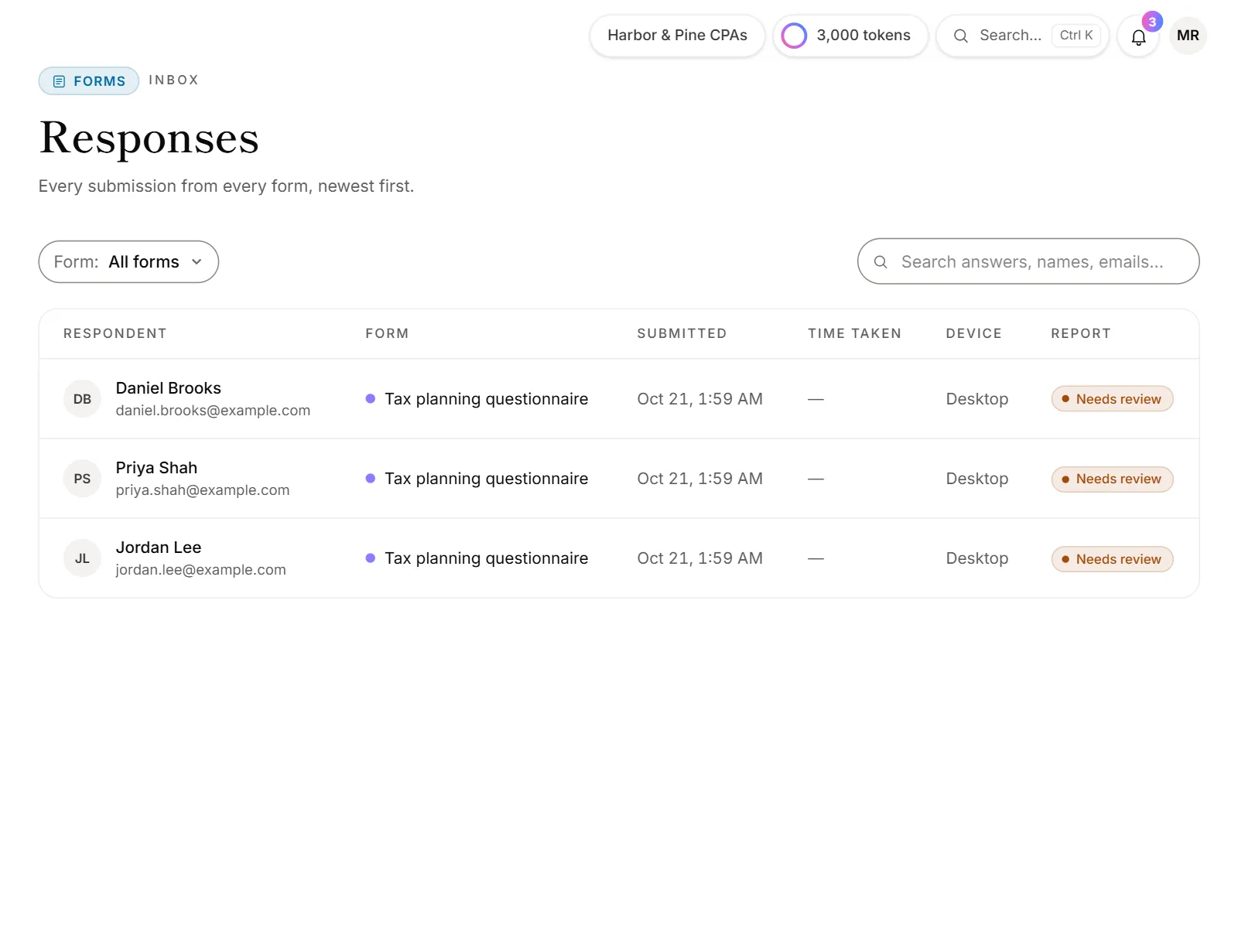
- Click Responses in the menu, under Forms.
- To see one form only, pick it in the form filter above the list.
- To find someone, type in Search answers, names, emails…. Search looks through every answer, not just names.
- Click a row to open it.
The list shows who answered, which form, when, how long they took, the device they used and the report's status.
Search older responses
The page loads your most recent responses first. If you have more, the bottom of the list says how many are showing:
- Click Load more to add the next batch.
- While you're searching, click Search all to look through every response, not just the ones loaded.
Read a response
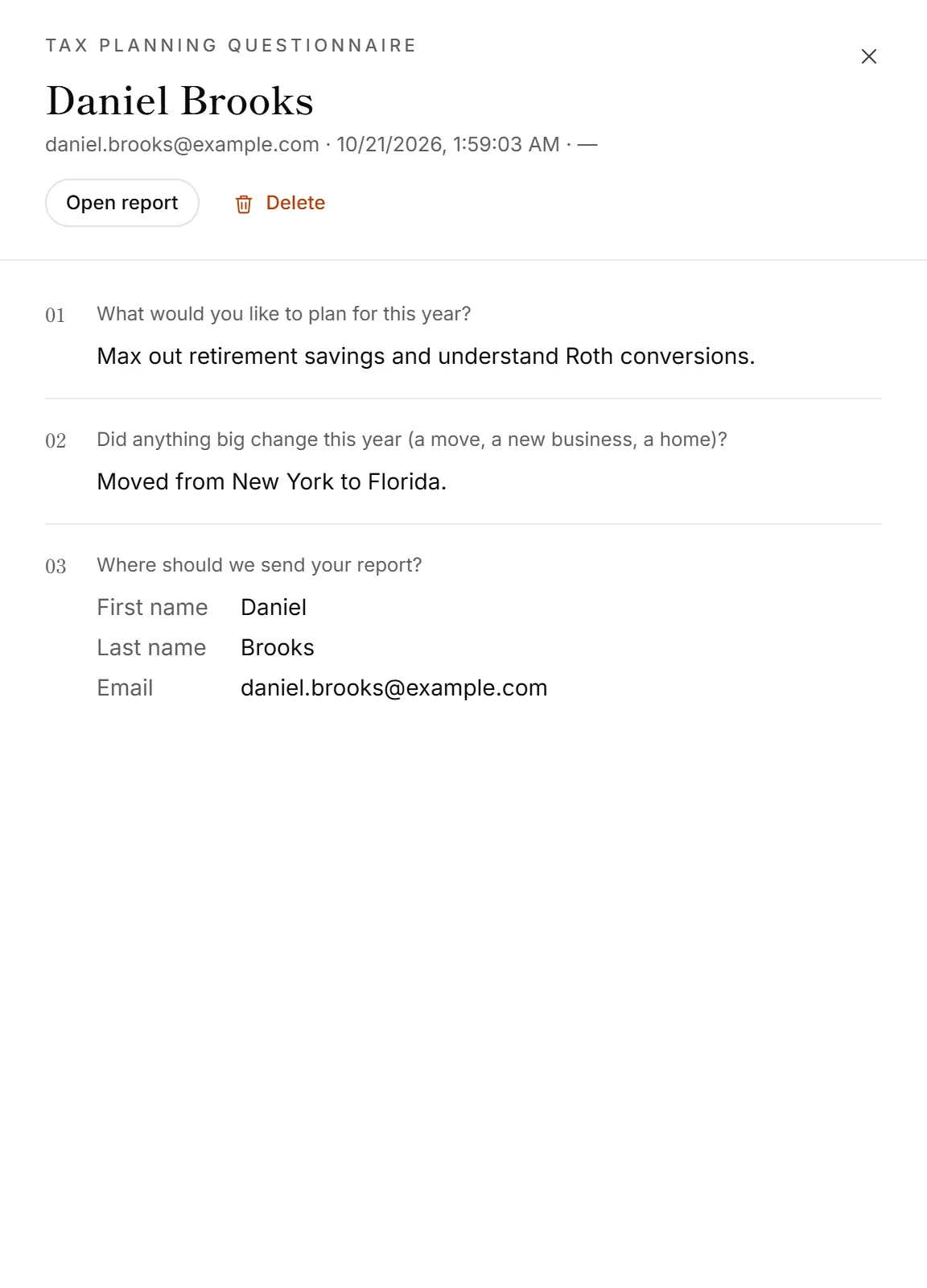
The response opens in a panel with:
- Their name and email, when the form asked for them, plus when they submitted and how long it took.
- Every answer, in the order they were asked. Questions skipped by your logic aren't listed. A question they left blank says Skipped.
- Extra details from the link: any hidden fields or campaign tags that came with it. See Pass details into a form.
- Their taxpayer consent, when the form asked for it.
- Open report, to review the report drafted from it.
Press Esc or click outside the panel to close it.
One form's responses in the builder
In the form builder, the Responses tab shows the same list for that form only, with its own search. On the Share tab, View responses takes you to the Responses page filtered to that form.
Good to know
- Answers to deleted questions are kept. If you remove a question after people answered it, their answer still shows, marked "(deleted question)".
- Partial means a voice conversation moved on from questions it couldn't get an answer to. Those questions show as skipped.
- Need a report for an older response? If the form's report was switched on after the response came in, click Generate report in the response.
- Every person in one place. The Leads page groups responses by person, so you can see everything one client sent. See Leads explained.
- Everyone on the team can see responses. Downloading and deleting them takes an admin or owner.
Why don't I see a response I expected?
- It's past your plan's monthly responses. A note at the top of the page says how many are waiting. They come through with their reports and emails when you upgrade or when your month resets. See When you reach a plan limit.
- The form was a draft or a preview. Previews and Try it never save answers.
- It's an unfinished form. Answers are only saved here once someone submits. See Follow up on unfinished forms.
- A filter is on. Set the form filter back to All forms and clear the search.