Send your leads to the CRM or spreadsheet your firm already works in, with their contact details, lead score, grade and the reasons for it. People already there are updated, not added twice.
Before you start
Connect your CRM or spreadsheet on the Integrations page. Each has its own guide: HubSpot, Salesforce, Pipedrive, Zoho CRM, Google Sheets and Excel.
Send leads
- Go to Leads.
- Choose who to send: tick people, or filter the list by grade, form or search. With nobody ticked, everyone listed is sent.
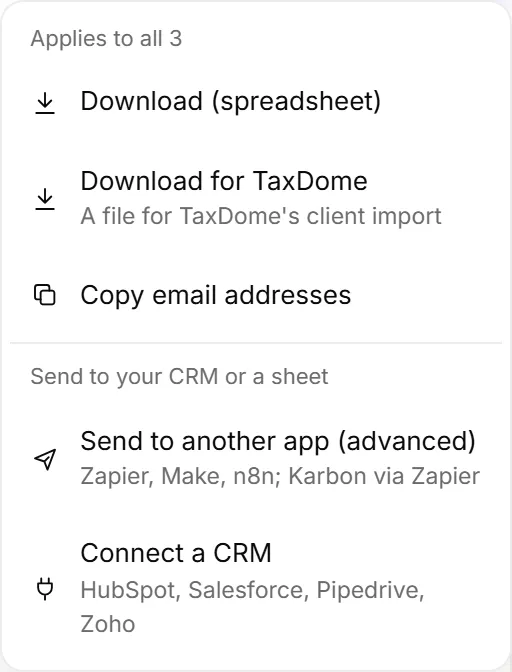
- Click Export. The top of the menu says who it applies to.
- Under Send to your CRM or a sheet, click where to send them.
A summary shows how many were sent, and lists anyone who couldn't be, with the reason.
The first time you send to Google Sheets or Excel
OneForm asks which sheet to use:
- Type a name for the tab (Google Sheets) or sheet (Excel). It's created if it doesn't exist.
- Click Create a new sheet and sync (or Create a new workbook and sync for Excel), or pick one you have: Choose from Google Drive and sync, or paste an Excel workbook's link and click Use.
After that, leads go straight to the same sheet. Click Change next to it in the menu to pick another. Each person keeps one row, updated in place when you send them again.
What each CRM gets
| CRM | What happens |
|---|---|
| HubSpot | Adds or updates the contact, matched by email, with the lead score, grade and why. |
| Salesforce | Updates the open lead with the same email, or creates one. Sets Rating from the grade and puts the score and reasons in the description. |
| Pipedrive | Finds the person by email or phone and updates them, or creates them, with the score and grade. |
| Zoho CRM | Adds or updates the lead, matched by email, with the score and reasons in the description. |
Send to another app
To reach a tool OneForm doesn't connect to directly, use Send to another app (advanced) in the same menu. Paste the
web address the other app gives you (it starts with https://), such as a Make or n8n webhook, and click the Send
button. Each lead is sent separately.
See Send data to another app.
Good to know
- Up to 500 at a time. If more are listed, the first 500 are sent. Tick Not sent yet and send again for the rest.
- See who's been sent. A check mark next to a name means they're in your CRM. Tick Not sent yet above the list to see only the others. A lead's panel lists where and when they were sent.
- Busy apps catch up. If a CRM asks OneForm to slow down or is briefly down, the summary says so, and those leads are sent again automatically.
- Send automatically. A workflow can send each new lead, or each Hot lead, without you opening the Leads page. See Get alerts for hot leads.
Why can't I send leads?
- There's no Export button, only an upgrade badge. Sending leads depends on your plan.
- Your CRM isn't in the menu. Connect it on the Integrations page first. Click Connect a CRM at the bottom of the menu to go there.
- It shows Check next to your CRM. The connection needs attention. Reconnect it on the Integrations page.
- You get an error when you send. Sending leads takes an admin or owner.