A client says your report never came, or a teammate isn't getting alerts. OneForm records every email it sends and why it skipped any, so you can usually find the reason in a minute.
Symptoms
- A client says they never got their report, confirmation or booking email.
- A report shows Sent, but the client can't find it.
- You or a teammate stopped getting alerts, such as new responses or drafts to review.
Likely causes, most common first
- It's in the client's spam or junk folder, or a Gmail tab like Promotions.
- The address has a typo. The email went out, but to the wrong place.
- The address bounced or was marked as spam before. OneForm stops emailing it, for every firm.
- The report hasn't been sent yet. It's still waiting in Review, or it's scheduled for later.
- The email is switched off in Settings → Emails. Some emails are off until you turn them on.
- The client unsubscribed from your reminders. Reports and booking emails still go to them, but reminders and follow-ups don't.
- Your firm reached its daily limit for client emails. Automatic emails over the limit, such as confirmations, aren't sent, and reports wait in Review instead of going out automatically. The limit resets each day.
- A teammate turned the alert off in their own Account → Notifications.
What to check
The report's Activity tab
- Open the report from Review or All reports.
- Open the Activity tab in the side panel.
- Look at the status next to the email: Delivered, Opened, Bounced, Spam report or Failed. Any error shows under it.
Delivered means the client's mail server accepted it. If they still can't find it, it's in their spam folder or filtered into another folder.
Blocked addresses
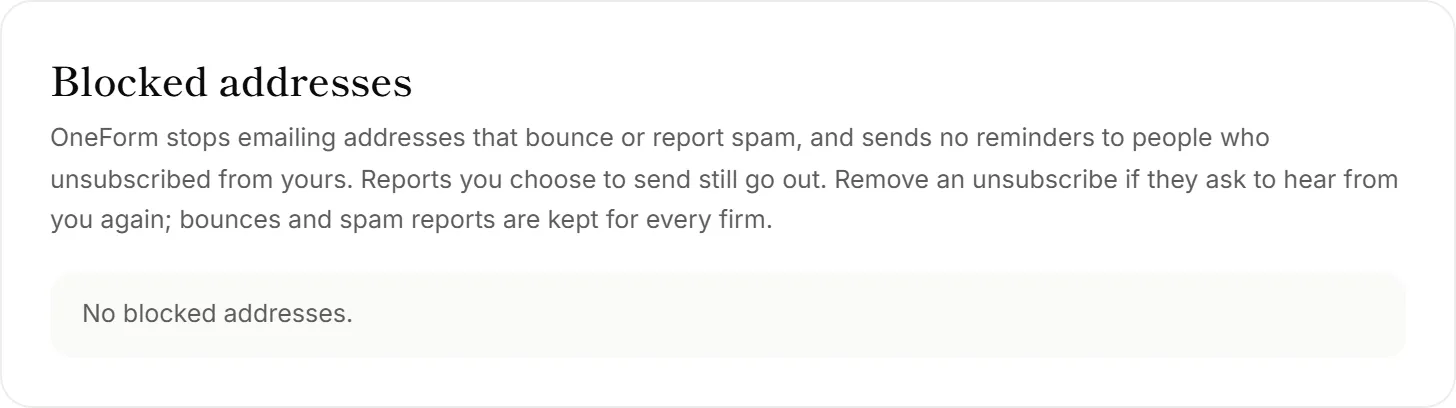
Go to Settings → Emails and scroll to Blocked addresses. Each address shows why it's blocked: Bounced, Marked as spam or Unsubscribed from reminders.
Email insights
Insights → Emails shows how many emails were Bounced or failed across your firm. A rising number usually means addresses are being typed wrong.
How to fix it
- Wrong address: on the report, click Resend, choose A different address, and type the right one. Tick Also make this the report's recipient email so later emails use it too.
- Bounced before: check the address with the client first. When you send the report, OneForm warns you and the button becomes Send anyway.
- Switched off: go to Settings → Emails and turn the email on. Emails marked Always on can't be switched off.
- Unsubscribed: if the client asks to hear from you again, click Remove next to their address under Blocked addresses. Only owners and admins can.
- Daily limit reached: send the report yourself from Review. Reports you send by hand aren't held back by the limit.
- Your own alerts: check Account → Notifications, and make sure your address is on the Alert list under Who gets team emails in Settings → Emails.
To check how an email looks and that it reaches you, open it in Settings → Emails and click Send me a test.
Why can't I remove a bounced address?
Bounces and spam reports are kept for every firm, so the Remove button only shows for unsubscribes. If the client has fixed their mailbox, or marked your email as spam by mistake, contact OneForm support to unblock it.
Why does the email say "preview" or "not delivered"?
If you see · preview next to a status, or Recorded (preview mode — not delivered), email sending isn't switched on for the server you're using. Nothing went to the client. Contact support.
When to contact support
Use Send feedback in the sidebar, or oneform.si/support, when:
- an address you know works is blocked as bounced or spam;
- emails show Failed with an error you can't fix;
- Delivered emails never reach several different clients.
Include the report or the client's address, and the time you sent it.