You can have a report go out at a time that suits the client, like first thing on Monday, instead of right away. And if a client hasn't opened their report after a few days, OneForm can send them a gentle reminder.
Schedule a report
- Open the draft from Review.
- Click the clock button next to Send in the top bar.
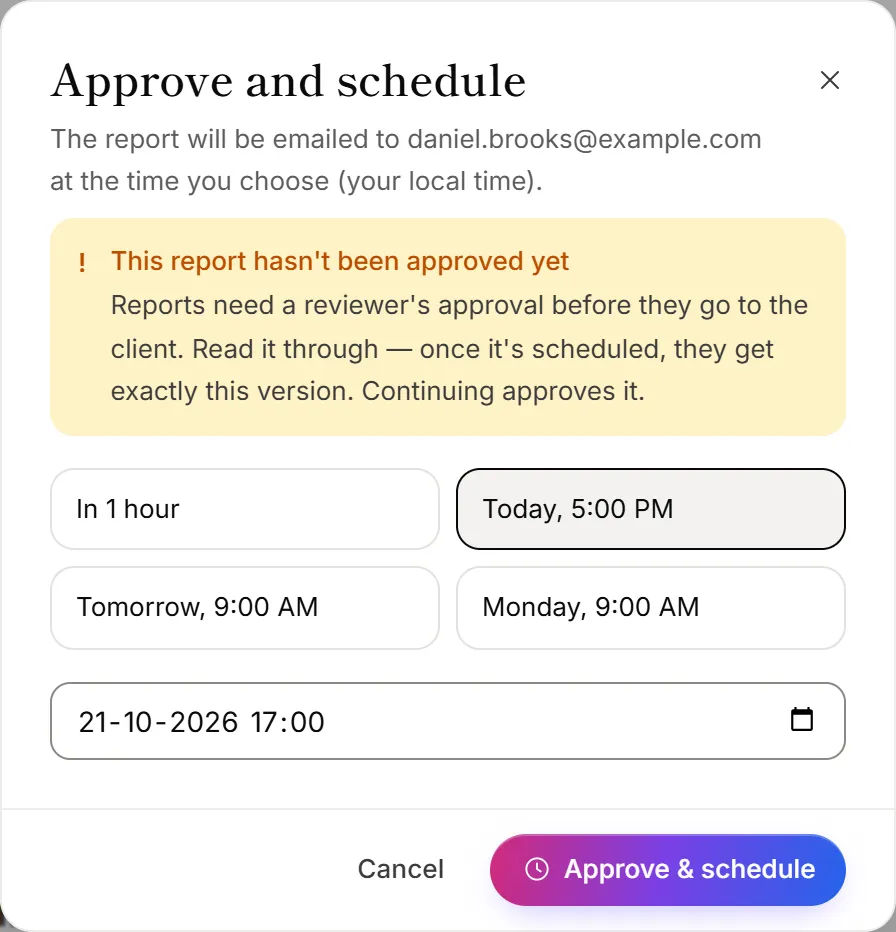
- Pick In 1 hour, Tomorrow, 9:00 AM or Monday, 9:00 AM, or choose a date and time. Times are in your own time zone.
- Click Approve & schedule. If the report was already approved, the button says Schedule.
The report moves to the Scheduled tab in Review, and its page says when it will be sent and to whom.
Change or cancel a scheduled send
A scheduled report can't be edited. To change it or its time:
- Open the report from the Scheduled tab.
- Click Cancel schedule. The report goes back to Approved.
- Make your changes, then send or schedule it again.
Remind clients who haven't opened their report
The Report not opened email reminds a client a few days after their report was sent, if they still haven't opened it. It attaches the PDF again. It's off until you turn it on.
- Go to Firm → Settings and click Emails under Email sending.
- Under To your clients, turn on Report not opened.
- Under Who gets team emails, set Reminder after to the number of days to wait.
- Click Save.
Each report gets one reminder at most. No reminder goes out if the client opened the report, or a copy you resent.
Good to know
- Scheduling approves the report. If it wasn't approved yet, the dialog warns you first.
- If a scheduled send fails, your alert list gets a Report not sent email, and the report shows Send failed in Review.
- Scheduling a paid report that hasn't been paid for gives it away free, as sending it now would. To charge for it, click Approve instead: an approved report goes out on its own once the payment arrives.
- Clients can unsubscribe from reminders. The reminder has an Unsubscribe link. Reports you send still reach them. See Unsubscribes and bounced emails.
Why is the Schedule button locked?
Scheduled sends and reminders depend on your plan. The dialog shows what's needed to unlock them. See Plans explained.
Why didn't a client get a reminder?
- Reminders are off. Check Report not opened is on in Emails.
- They opened it. Reminders only go to clients who haven't opened the report email.
- Open tracking isn't available. Reminders depend on knowing whether the email was opened. The Reminder after setting says "needs email tracking" when it isn't.
- They unsubscribed from reminders, or their address bounced. Check Blocked addresses at the bottom of Emails.