The instructions on a form's Report tab tell OneFormAI who it's writing as, what the report is for and how it should read. Good instructions mean fewer edits in review. Ratings from your team then teach OneFormAI what your firm likes.
Write the instructions
- Open the form and click the Report tab.
- Under Instructions and a sample report, describe the report in a sentence, for example "a one-page plan recommending which of our packages fits them".
- Click Write with OneFormAI. It writes full instructions that refer to your form's actual questions.
- Read them in the box below and change anything you like. They save automatically.
To change them later, type what should change ("make it shorter and friendlier") and click Rewrite with OneFormAI. You can also write the instructions yourself from scratch.
Insert details about the client
Under the instructions, click a chip to insert a placeholder that's filled in for each report: First name, Full name, Firm name, Form title, Report title, Booking link and Today.
Try them on a real response
- On the right, pick a response from the list, or Sample answers.
- Click Write a sample report.
- Read the result, including the Email summary above it.
- Adjust the instructions and click Try again until it's right.
Nothing is saved or sent when you write a sample. Some samples each month are free; the line under the button shows how many you have left. After that, each sample uses OneAI Tokens, and OneForm asks before writing the first paid one.
What makes instructions work
- Give OneFormAI a role. "You are a tax advisor at
{{firm_name}}writing to a small-business owner." - Say what the report is for. "Help them see which three changes would save them the most this year."
- Explain how to read key answers. "If they're self-employed and earn over a certain amount, discuss an S corporation election."
- Set the sections and length. "Use these headings: Summary, Your opportunities, Next steps. Keep it to one page."
- Set the tone and limits. "Plain English, no jargon, no promises about exact savings."
- Say how to end. "Close by inviting them to book a call."
You don't need to ask for formatting, or paste the answers in: OneForm adds both.
Rate drafts so OneFormAI learns
Every rating teaches OneFormAI something about this form's reports. Reviewers can rate drafts too.
- Open a draft from Review.
- On the right, click the OneFormAI draft tab.
- Under How good was this draft?, click from one to five stars.
- Click any tags that fit, such as Too long or Wrong tone, and add a note if you like.
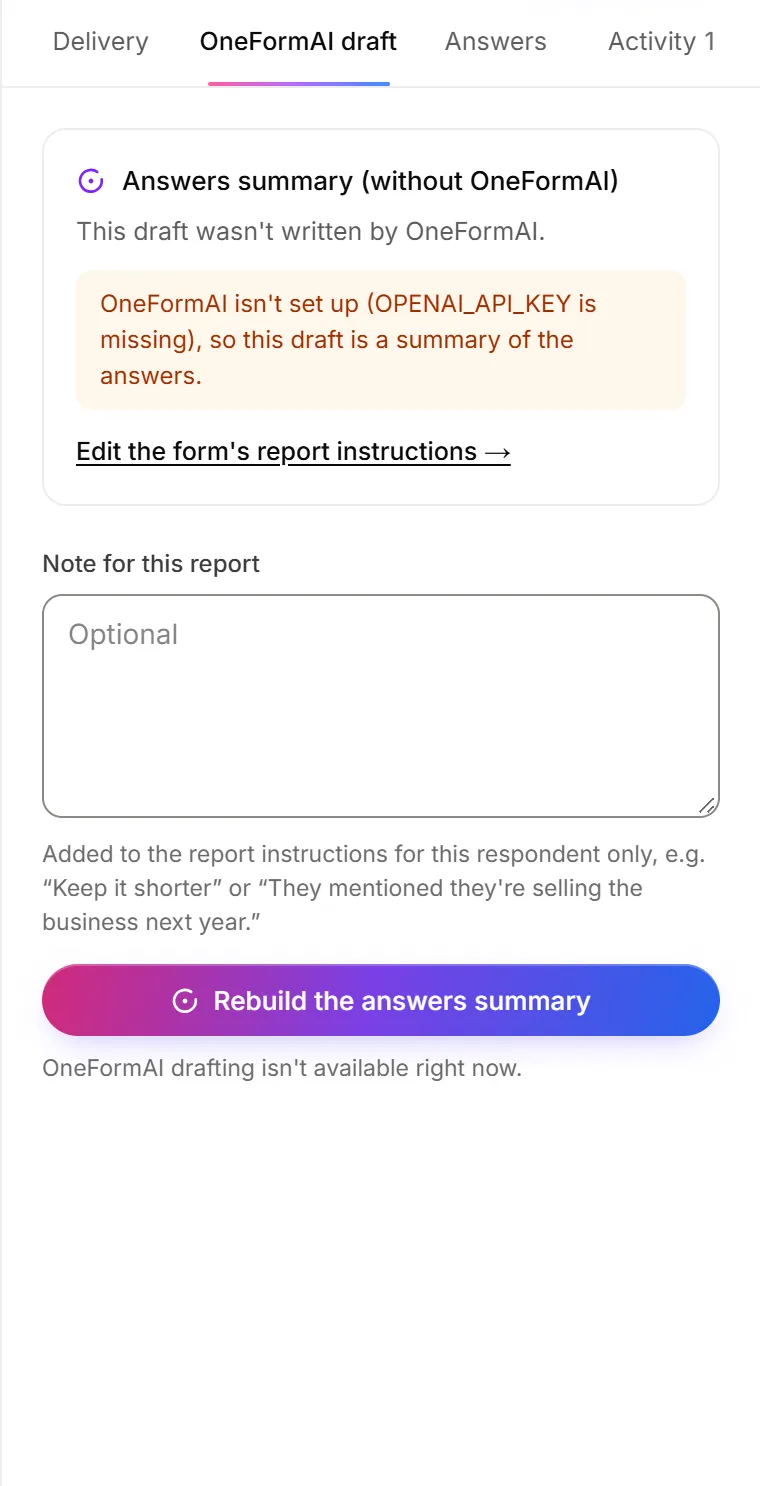
After a few new ratings, or one low rating with a note, OneFormAI updates the rules it follows for this form. It also learns from what reviewers change in drafts before sending them. Learning from ratings doesn't use OneAI Tokens.
See and edit what it learned
The rules are on the form's Report tab, under Gets better as you rate, in What OneFormAI has learned. You can edit them and click Save, or click Learn from latest ratings to update them now. The rules are about how to write, never about a particular client.
Why is Write with OneFormAI greyed out?
- The box above it is empty. Type a short description first.
- OneFormAI isn't available right now. The tab says so. You can still write the instructions yourself.
Why is Write a sample report greyed out?
- There are no instructions yet. Write some first.
- Free samples and OneAI Tokens are used up for this month. Click Add tokens or upgrade, or wait until your tokens reset. See OneAI Tokens and reports.