Google Sheets gives you a running log of every response, in a spreadsheet you can sort, share and chart. You can also keep a sheet of your leads, one row per person, with their lead score.
Connect Google Sheets
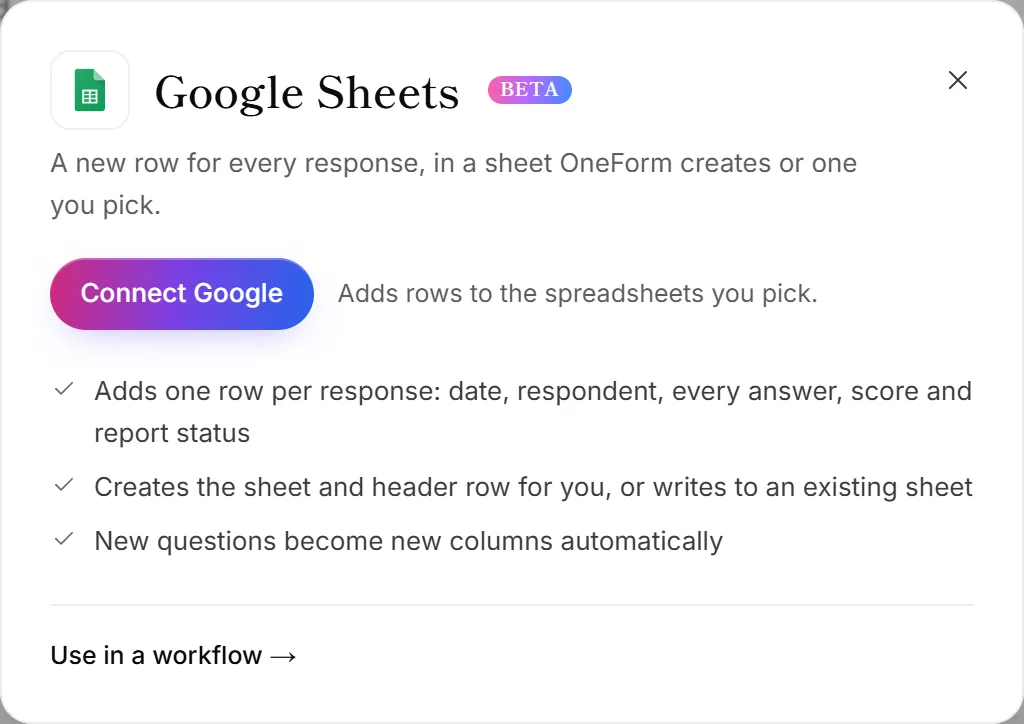
- Go to Integrations. The Google Sheets panel opens.
- Click Connect Google.
- Choose your Google account and allow the access Google asks for.
- You're back in OneForm, and the Google account is connected.
If your Google account is already connected for something else, click Allow next to Sheets on its card instead.
Log every response
- Open Workflows and open the workflow you want, or start one from the Log every response to Google Sheets recipe.
- Click + (Add an action) and choose Add a row in Google Sheets.
- Under Google account, choose the account.
- Click Create a new spreadsheet, or Choose from Google Drive to use one you have.
- Type the Tab name. OneForm creates the tab if it doesn't exist.
- Under Columns, keep Every answer, or pick Choose columns and set each column's value.
- Click Test it, then Turn on (or Save and turn on).
With Every answer, each row has the date, name, email, one column per question, scores, the report status and a review link. When you add a question to the form, OneForm adds a column for it.
Keep a lead list
- From a workflow: add Keep a lead list in Google Sheets and choose Which leads: Everyone, Warm & hot or Hot only.
- From the Leads page: click Export, then the Google Sheets entry under Send to your CRM or a sheet. The first time, pick or create the sheet.
Each lead gets one row, and sending them again updates that row instead of adding another. See Send leads to your CRM.
What OneForm can see
Only the spreadsheets OneForm creates and the ones you pick in Google's file picker. It can't open anything else in your Drive. The access is stored encrypted.
Disconnect Google Sheets
On the Integrations page, click Manage on the Google card, then Disconnect. This removes the whole Google account, so Drive, Calendar and Chat stop working for it too. OneForm also gives up its access in your Google account, unless another OneForm firm still uses that account. Your spreadsheets stay in your Drive.
Why can't I find my existing spreadsheet?
OneForm can only use a sheet you choose in Google's picker. Click Choose from Google Drive and pick it there, from the same Google account you connected.
Why did rows stop arriving?
- The spreadsheet was deleted, or the connected account lost access to it. Choose the sheet again in the action.
- Google access was removed or expired. The Google card moves to Needs attention; click Reconnect.