TaxDome doesn't let other apps connect to it directly yet, so OneForm gives you a file in the format TaxDome's client import expects. Download it from the Leads page and import it in TaxDome.
Download the file
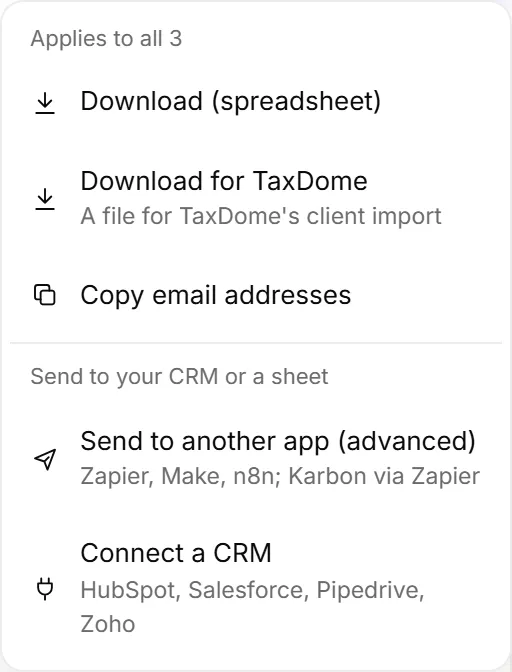
- Go to Leads.
- Choose who to include: tick people, or filter the list by grade or form. With nothing ticked, everyone shown is included.
- Click Export.
- Choose Download for TaxDome.
You get a CSV file named for today's date. A long list comes as several files, so each one fits TaxDome's import limit. Import every file.
Import it in TaxDome
Use TaxDome's client import and upload the file. The columns use TaxDome's own names, so most of them match on their own. Map or skip the rest at TaxDome's mapping step.
What's in the file
One row per person:
| Column | What's in it |
|---|---|
| Account Name | Their company, or their name when there's no company. |
| Account Type | Company when they gave a company, otherwise Individual. |
| Account Tags | OneForm, and Hot lead, Warm lead or Cold lead. |
| Contact Name, First Name, Last Name | Their name. |
| Email, Phone Number | Their contact details. Phone numbers are cleaned up the way TaxDome accepts them. |
| Lead Score, Lead Grade | Their OneForm lead score and grade. |
| Lead Source | Where they came from. |
| OneForm Forms | The forms they filled in. |
Good to know
- It's a copy. Later changes in OneForm don't reach TaxDome. To add new leads, tick or filter them and download again.
- Downloads need full Leads on your plan. Without it, a plan lock shows where the Export button would be.
- For a plain spreadsheet, choose Download (spreadsheet) instead. See Export responses for answers to each form.
Why don't I see the Export button?
Either there are no leads yet, or your plan doesn't include full Leads. Leads appear once someone fills in a form with their email or phone number.