Each question in a form has a type. The type decides what clients answer with (a line of text, a choice, a date) and how OneForm checks the answer.
Add a question
- In the builder's Build tab, click Add question at the top of the list.
- Pick a type, or search for one in Search question types….
- Type the question in the preview, or in Question in the side panel.
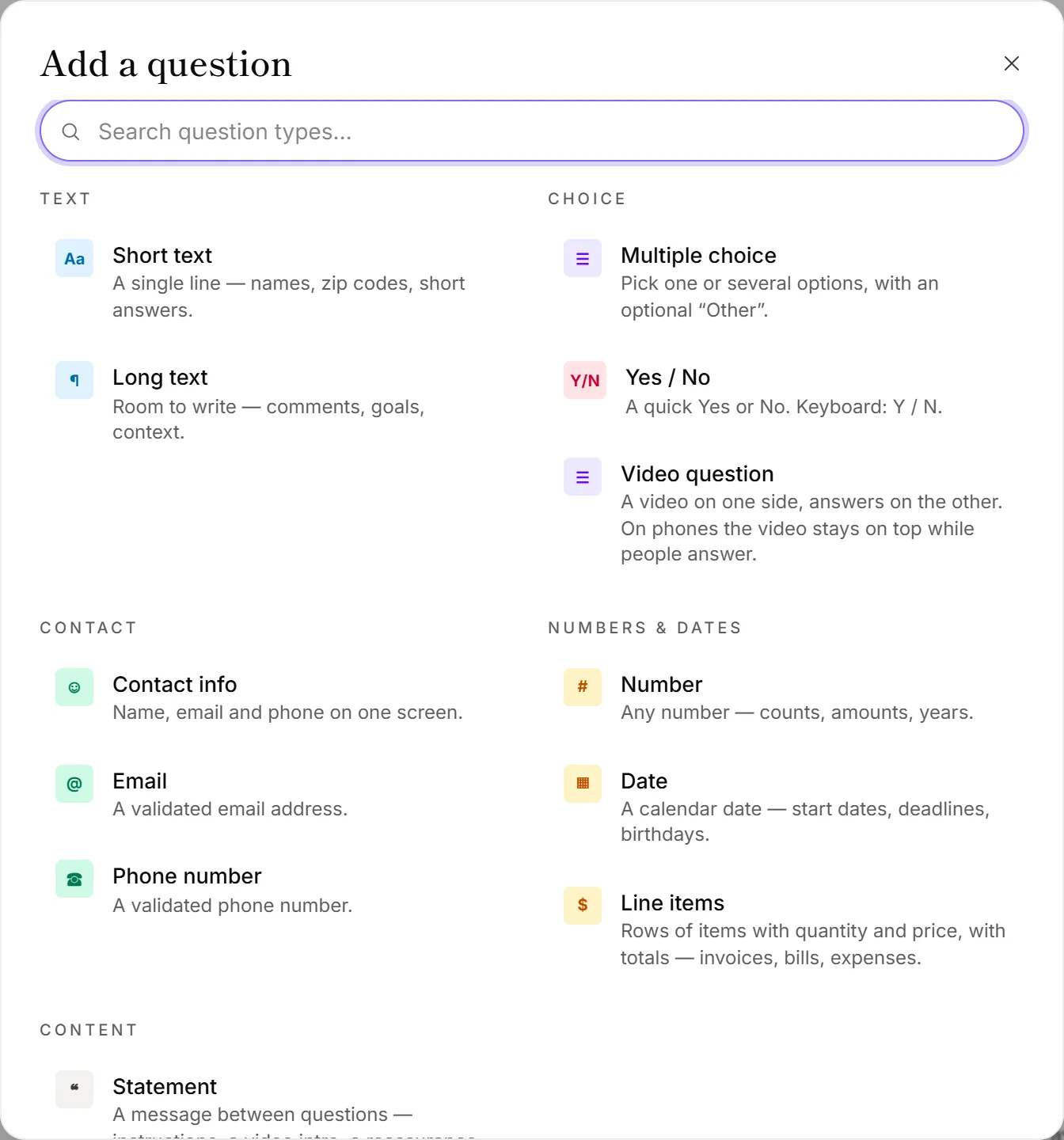
The types
| Type | Clients answer with | Use it for |
|---|---|---|
| Short text | One line of text | Names, zip codes, short answers |
| Long text | A text box | Comments, goals, background |
| Multiple choice | One option, or several | Picking from a list; can include Other |
| Yes / No | Yes or No (keys Y and N work) | Quick either/or questions |
| Video question | A choice, next to a video | Explaining something before they answer |
| Contact info | Name, email and phone on one screen | Who's filling in the form |
| An email address | A checked email on its own | |
| Phone number | A phone number | A checked phone number on its own |
| Number | A number | Counts, amounts, years |
| Date | A calendar date | Start dates, deadlines, birthdays |
| Line items | Rows with a description and price, with totals | Expenses, bills, invoices |
| Statement | Nothing: a message and a button | Instructions, a video intro, a reassurance |
| Question with image | A short answer, under a picture | Any question that needs a picture |
Settings for each type
Select a question to see its settings in the side panel's Content tab.
- Multiple choice: add options with + Add choice, or Paste a list with one option per line. Turn on Multiple selection to allow several answers, and "Other" option to let people type their own.
- Contact info: each part has its own label, type and Required box. Use + Add field for more, such as a company name.
- Line items: choose the Currency and Tax rate, show or hide the Quantity column, Date column and Category column, and set Maximum lines.
- Statement: set the Button text clients click to carry on.
- Short text, Email and Phone number: under This answer is the respondent's…, say whether it holds their first name, last name, full name, email, phone or company. OneForm uses it to address emails and reports, and to greet people by name.
Add a picture or video to any question
- Select the question.
- Under Image or video, choose Image and upload one, or choose Video and paste a YouTube or Vimeo link.
- Choose where it goes: Above, Left side or Right side.
Good to know
- Change a type with Type at the top of the side panel. The wording stays. If rules or lead points depend on the old answers, OneForm says which ones will be removed and asks first.
- Lead points can be set on multiple-choice and yes/no questions. See Set up lead scoring.
Why can't I delete a question?
A form needs at least one question. Add the new question first, then delete the old one. If other rules use the question you're deleting, OneForm lists them and cleans them up when you confirm.