The builder is where you shape a form: its questions, screens, look, settings and report. Open any form from the Forms page to get there. Everything you change is saved as you go.
The tabs
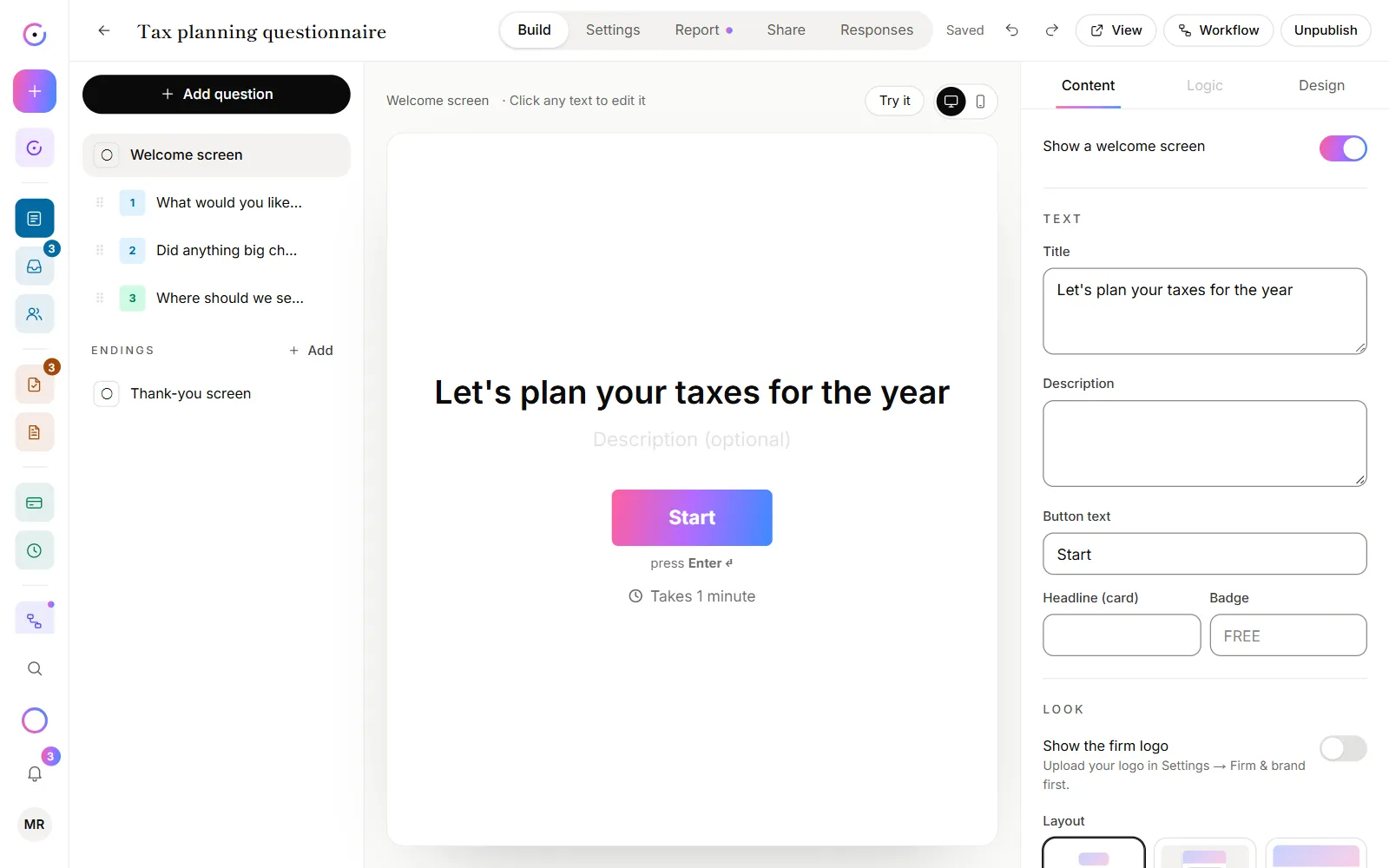
The switch at the top of the builder has five tabs:
| Tab | What it's for |
|---|---|
| Build | Questions, the welcome and thank-you screens, logic and design. |
| Settings | How the form behaves: languages, voice, dynamic questions, hidden fields, scores and more. See Form settings. |
| Report | Whether each response becomes a report, and how OneFormAI writes it. A colored dot means reports are on. See Set up a report on a form. |
| Share | The form's link, QR code and website embeds. See Share a form link. |
| Responses | Every response to this form. |
The Build tab
- On the left: the list. The Welcome screen, your questions, and the Endings under them. Click Add question to add one, or drag the handle beside a question to move it. Open a question's ⋯ menu to add a question below it, duplicate it or delete it.
- In the middle: the preview. It shows the screen you've selected, the way clients see it. Click any text in the preview to edit it right there. Switch between the desktop and phone views with the two icons.
- On the right: the side panel. Content has the selected question's wording, type and settings. Logic has its show/hide rules, jumps and scoring (see Logic and branching). Design has the form's colors and fonts (see Brand your forms).
Try your form
- Click Try it above the preview to go through the form from the start. Answers in the preview aren't saved.
- Click Preview in the top bar to open the form in a new tab. Once the form is published, the button says View and opens the live form.
Saving and undo
- Saving is automatic. The top bar says Editing…, Saving…, then Saved. If it says Not saved, check your connection; the message under the top bar says why.
- Undo a change with the arrows in the top bar, or press ⌘ Z (Ctrl Z on Windows). Redo with ⌘ Shift Z. The keys work when you're not typing in a box. Undo history lasts until you leave the page.
- Change it with AI. Click Edit with OneFormAI at the bottom of the builder, or press ⌘ I, and describe the change. See Create a form with AI.
The top bar
- Workflow opens what happens after someone submits this form. See How workflows work.
- A warning like ⚠ 2 to set up appears when something still needs doing, like connecting Stripe for a price. Click it to see the list.
- Publish makes the form live. Unpublish takes it offline. See Publish a form.
Why does the builder say the form was changed in another tab?
Someone saved this form from another tab or device after you opened it. To protect their edits, the builder stops saving. Click Reload to get the latest version, then make your change again.
Why won't my changes save?
If the message says Your role doesn't allow that, you're a reviewer or viewer. Only owners and admins can edit forms. See Roles and permissions.