Every form can look like your firm: your colors, your font, your logo. Set it up once, save it as a preset, and new forms start with it.
Change a form's look
- Open the form in the builder's Build tab.
- In the side panel, open the Design tab.
- Under Built-in presets, click a look to start from, such as OneForm, Ocean, Forest or Night.
- Under Colors & gradients, click Customize colors to set each color: Background, Buttons, Questions, Selected answers, Numbers & accents and Progress bar. Each one can be a solid color or a gradient.
- Under Background image, upload a photo to show behind every screen, and use Darken to keep text readable.
- Under Typography & shape, pick a Font and the Corners: Square, Soft or Round.
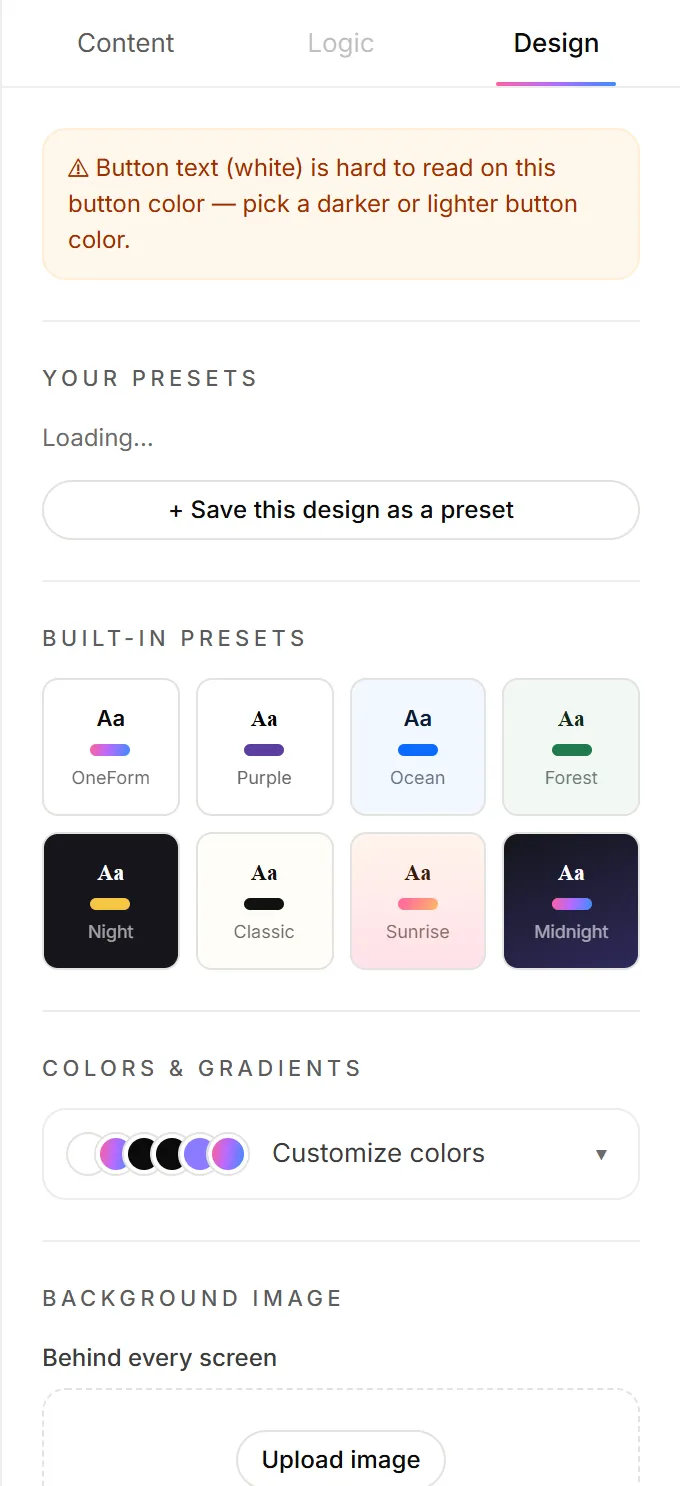
The preview updates as you go, and changes save on their own.
Save your look as a preset
- In the Design tab, under Your presets, click + Save this design as a preset.
- Give it a name, such as "Firm brand".
- Tick Use for all new forms if every new form should start with it.
- Click Save preset.
Open a preset's menu to Use on this form, Use for all new forms, Apply to all forms…, Replace with this form's design, Rename or Delete it. Apply to all forms… replaces the design of every form your firm has, so it asks first.
Add your logo
Your logo is set once for the whole firm:
- Go to Settings and upload it under Firm.
- In the builder, select the Welcome screen or an ending.
- Turn on Show the firm logo.
Your firm's Brand color in Settings is used for email buttons and report accents, not for forms. Set form colors in the Design tab.
The "Made with OneForm" badge
On some plans, forms, report pages, PDFs and emails show a small "Made with OneForm" badge. Plans that include removing it hide it everywhere on their own; there's no switch to turn. See Plans explained or the pricing page.
Good to know
- New forms from templates start with your default preset too. Copies of a form keep the original's design.
- Gradients still use the solid color for borders and tints, so keep the two close.
- Voice-first forms don't use the Design tab. They have their own Brand colors for the glow and orb. See Create a voice form.
Why does the Design tab show a warning?
OneForm checks that clients can read your form. Warnings such as "Question text is hard to read on this background" mean the colors are too close. Pick a darker or lighter color for the item it names. With a background photo, use light text and raise Darken to at least 35%.
Why don't I see "Save this design as a preset"?
The current design already matches one of your presets. It's highlighted in the list.